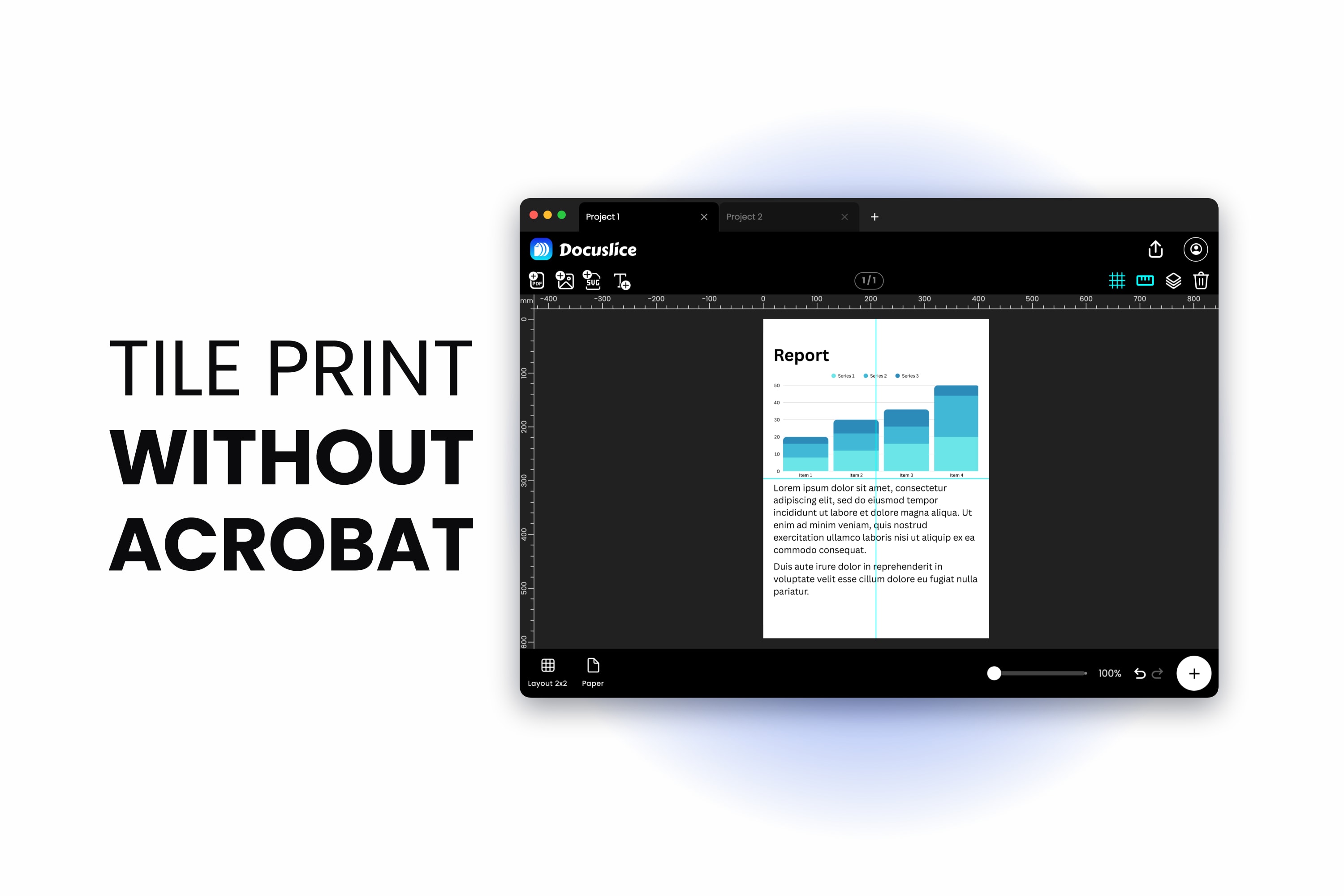
You have a large PDF — a poster, a floor plan, a sewing pattern — and a printer that takes A4 or Letter. You want it at full size across several taped-together sheets, not shrunk onto one page.
Acrobat can do it, and this page shows exactly where the setting hides — or skip to the alternative if you do not have Acrobat.
Acrobat has no Tile menu — tiling is a print setting
Nothing in Acrobat's menus is called Tile, Split, or Poster. Tiling is a print-time option — it does not appear until you open the Print dialog.
Step 1 — Open the PDF in Acrobat itself
Open the file in Adobe Acrobat or the free Adobe Acrobat Reader on Windows or macOS, then press Cmd + P or Ctrl + P. It has to be the desktop application: Acrobat on the web and the Acrobat Reader apps for iOS and Android have no tiling at all. If the PDF is sitting in a browser tab, download it first — no browser's built-in viewer tiles.
Step 2 — Look under Page Sizing and Handling
In Acrobat's Print dialog, find the block labelled Page Sizing & Handling, below the copies and page range controls. It offers four modes — Size, Poster, Multiple and Booklet. Click Poster.
Poster is tiling. The word "tile" appears nowhere on it.
Step 3 — Set the Tile Scale
Poster reveals a Tile Scale percentage: how large the document prints relative to its own size, not how many sheets you want. At 100% the PDF prints at the dimensions it was authored at. At 200% every edge doubles — four times the area, roughly four times the sheets.
Acrobat updates the preview as you type and reports the sheet count. Nudge the percentage until it is right.
Step 4 — Set the Overlap
Overlap repeats a strip of the artwork along each tile's edge, so neighbouring sheets share a band of image. You want it: something to trim to, something to glue, and it absorbs the small differences in how your printer grips each sheet.
Acrobat asks for overlap as a measurement rather than a percentage, in whichever unit the document is using, so the field may show inches or millimetres. Around a centimetre, or half an inch, is a sensible start.
Step 5 — Turn on cut marks and labels
Two checkboxes sit with the poster options. Both are worth using.
Cut marks adds guide marks so you can trim the overlap against a ruler instead of by eye.
Labels adds the file name and page number to each tile. Holding sixteen sheets of near-identical blue sky, that is the difference between a ten-minute assembly and an hour of guessing.
Step 6 — Watch the "tile only large pages" option
"Tile only large pages" applies tiling only to pages larger than the paper size. With it on, any page that already fits one sheet prints as a single sheet.
Check it before you print — it causes the "Poster is selected but nothing is tiling" result. An A4 page you want blown up to A1 is not a large page, so Acrobat has nothing to tile. Clear the option, or raise the Tile Scale until the page exceeds the paper.
Why the Poster option looks like it is missing
Five reasons, in roughly the order they happen:
- You are not actually in Acrobat. Preview on Mac, Microsoft Edge, Chrome's built-in PDF viewer and most phone PDF apps have no tiling — and neither does Acrobat on the web, nor the Acrobat Reader mobile apps. They offer scale and fit, nothing more.
- It is behind a heading. Not a missing feature — Page Sizing & Handling.
- You are in the system print sheet, not Acrobat's. Acrobat draws its own print dialog; the operating system's printer sheet gives you the driver's settings, which do not include Acrobat's poster tiling. Some drivers have a poster mode of their own, but it is the driver's feature and behaves differently.
- Nothing needs tiling yet. See step 6 above.
- You are on a recent macOS using the free Reader. The Poster option is widely reported as greyed out in that combination — see below.
Adobe documents poster tiling as a feature of the free Adobe Acrobat Reader, not only of paid Acrobat, and its Reader help still describes it. On Windows that holds up: no paid licence needed.
On macOS it stopped holding up. Since macOS Sonoma (macOS 14), users have consistently reported the Poster option greyed out in the free Reader, and the reports continued through 2025 on macOS Sequoia. The circulating explanation fits the timing: Apple removed the PostScript conversion path macOS used to provide, leaving Reader to fall back on Print as Image, which has never supported poster printing.
Adobe has never published a known-issue or release note about it, so there is no official confirmation and no promised fix. Paid Acrobat on the same Mac still tiles, which is why this gets described online as Adobe putting poster printing behind the paywall — Adobe has never said so, and its Reader documentation still lists the feature. A platform regression nobody has owned is the fairer description; switching back to the older Acrobat interface does not restore it either.
What Acrobat's tiling genuinely does well
If Acrobat is already on your machine, it is often the right answer.
- It prints from the PDF's own page description, so text and line art come out as crisp as your printer can manage rather than as enlarged pixels. (Print as Image is the exception — it disables poster tiling outright.)
- Cut marks and labels are properly implemented and save real time during assembly.
- It handles a multi-page document in one go.
- It is free in Reader on Windows, already installed on an enormous number of machines.
If you have Acrobat and you just want ink on paper, use it.
Where Acrobat's tiling stops
- It works in percentages, not real-world sizes. No field for "make this exactly 900 mm wide" — you compute the percentage or nudge until the sheet count looks right.
- It is a print job, not a document. For a tiled PDF file you route the job back out through a PDF print destination. On Windows that works: the Adobe PDF printer with paid Acrobat, or Microsoft Print to PDF without it. On macOS, Acrobat's print dialog has no PDF destination, so there is no clean equivalent.
- It only prints what is already in the PDF. At print time you cannot add a second image, a caption, or lay two things side by side. Paid Acrobat can edit the PDF beforehand, but that is separate work — Poster does faithful reproduction and nothing else.
- It is no help if you do not have it. Which is how most people end up on this page.
Acrobat vs Docuslice
| Feature | Adobe Acrobat (Poster) | Docuslice |
|---|---|---|
| Works without installing anything | ❌ | ✅ any browser |
| Available in free Reader on macOS Sonoma+ | ❌ | ✅ |
| Works on web and mobile | ❌ | ✅ |
| Set an exact real-world size | ❌ percentage only | ✅ mm, cm, m, in, ft |
| Set the sheet count directly | ❌ | ✅ |
| Overlap control | ✅ a measurement | ✅ presets 25–100% |
| Tile identification | ✅ Labels | ✅ 3 numbering styles |
| Trim guides | ✅ Cut marks | ✅ cut lines + scissor marks |
| Saves a file you keep | ❌ print job only | ✅ PDF or images |
| Vector output | ✅ | ✅ Pro |
| Compose or edit before tiling | ❌ | ✅ canvas editor |
| Resolution control | ❌ printer driver | ✅ 160 / 300 / 600 DPI |
| Free to use | ✅ Reader on Windows | ✅ free tier |
Tiling the same PDF when your viewer cannot
Docuslice runs in the browser, so it does not care which PDF viewer you have. There are also apps for iOS, Android, Mac and Windows.
Step 1 — Open the PDF and choose your paper
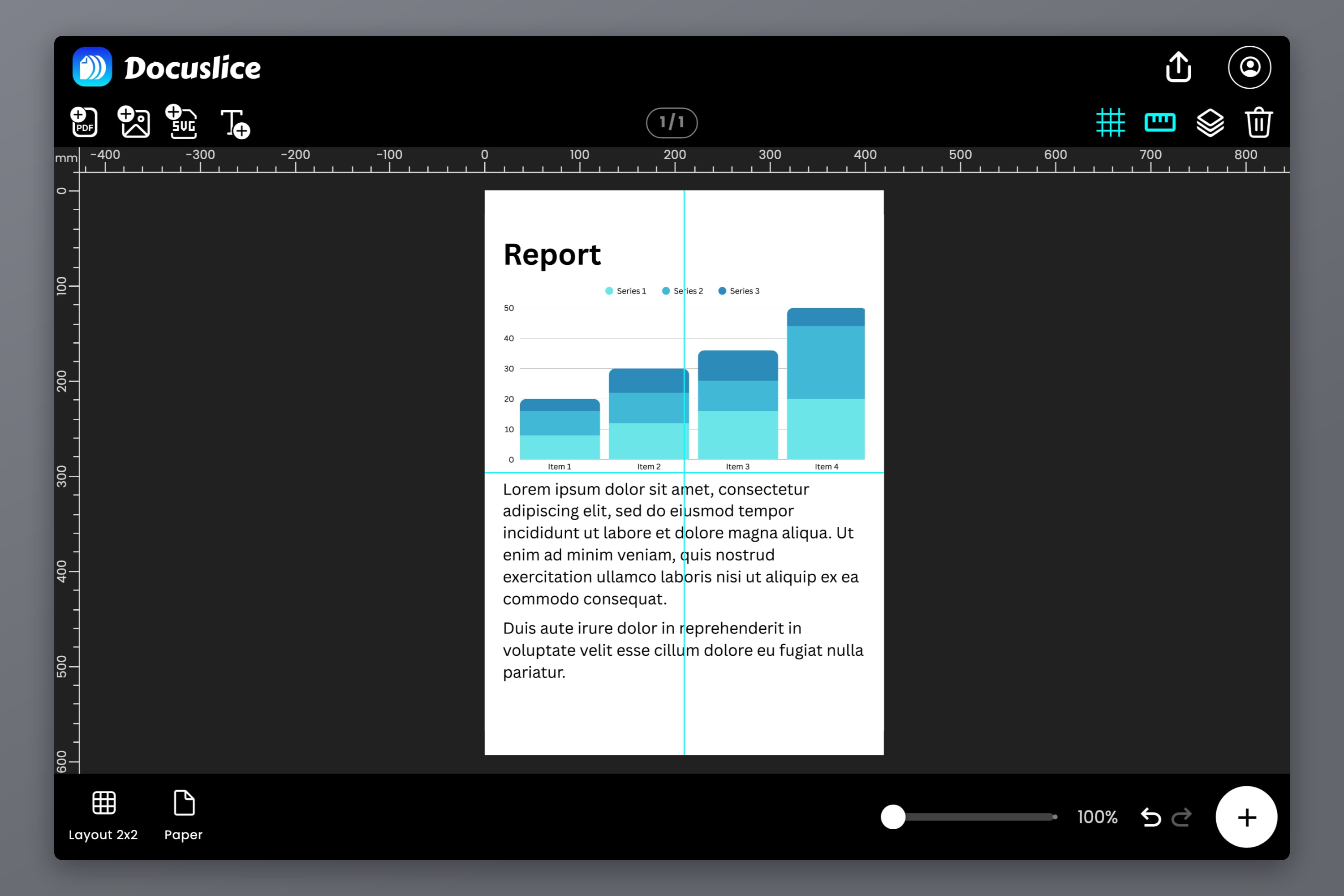
Drop the PDF onto the canvas, then pick paper size and orientation: Letter, Legal, A1 through A6, A3+, Tabloid, Ledger, the photo sizes, or a custom size. The tile grid redraws immediately, so you see the sheet count for each choice.
Step 2 — Say how big you actually want it
Switch to size mode and type the finished size in millimetres, centimetres, metres, inches or feet — 900 mm wide, three feet tall, whatever the wall needs. The sheet count follows. Grid mode works the other way round: nominate the sheets.
For A3 output from an A4 printer, How to Print A3 on an A4 Printer covers that case; How to Print a Large PDF on Multiple Pages walks the general PDF path.
Step 3 — Set overlap, cut lines and page numbers
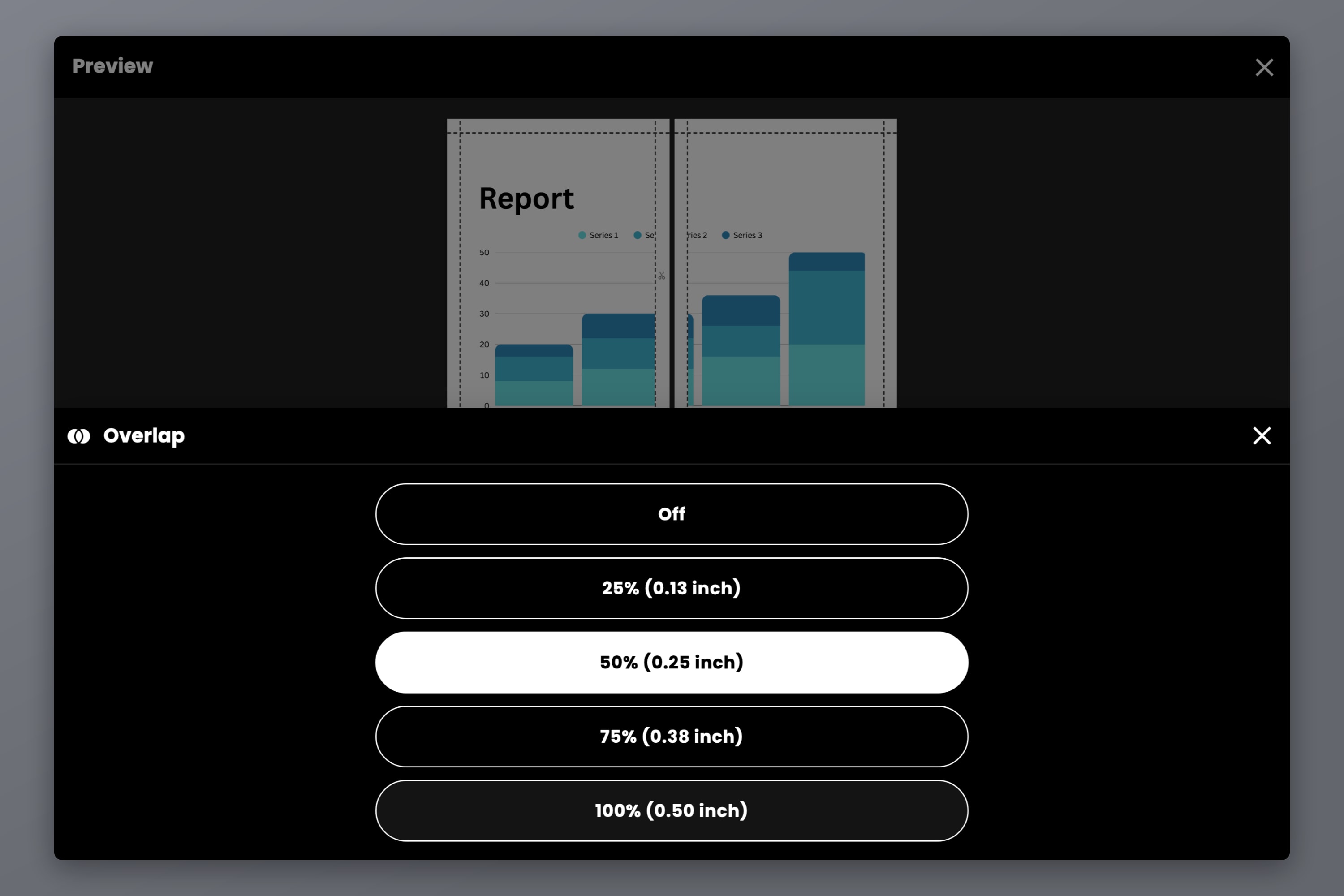
Overlap comes as presets — Off, 25%, 50%, 75% or 100% — so you pick a seam width instead of doing arithmetic. Cut lines and scissor marks give you a trim guide. Page numbers can be Off, Column & Row for grid coordinates, or Sequence for a running count — the job Acrobat's labels do.
Step 4 — Export a file, not just a print job
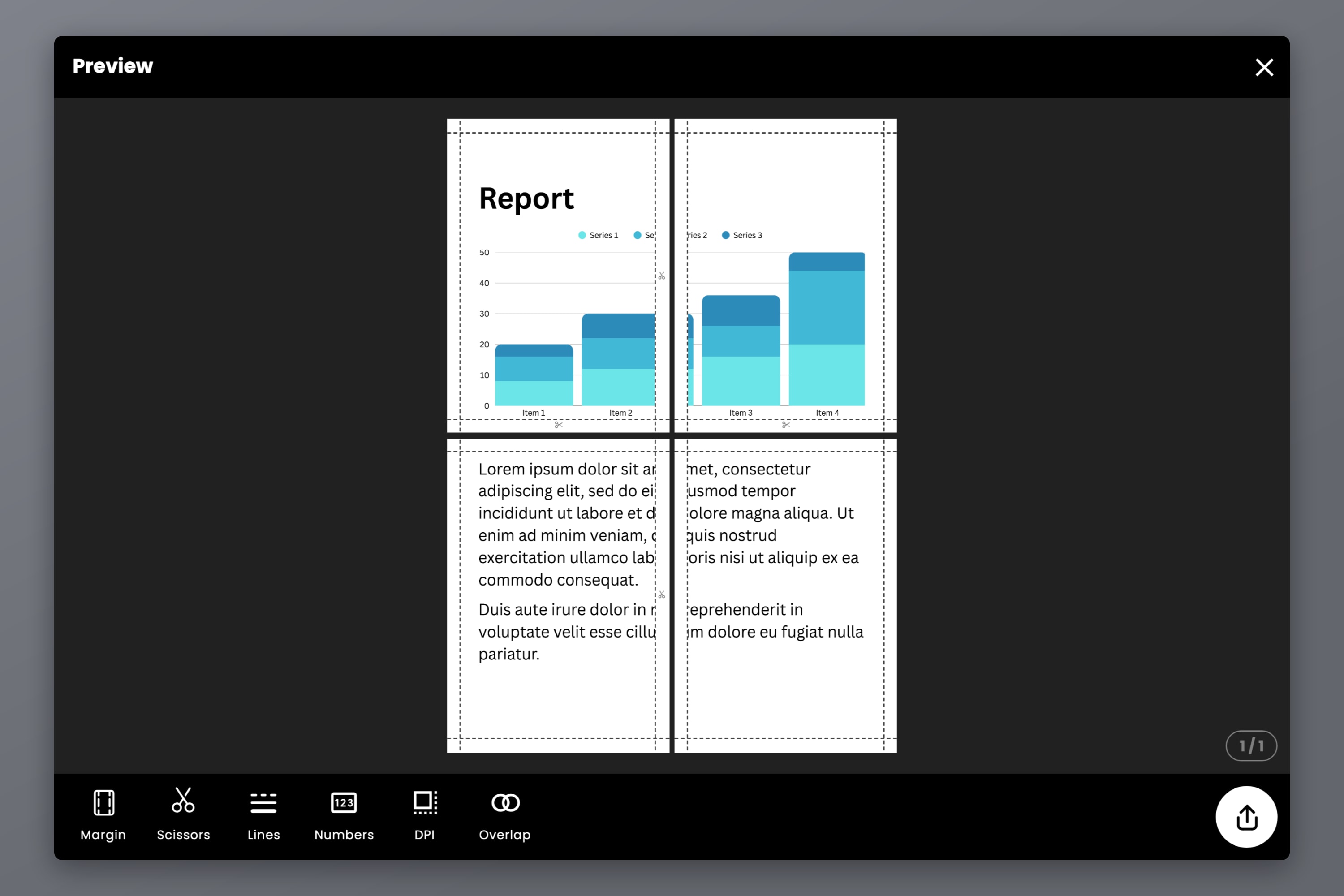
Export as a tiled PDF or as images. Either way you get a file of numbered pages: print now, print later, email, or take to a print shop.
On Pro, vector PDF export keeps the PDF's vector content as vector through the tiling instead of rasterizing it, so plans, patterns, diagrams and type stay sharp at any size — Introducing Vector PDF Export in Docuslice explains how.
For image-heavy documents, export DPI is the control: Standard at 160 is free, High at 300 and Max at 600 on the paid plans, one-time payments rather than subscriptions.
Frequently asked questions
On Windows, yes — in Reader's own Print dialog under Page Sizing & Handling, the same place it sits in paid Acrobat, and Adobe's Reader documentation still describes it. On macOS it is not that clear-cut: since macOS Sonoma, users have widely reported the Poster option greyed out in the free Reader while paid Acrobat still tiles. On Windows, if you cannot find it, you are usually in a different application's print dialog.
Check "Tile only large pages" first, especially at a Tile Scale of 100%. If the page already fits your paper, Acrobat considers it done. Clear that option, or raise the Tile Scale until the page is bigger than the sheet. If it still prints a single page, it may be a genuine defect rather than a setting — Adobe acknowledged a bug with exactly this symptom in 2024, and users kept reporting it afterwards.
No. Preview's print dialog can scale a document to fit the paper and print several pages onto one sheet, but it has no tiling. Edge and Chrome's built-in viewers are the same.
Not directly — Poster targets a printer. On Windows you can point the print job at a PDF destination, either the Adobe PDF printer with paid Acrobat or Microsoft Print to PDF without it — a workaround rather than a feature, and users do report quality loss going that route. On macOS, Acrobat's print dialog has no PDF destination, so there is no straightforward equivalent.
Tiling itself does not. Enlargement does — blow a small image up far enough and you see the pixels. Vector content survives it; photographs only if the source has resolution to spare. How to Print a Poster on Multiple Pages at Home covers the practical side, and Poster Sizes Explained has the sheet counts — an A1 poster tiles onto nine A4 sheets (eight by area, but the grid rounds up) and an A0 onto twenty-five at its exact ISO size of 841 x 1189 mm, or sixteen if you enter the canvas as 840 x 1188 mm.
Try Docuslice
If Acrobat is on your machine and Poster does what you need, use it. When it is not, or you need a real tiled file at a real-world size, Docuslice does the job in a browser tab.