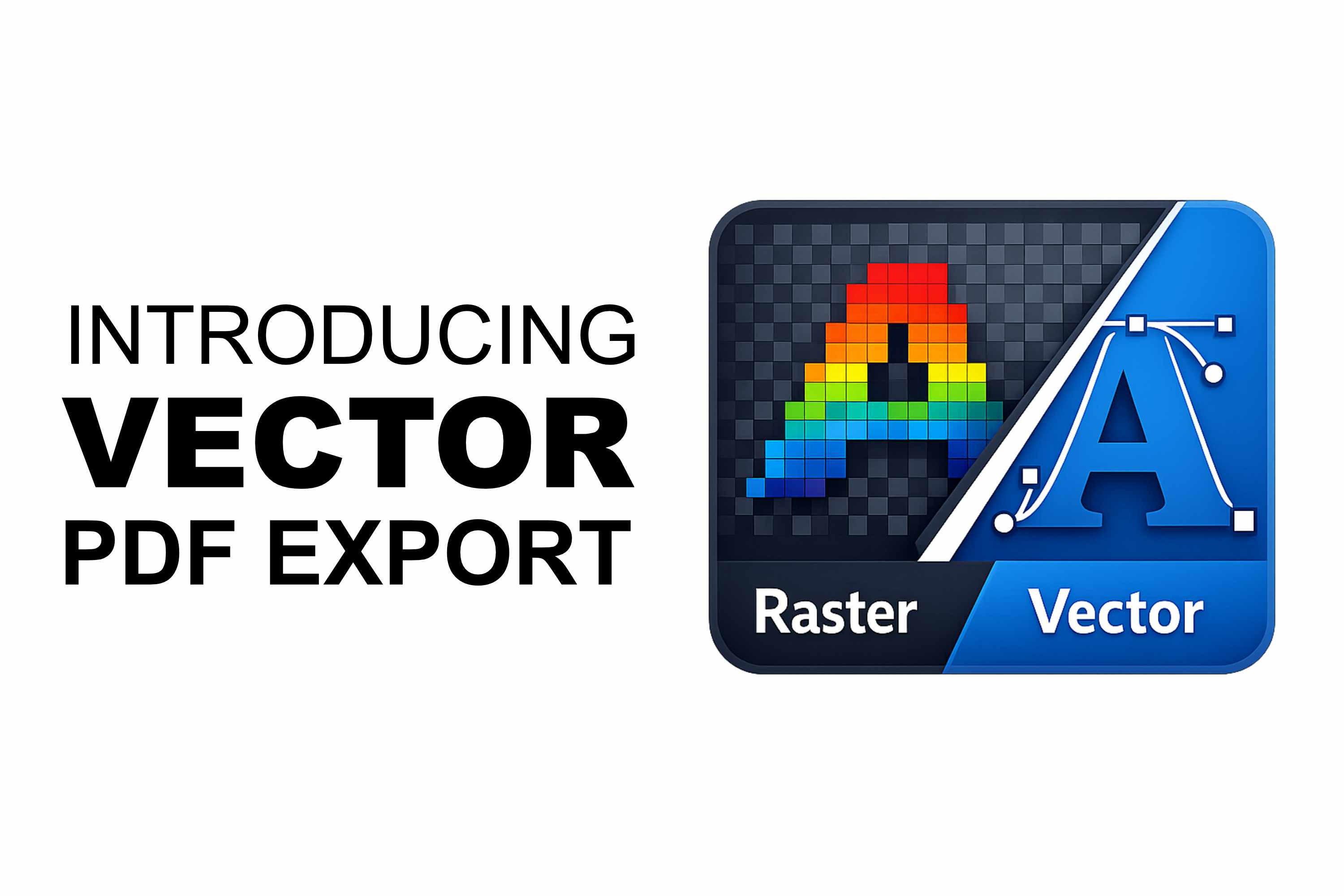
When you blow a design up across many pages, the difference between a good print and a great one comes down to one thing: sharpness. Until now, every Docuslice PDF was rasterized — each tile was rendered to a bitmap and stitched into the PDF. That works beautifully for photos, but text edges, logos, and line art could look soft when scaled to wall size. That changes today.
We're excited to introduce Vector PDF Export — a new way to export your tiled posters where text, shapes, SVG art, and imported PDF pages stay true vectors: crisp at any print size, with selectable text and smaller files for text-heavy and vector-heavy designs.
What Is Vector PDF Export?
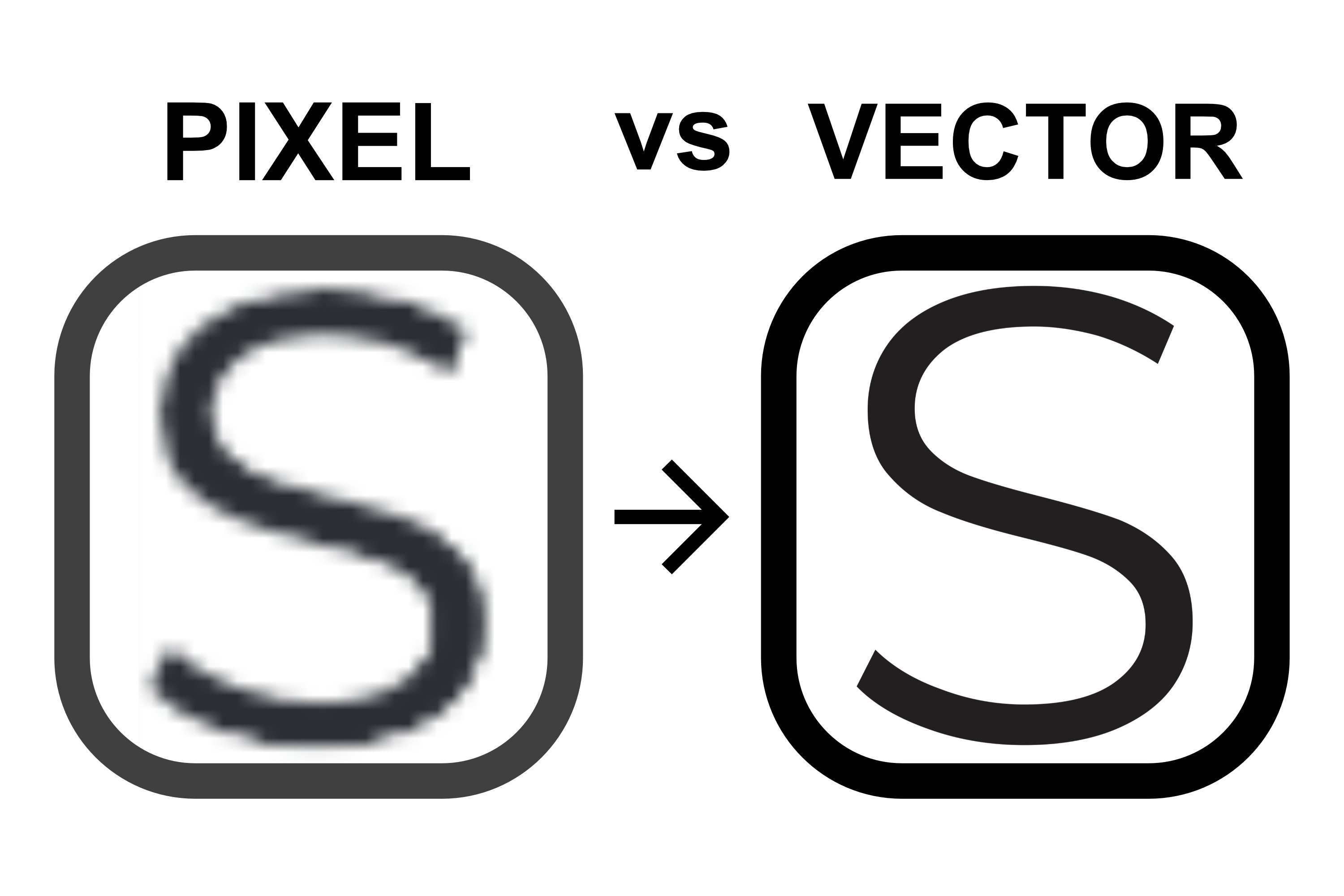
A vector PDF describes your design as math — lines, curves, and text — instead of a grid of pixels. That means it can be scaled to any size without ever losing sharpness. Print it on a single sheet or tile it across 36 pages: the edges stay perfectly clean.
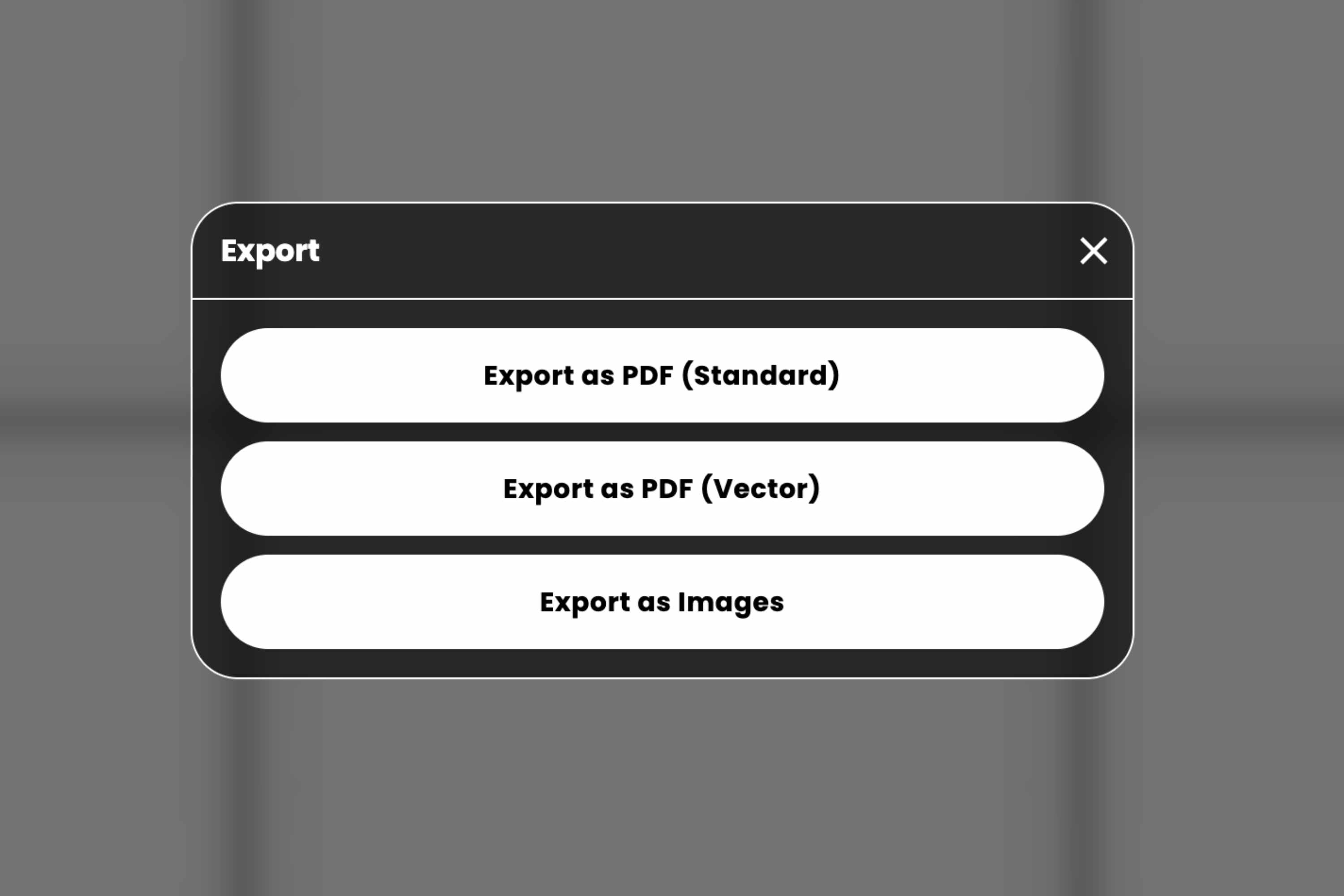
Docuslice now gives you three export choices:
- Export as PDF (Standard) — the classic rasterized export, perfect for photo-heavy posters.
- Export as PDF (Vector) — the new crisp-at-any-size export.
- Export as Images — individual image files, one per tile.
What Stays Sharp
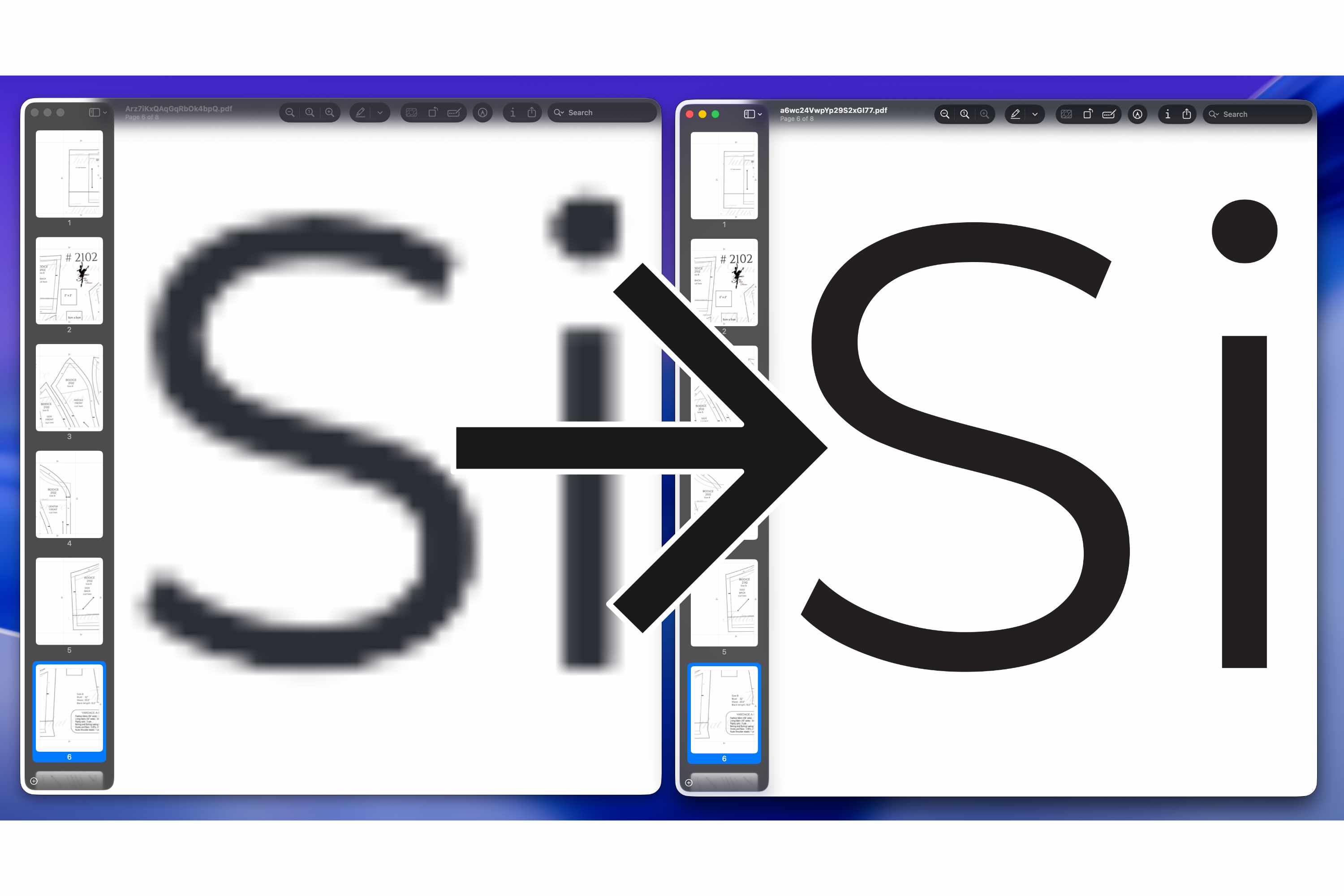
Vector PDF Export keeps the following as true, resolution-independent vectors:
- Text — real, selectable text with embedded fonts. No fuzzy edges, no matter the scale.
- Shapes and SVG art — logos, icons, and cut files render as clean paths.
- Imported PDF pages — embedded as the original vector pages, not a flattened screenshot.
Photos stay photos. Images can't be turned into vectors — pixels are pixels — but instead of being baked into a low-resolution tile bitmap, they're embedded at their native resolution, so they print at the best quality the source allows.
What It's Great For
Vector PDF Export is a game-changer anytime your design leans on text, lines, or logos rather than photos:
- Blueprints, floor plans, and CAD drawings — thin lines and dimension labels stay needle-sharp across a wall-sized print, exactly as your software drew them.
- Engineering and architectural diagrams — schematics, wiring diagrams, and site plans keep every hairline crisp.
- Large text banners and signage — event banners, shop signs, and announcements with big headlines print with clean, professional letterforms at any scale.
- Protest placards and rally signs — bold slogans stay legible and sharp from across the street.
- Logos and branding — company logos and wordmarks reproduce as clean vector art instead of fuzzy bitmaps.
- Maps and infographics — labels, borders, and callouts remain readable even when blown up.
- Line art, coloring pages, and stencils — crisp outlines are easier to trace, cut, or color.
- Stained glass patterns — every lead line prints at a clean, consistent weight and true to size, so the cartoon you cut from is accurate from the first piece to the last.
- Cut files for vinyl and signage — clean paths mean cleaner cuts.
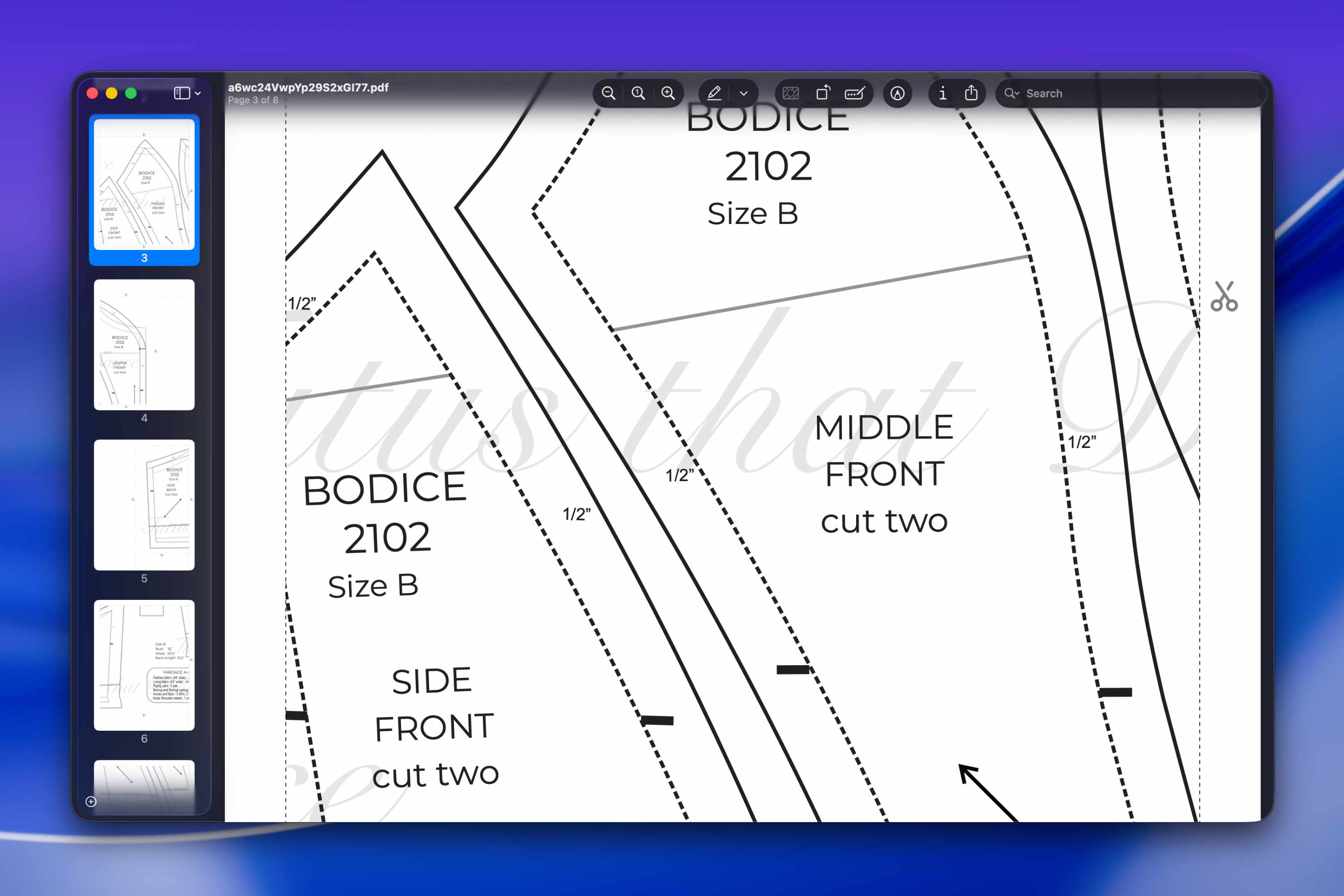
- Sewing, quilting, and craft patterns — exact lines and measurements print true to size with no soft edges.
- Sheet music and lyric posters — staves, notes, and text stay sharp page after page.
- Imported PDFs — already-vector documents (forms, plans, certificates) tile out without being flattened into pixels.
For posters that are mostly large photos, Export as PDF (Standard) is usually the better fit — see the tip below.
How to Use Vector PDF Export
- Tap Export
Open your project, arrange your design, and tap Export. - Choose "Export as PDF (Vector)"
In the export options, pick Export as PDF (Vector). - Save or print
Docuslice builds your vector PDF and hands it off to download or print — ready for any standard printer.
A Paid Feature — Pro and Pro+
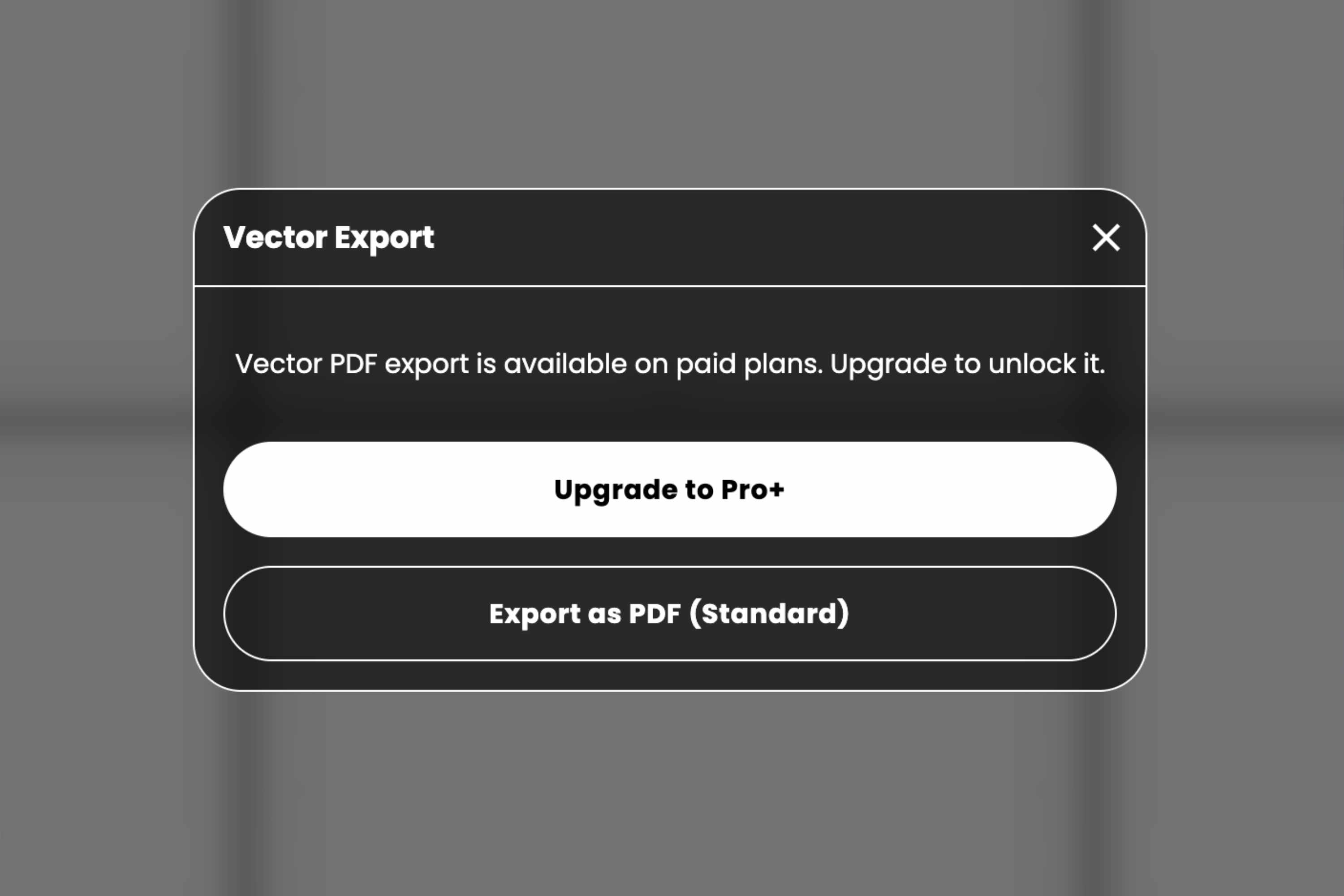
Vector PDF Export is available on the Pro and Pro+ plans. If you're on the free plan and tap Export as PDF (Vector), Docuslice will offer to upgrade you — or you can continue with the always-free Export as PDF (Standard).
Just like every Docuslice paid plan, Pro and Pro+ are one-time payments — pay once and it's yours forever, no subscription.
A Quick Tip for Photo-Heavy Posters
Because photos can't be vectorized, posters made mostly of large photos won't look any sharper as a vector PDF than as a standard one. If your design is mostly photos, Export as PDF (Standard) is often the better choice — and Docuslice will gently remind you when that's the case. For posters with text, logos, line art, or imported PDF pages, Vector is the way to go.
Available on Mobile, Web, and Desktop
Vector PDF Export is available everywhere Docuslice runs — the mobile app (iOS and Android), the web app, and the desktop app (Mac and Windows) — so you can export razor-sharp posters wherever you work.
Download Docuslice
Download Docuslice today and give your text, logos, and line art the sharpness they deserve — at any size.