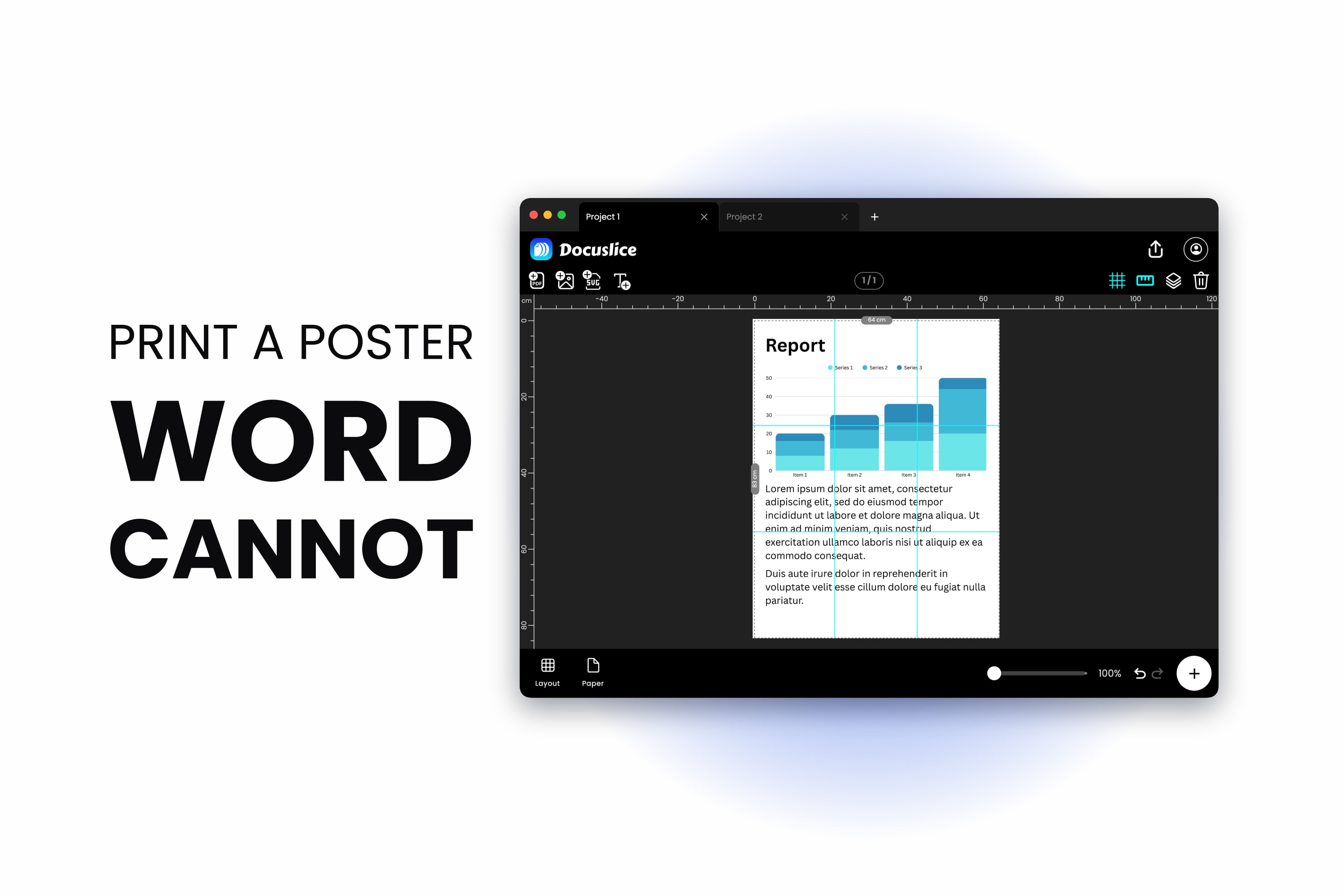
You built the poster in Word. The page is the right size on screen, everything is where you want it — and then the printer hands you one A4 sheet with the whole poster shrunk to fit.
That is where Word stops, not something you did wrong — here is what Word can genuinely do, or skip to the alternative.
What Word can genuinely do
Create a poster-sized page
On Word for Windows: Layout tab > Size > More Paper Sizes at the bottom of the list. In the Paper tab of the Page Setup dialog, type a custom Width and Height and click OK.
On Word for Mac there is no More Paper Sizes entry under Layout > Size, and custom sizes never appear in that dropdown. Use File > Page Setup, or Format > Document and the Page Setup button inside it, which also gives you the margin and layout settings. Mac Word also builds its page size list from the printer selected in Format For, so a driver that tops out below Word's own ceiling caps you earlier — switching Format For to a different printer usually unlocks the larger sizes.
There is a ceiling: Word caps a custom page at 22 inches — about 55.9 cm — on each side. Microsoft's own list of Word's operating limits gives the maximum paper size as 22 by 22 inches, and it has held for Word 2007 and every version since, on Windows and on Mac alike. So you can create an A3 or Tabloid page, but not A2, A1 or A0 — A2 is already 59.4 cm on its long edge. Poster Sizes Explained lists every size in mm, cm and inches.
Lay the poster out properly
This part Word does well:
- Insert > Pictures, then Layout Options > Behind Text to run a photo underneath everything else. On Mac, Picture Format > Wrap Text > Behind Text.
- Text boxes with no fill and no outline, for headline blocks you can drag anywhere on the page.
- Shapes, WordArt, and the alignment guides that appear while you drag.
- Layout > Align for centring and even distribution.
- Design > Page Color for a full-bleed background.
Build a banner by hand across several pages
Word cannot spread one image across a page break, but it can spread a sequence of pages. Set Layout > Orientation to Landscape, set narrow margins, and put one word or one large letter in a text box on each page. Print the pages and tape them in order.
For a HAPPY BIRTHDAY banner this works well. A continuous image or background does not: each page is its own island, anything crossing the boundary is cut off at the page edge, with no overlap and no alignment marks.
Print several pages onto one sheet
Word has a multi-page print control in File > Print, under the pages-per-sheet setting. Note which direction it runs: it puts several document pages onto one sheet of paper — smaller, not larger. The exact opposite of tiling, and the control people most often mistake for it.
Where Word stops
The only sizing control in Word's print settings scales your document to the paper in the printer. There is no poster, tile or split-across-sheets option — not in any version, not on Windows, not on Mac. If your page is bigger than your paper, Word shrinks it to fit.
A picture in a Word document also cannot straddle a page break. Word treats each page as a container, so an image running over the boundary either sits entirely on one page or gets clipped. No arrangement of text boxes gets around it.
One manual workaround is fair to name: put a copy of the picture on each page, then use Picture Format > Crop on every copy to trim it to the section that belongs on that sheet. Done patiently, that genuinely carries one image across several pages. But you judge each crop boundary by eye against the ruler, with no overlap, no trim marks and no numbering. Tolerable for a 2x2, miserable beyond it, and any later edit means re-cropping every copy.
Put together: Word can design a poster it cannot print, and it can print pages it cannot join.
Two things worth trying before you leave Word
Your printer driver might have a poster mode
Check this first — if it is there, it is the shortest path. Several manufacturers, Epson and Canon in particular, build a poster or enlargement mode into their printer driver, reached through the Printer Properties or Preferences button in the print dialog rather than anything in Word.
Two caveats: driver features vary by model, so yours may not have it, and where it exists the controls are coarse — a fixed 2x2 or 3x3 with little say over overlap, trim marks or the finished size.
Microsoft Publisher can tile — but it is being retired
If Publisher is part of your Office installation, it has genuine tiled poster printing built in: pages up to 240 by 240 inches, printing across multiple sheets with horizontal and vertical overlap you set yourself, plus a Print a single tile option that reprints one sheet by row and column when you spoil one. Word shares none of it.
The catch is timing. Publisher leaves Microsoft 365 on 1 October 2026, after which subscribers can no longer open or edit .pub files in it or reinstall it, and support for the perpetual versions bundled with Office 2021 ends on 13 October 2026. A perpetual install keeps running unsupported after that date; a subscription install does not. Workable today if you have it, but not somewhere to move a design you expect to revisit — Microsoft's guidance is to convert existing .pub files to PDF or Word before that date.
Word vs Docuslice
| Feature | Microsoft Word | Docuslice |
|---|---|---|
| Full poster design tools | ✅ text boxes, shapes, WordArt | ❌ basic canvas editor |
| Create an A3 or Tabloid page | ✅ | ✅ |
| Multi-page banner from text | ✅ one letter per page | ✅ as one continuous design |
| Page larger than 22 inches per side | ❌ fixed program limit | ✅ mm, cm, m, in, ft |
| Create an A2, A1 or A0 page | ❌ | ✅ |
| Tile one page across several sheets | ❌ driver poster mode only, fixed 2x2 or 3x3 | ✅ built in |
| Set an exact finished size | ❌ | ✅ mm, cm, m, in, ft |
| Set the sheet count directly | ❌ | ✅ grid mode |
| An image spanning a page break | ❌ hand-crop a copy per page | ✅ standard behaviour |
| Overlap between sheets | ❌ | ✅ presets 25–100% |
| Trim guides | ❌ | ✅ cut lines + scissor marks |
| Numbered tiles for assembly | ❌ | ✅ Column & Row or Sequence |
| Prints an oversized page at full size | ❌ shrinks it to fit | ✅ tiles it |
Finishing the job: tile the Word design across sheets
If neither of those applies, get the design out of Word as a PDF and tile the PDF.
Step 1 — Export the Word document to PDF
On Windows, File > Save a Copy (or File > Save As), then pick PDF from the file type list; File > Export > Create PDF/XPS Document reaches the same place. On Mac, File > Save As or Save a Copy, then choose PDF under File Format. Keep the page size exactly as designed and do not let anything scale on the way out.
This matters even if Word's 22-inch ceiling forced you to design at A3 or smaller: the PDF carries the page's real dimensions and proportions, and a tiling tool scales up from there.
Step 2 — Open the PDF and pick your paper
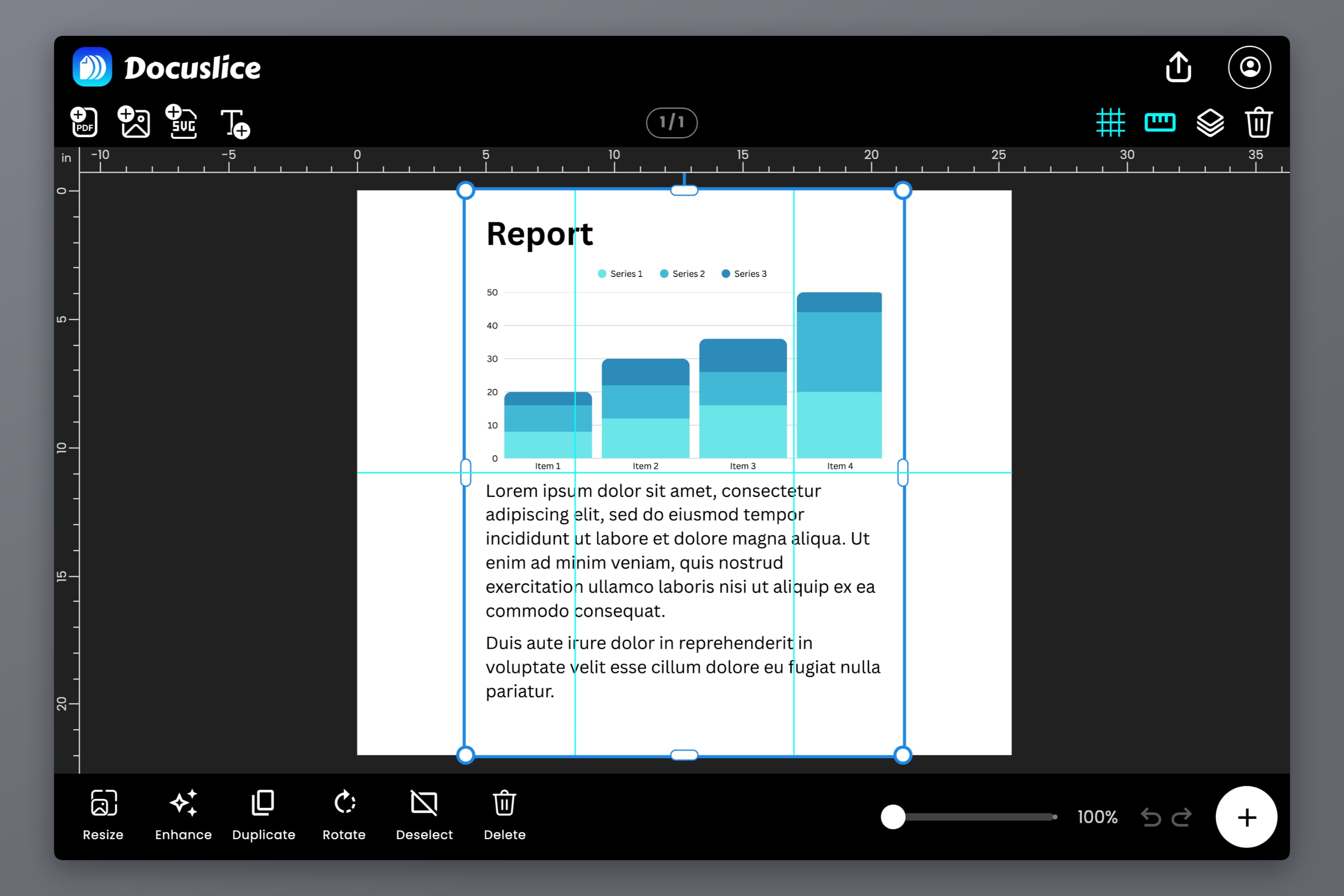
Drop the PDF onto the canvas in Docuslice and pick your paper — Letter, Legal, A1 through A6, A3+, Tabloid, Ledger, the photo sizes or a custom size — and the orientation.
Step 3 — Set the finished poster size
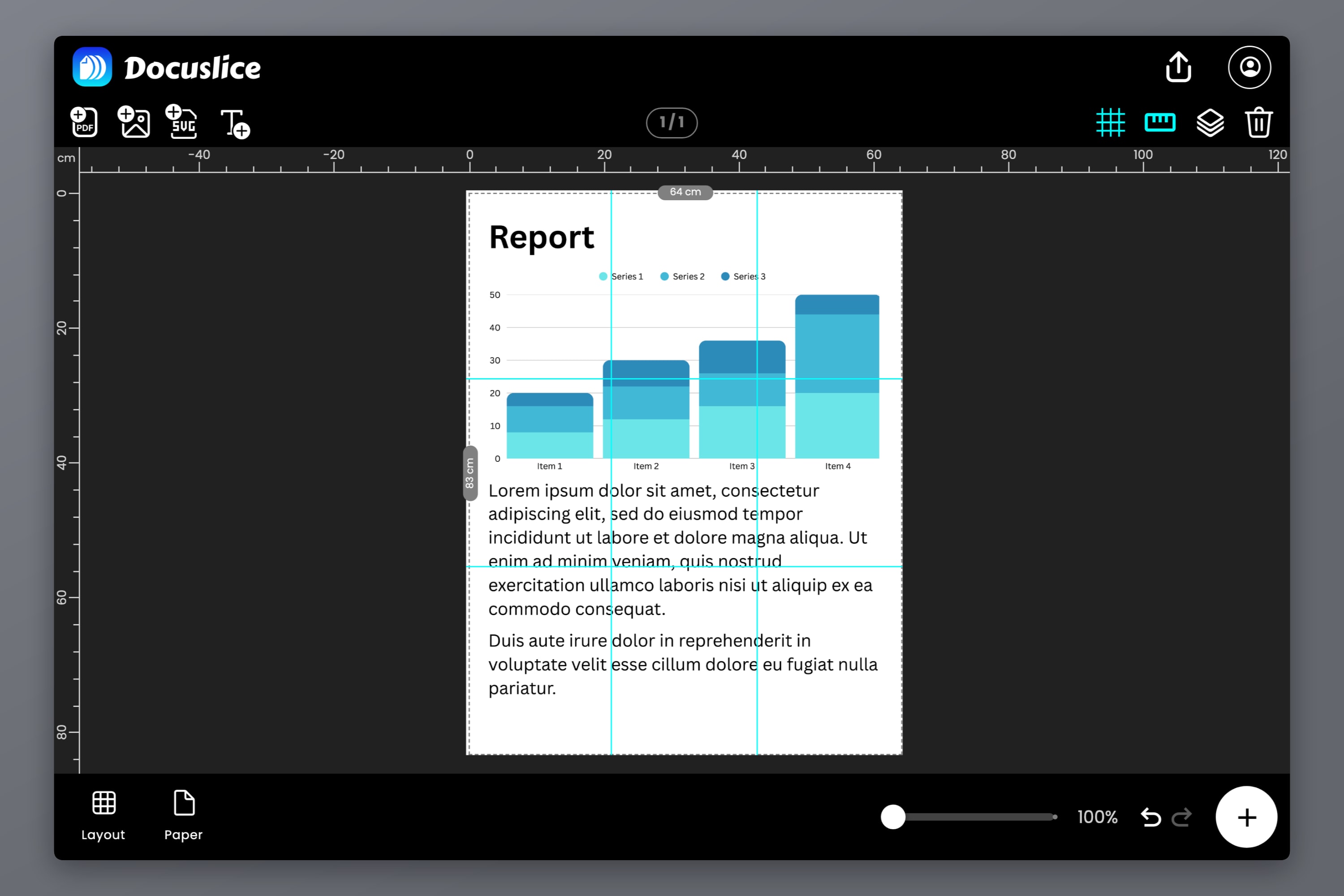
This is where the Word ceiling stops mattering. Switch to size mode and type the size you want in millimetres, centimetres, metres, inches or feet — design at A3 in Word, print at A1 or A0 across sheets. The tile grid redraws as you type, so you see the sheet count before committing. Grid mode works the other way round: nominate the sheets.
Step 4 — Overlap, cut lines, page numbers, export
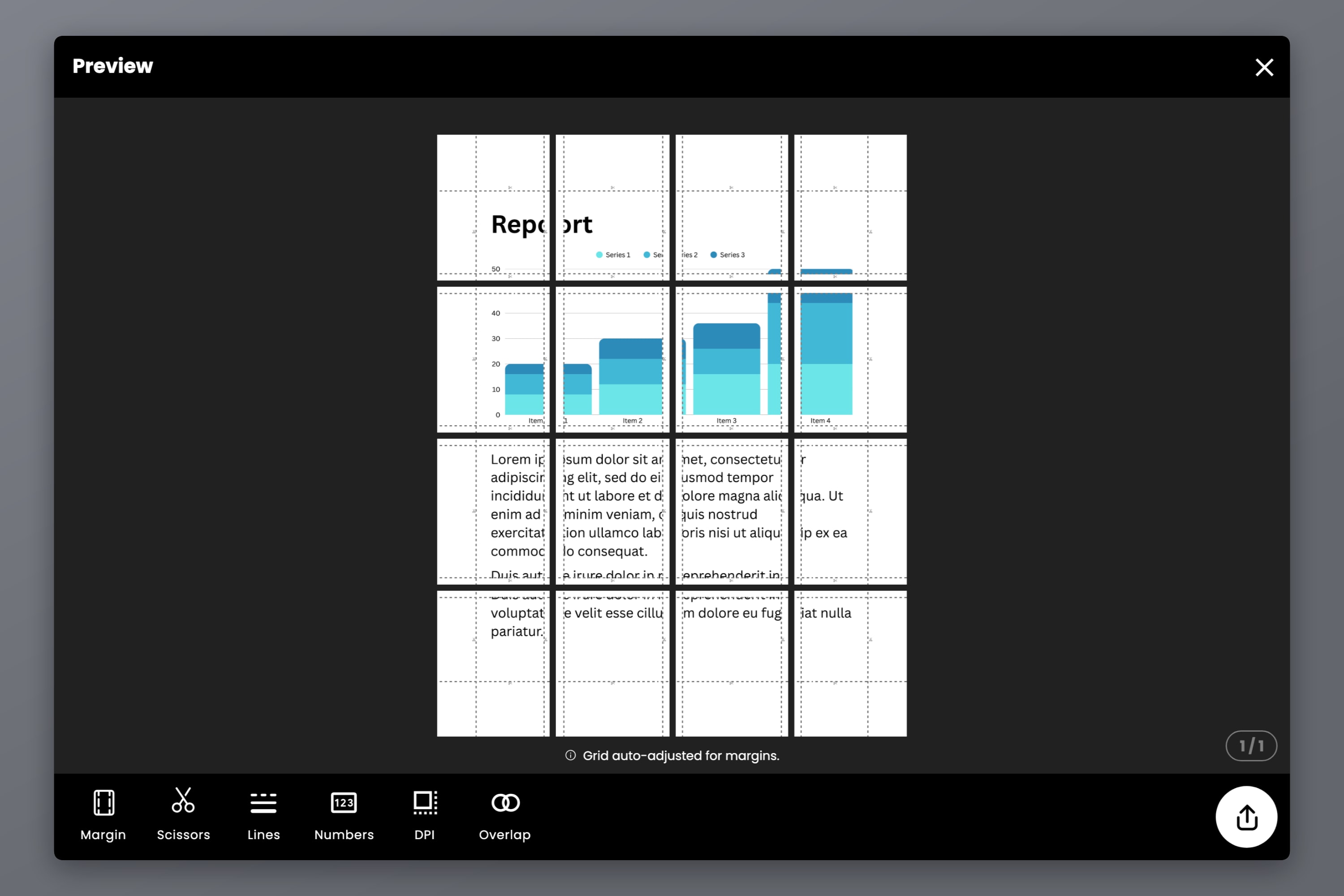
Set overlap — Off, 25%, 50%, 75% or 100% — so neighbouring sheets share a strip to trim and glue. Turn on cut lines and scissor marks for a printed trim guide, and page numbers so a stack of near-identical sheets reassembles: Column & Row, or Sequence.
Then export as a tiled PDF or as images: one file, every tile in it, correctly ordered.
If the design has type in it — and a Word poster almost certainly does — vector PDF export on Pro keeps that type as vector through the tiling instead of pixels, so letterforms stay sharp at poster size. Introducing Vector PDF Export in Docuslice explains it; How to Print a Large PDF on Multiple Pages walks the whole PDF path.
Docuslice runs in the browser, with apps for Mac, Windows, iOS and Android. Free tier; paid plans are one-time payments, not subscriptions.
Frequently asked questions
No. Word can create a large page and shrink it onto your paper, but it has no tiling feature. To print at full size across several sheets, export to PDF and tile the PDF.
Word's print settings scale the document to the paper size. When the page is larger than the sheet, scaling to fit is all Word knows how to do with it.
22 inches by 22 inches, roughly 55.9 cm per side. Microsoft lists this as a fixed operating limit of the program, unchanged since Word 2007 and the same on Windows and Mac. Large enough for A3 and Tabloid, not large enough for A2, A1 or A0. Your printer driver can cap you lower still, but never higher.
Yes, by putting one word or letter per landscape page and taping the printed pages together. Not for a continuous image or background, unless you place a copy of the picture on every page and crop each one to its own section — Word cannot run one piece of artwork across a page break, and gives you no overlap or trim marks.
No. Export the finished Word document to PDF and tile that. The layout, fonts and images come across intact.
Yes — A3 is exactly two A4 sheets, so it is a two-tile job with one seam. How to Print A3 on an A4 Printer covers that specific case, and How to Print a Poster on Multiple Pages at Home covers the larger sizes.
Try Docuslice
Design it in Word if that is where you are comfortable — then export the PDF and let Docuslice handle the part Word cannot.