Requirements
- A Docuslice account with an active Pro+ plan.
- The desktop app is exclusive to Pro+ users.
- Windows 10 or later.
✅ Docuslice is free to use on Android, iOS, and Web. Only the desktop app requires a Pro+ plan.
Step 1 — Download the app
- Open your browser and go to app.docuslice.com/get-desktop.
- Sign in with your Docuslice account if prompted.
- Identify your PC's processor architecture:
- x64 (most PCs) → choose Download for Windows (x64)
- ARM64 (Surface Pro X, Snapdragon-based PCs) → choose Download for Windows (ARM64)
Not sure? Open Settings → System → About and look at System type. - Click the corresponding download button. Your browser will save a
.exeinstaller file.
Step 2 — Install the app
- Open the downloaded
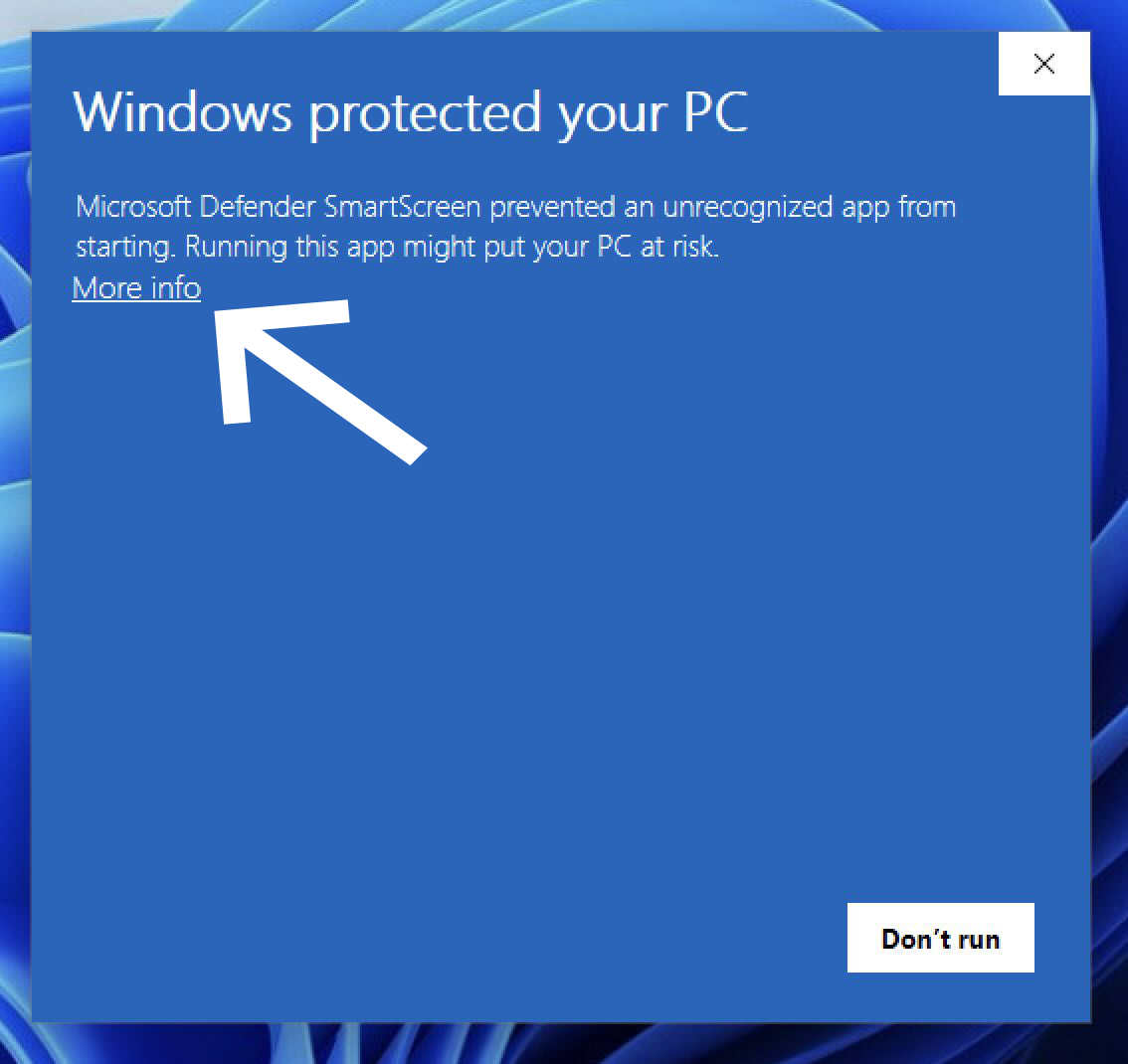
.exefile (usually in your Downloads folder). - If Windows SmartScreen shows a warning, click More info.
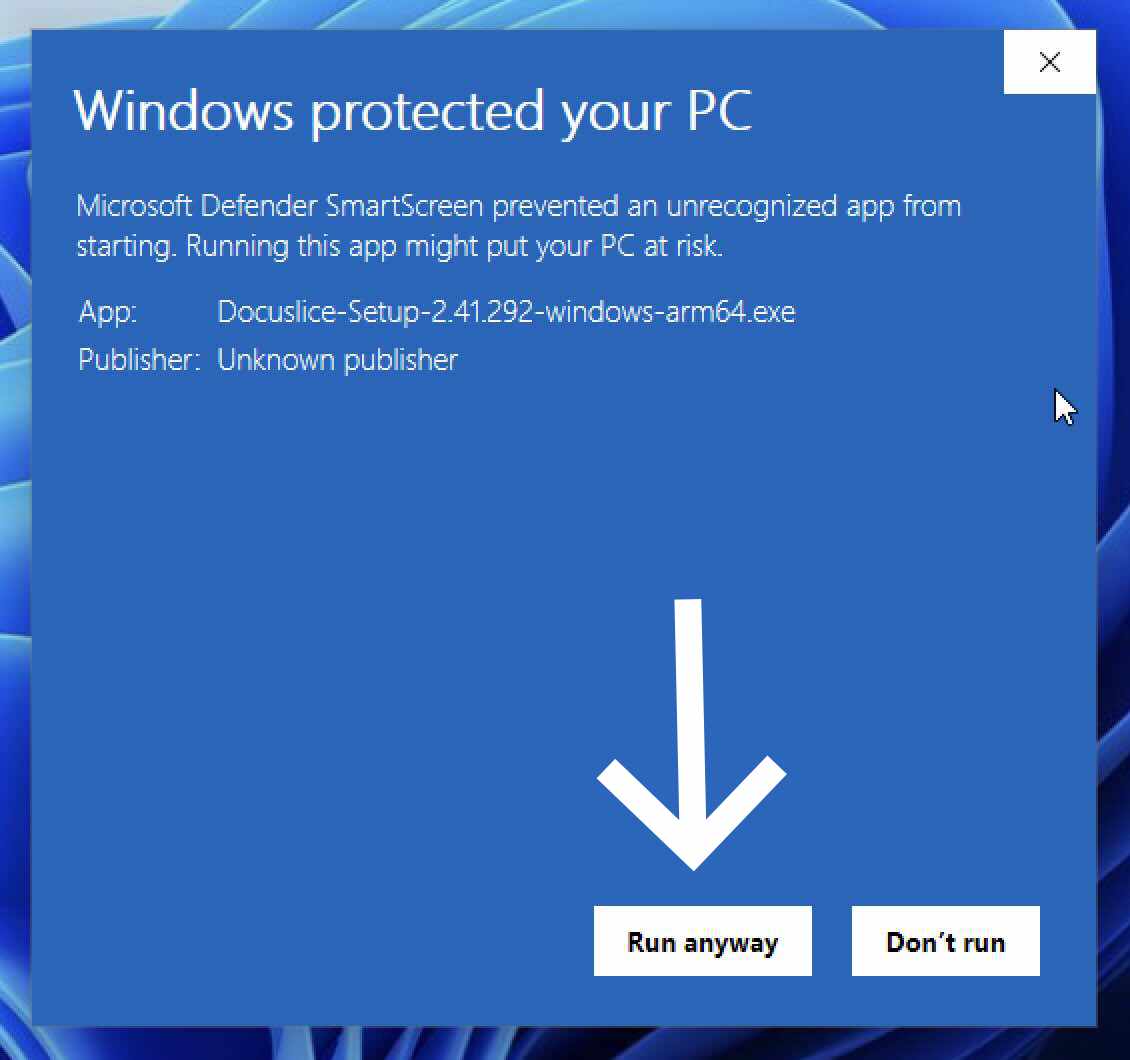
- Then click Run anyway.
- Follow the on-screen installation wizard and click Install.
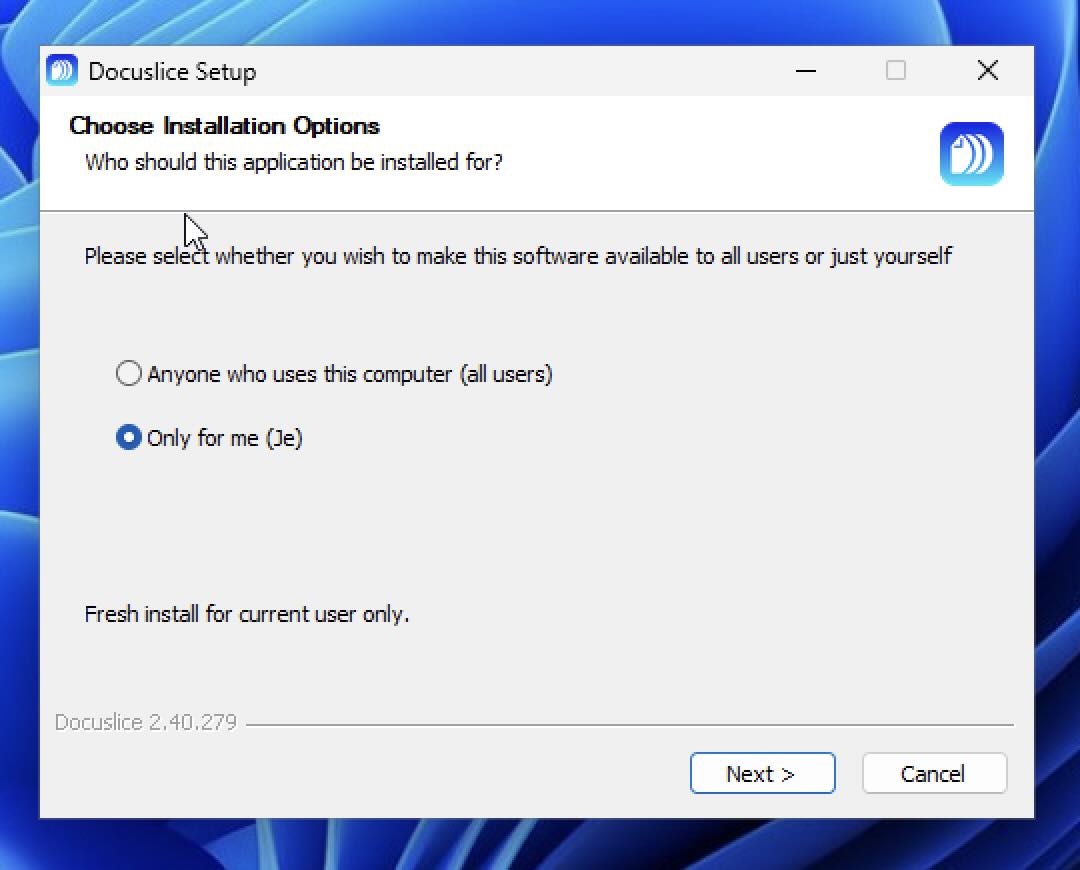
- Once complete, click Finish.
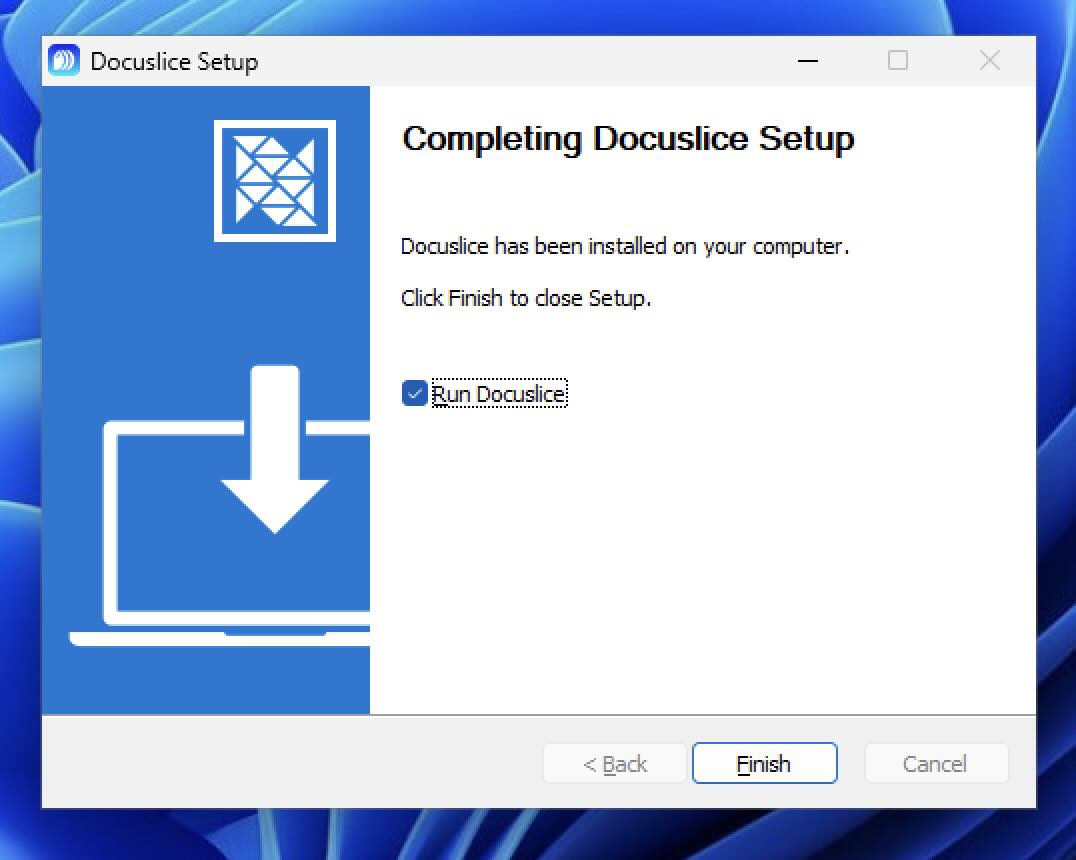
❌ Having trouble with the SmartScreen warning? You can also install Docuslice directly from the Microsoft Store — no SmartScreen prompt, no extra steps.
Step 3 — Open Docuslice
Docuslice will be available in the Start menu and on your Desktop. Double-click to launch it, then sign in with your Docuslice account to get started.
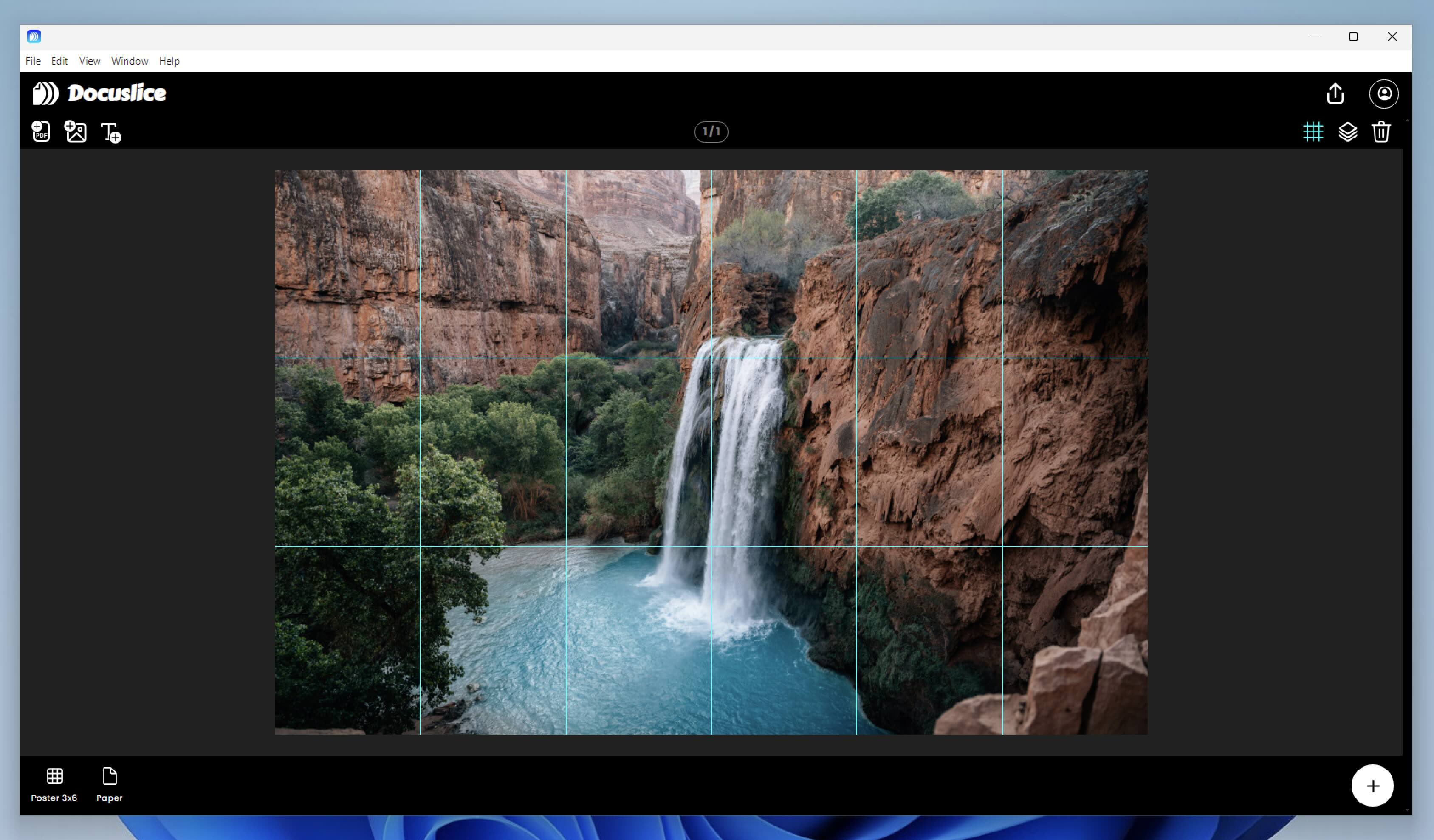
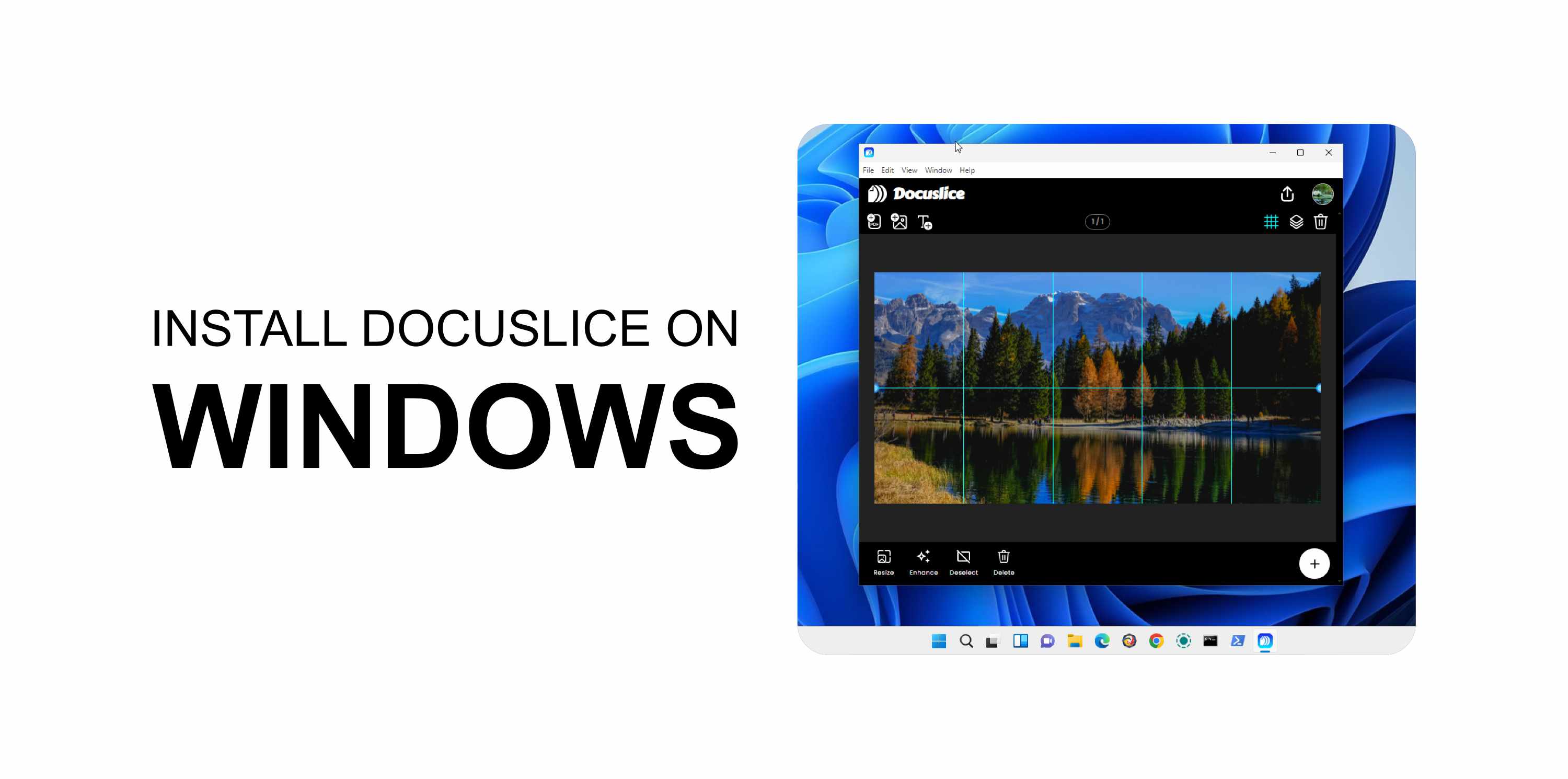
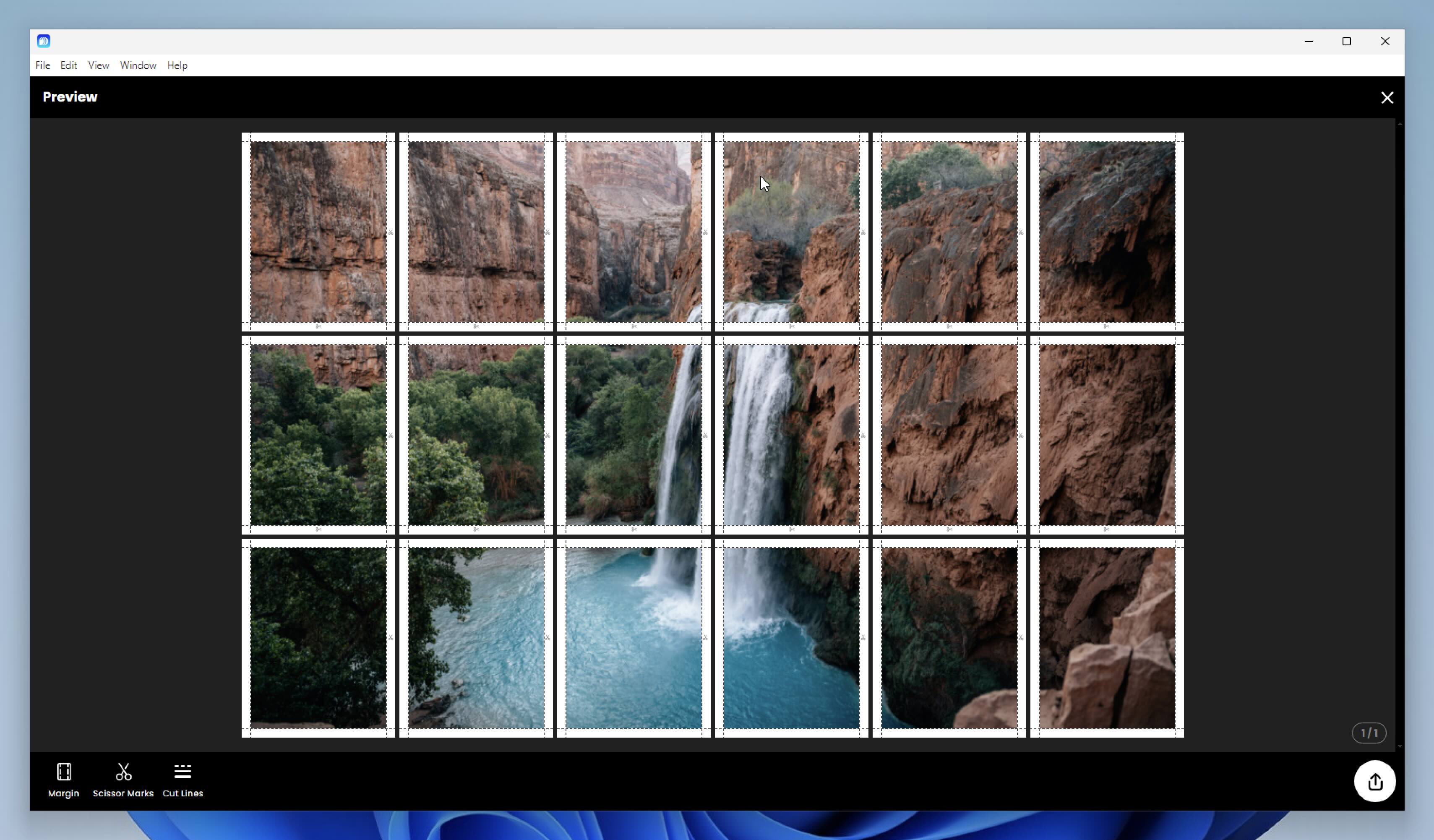
Once signed in, you can arrange your media on the canvas and preview the tiled export before printing.
Updating Docuslice
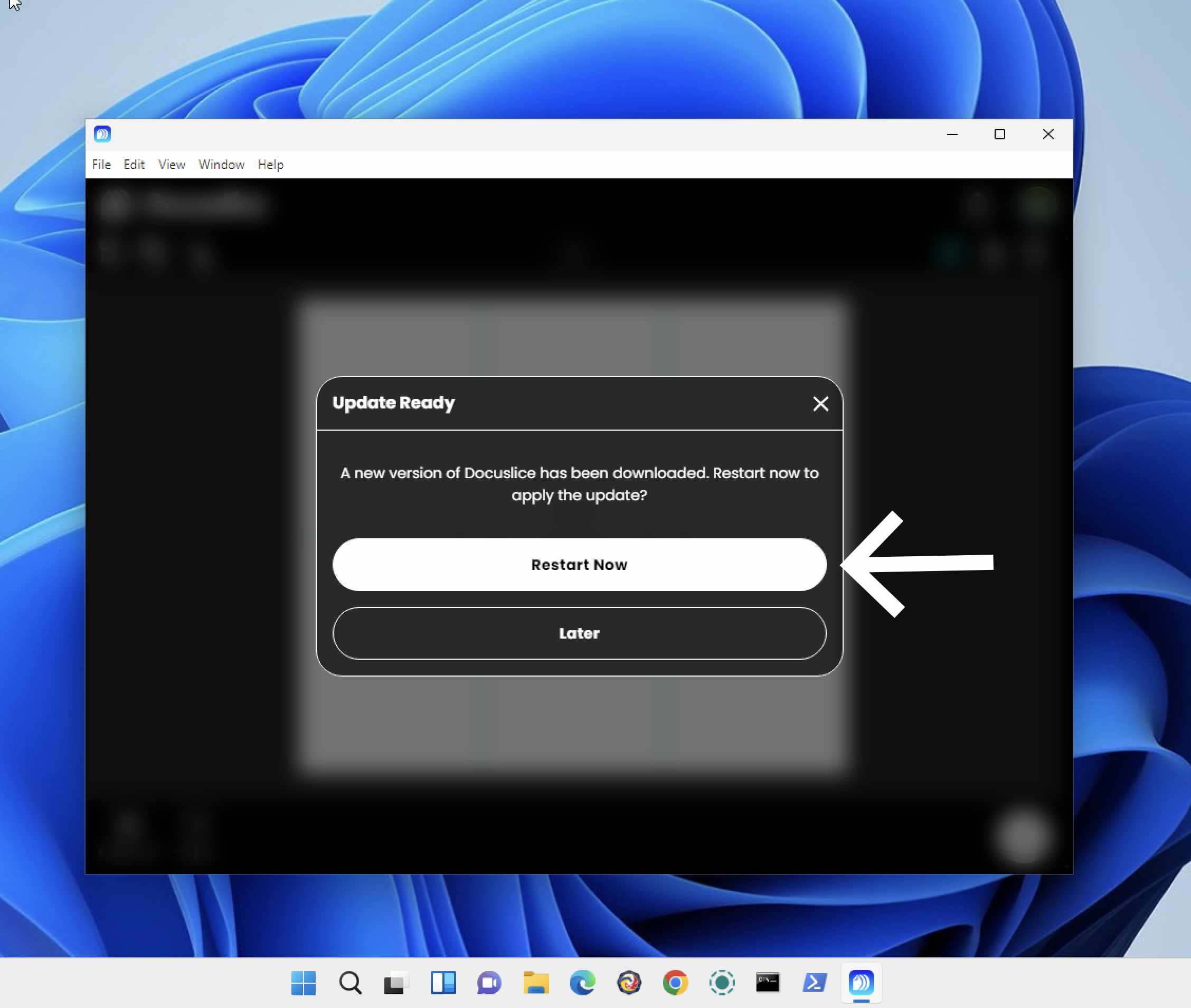
Docuslice checks for updates automatically on launch. When a new version is available you will be prompted to install it.