Requirements
- A Docuslice account with an active Pro+ plan.
- The desktop app is exclusive to Pro+ users.
- macOS 10.15 (Catalina) or later.
✅ Docuslice is free to use on Android, iOS, and Web. Only the desktop app requires a Pro+ plan.
Step 1 — Download the app
- Open your browser and go to app.docuslice.com/get-desktop.
- Sign in with your Docuslice account if prompted.
- Identify which chip your Mac uses:
- Apple Silicon (M1, M2, M3, M4, and later) → choose Download for Mac (Apple Silicon)
- Intel → choose Download for Mac (Intel)
Not sure which chip you have? Click the Apple menu → About This Mac. Look for "Chip" (Apple Silicon) or "Processor" (Intel). - Click the corresponding download button. Your browser will save a
.dmgfile.
Step 2 — Install the app
- Open the downloaded
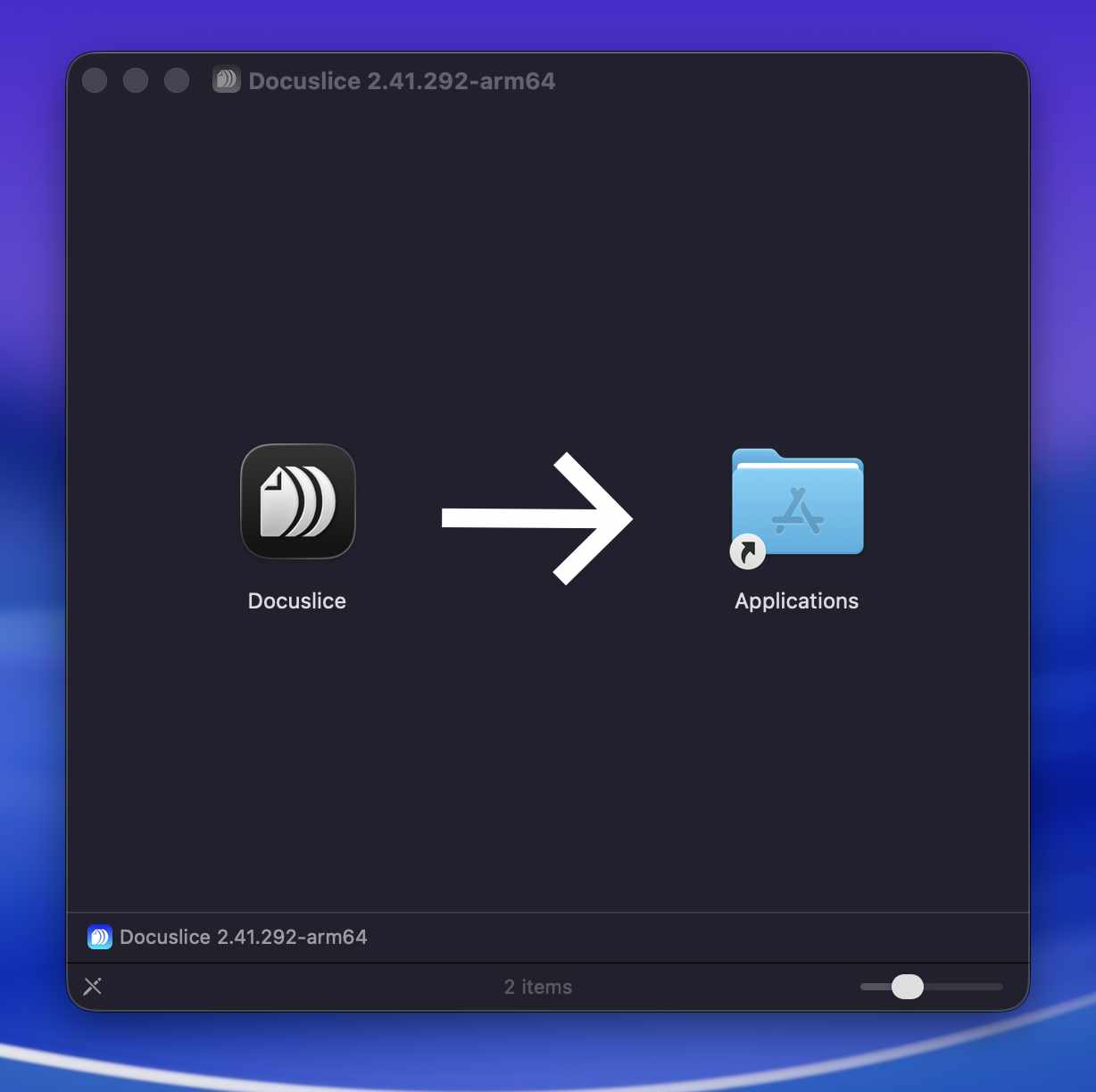
.dmgfile (usually in your Downloads folder). - In the window that appears, drag the Docuslice icon into the Applications folder.
- Eject the disk image by pressing the eject button next to it in Finder.
Step 3 — Open Docuslice
- Open Finder → Applications and double-click Docuslice.
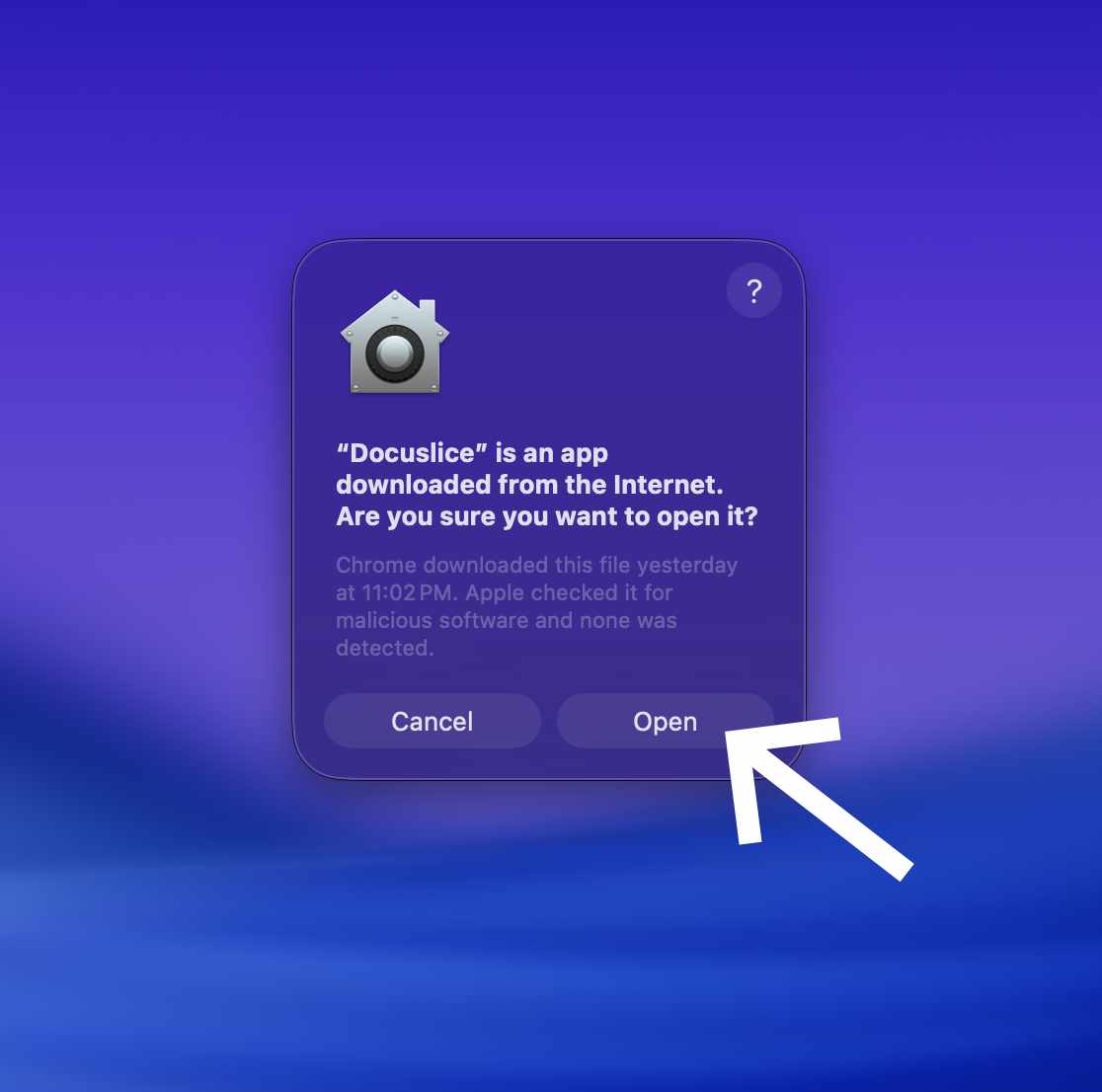
- If macOS shows a security prompt ("Docuslice can't be opened because it is from an unidentified developer"), do the following:
- Open System Settings → Privacy & Security.
- Scroll down to the security message about Docuslice and click Open Anyway.
- Click Open in the confirmation dialog.
Docuslice will launch and you can sign in with your account to get started.
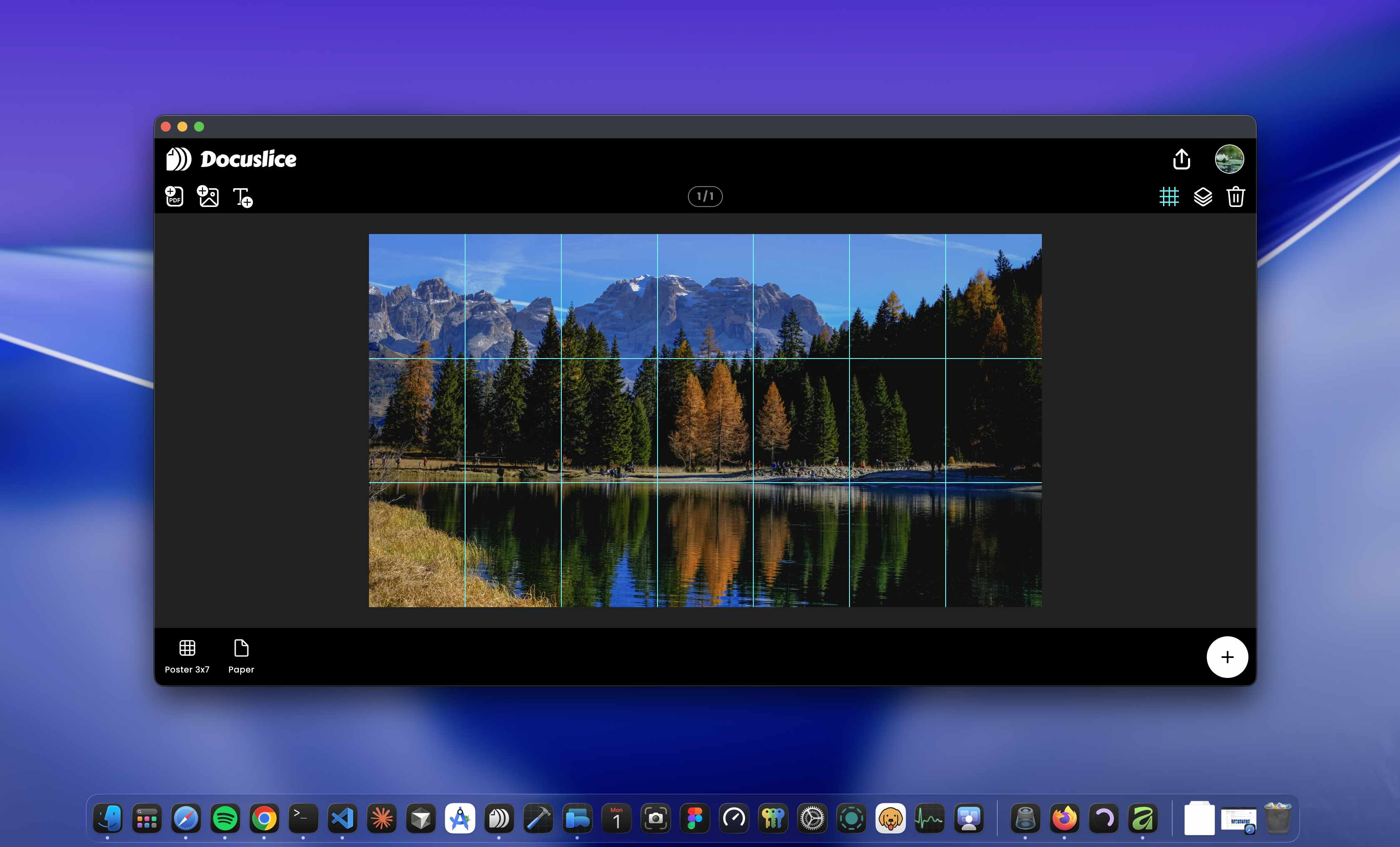
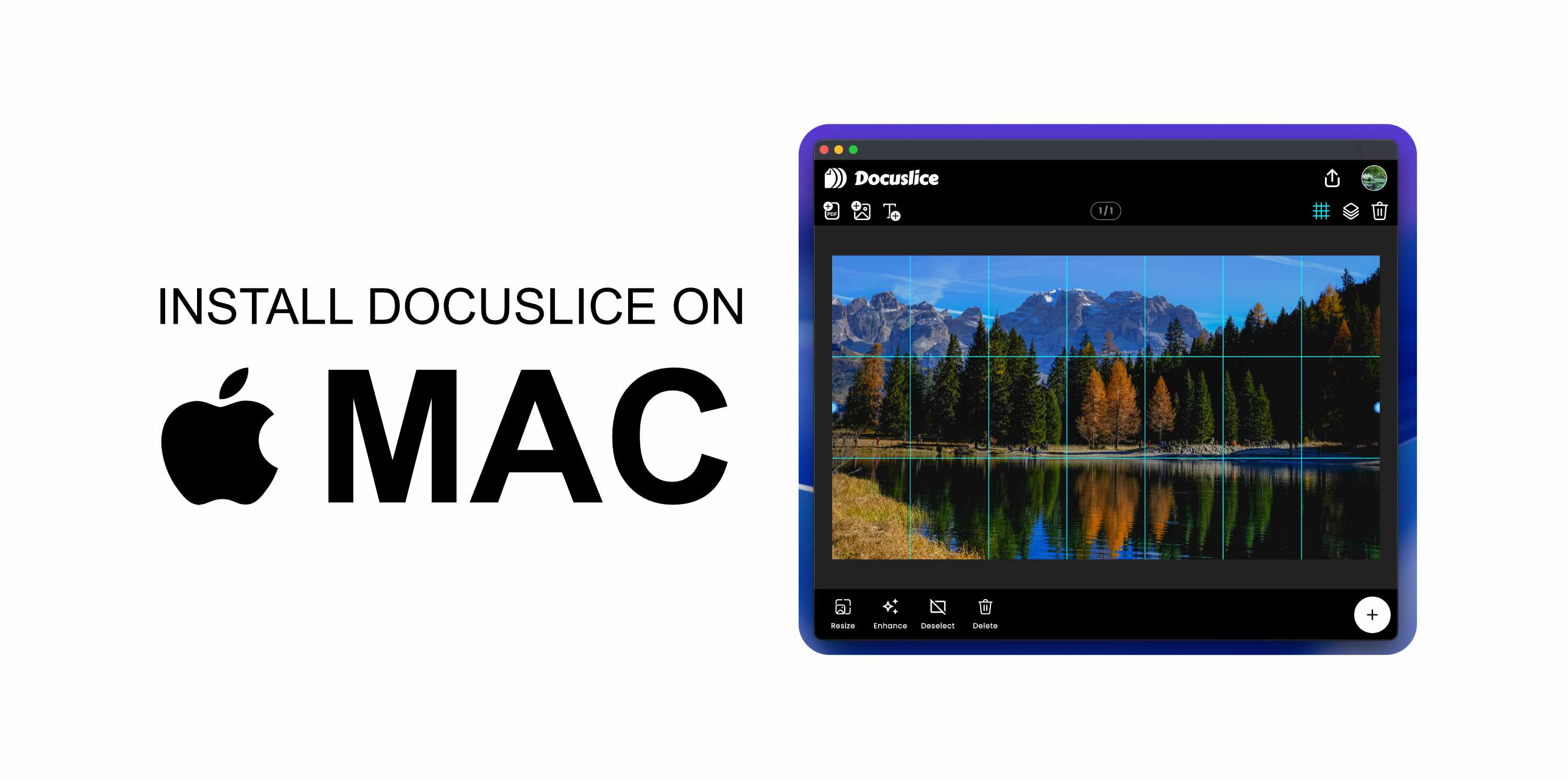
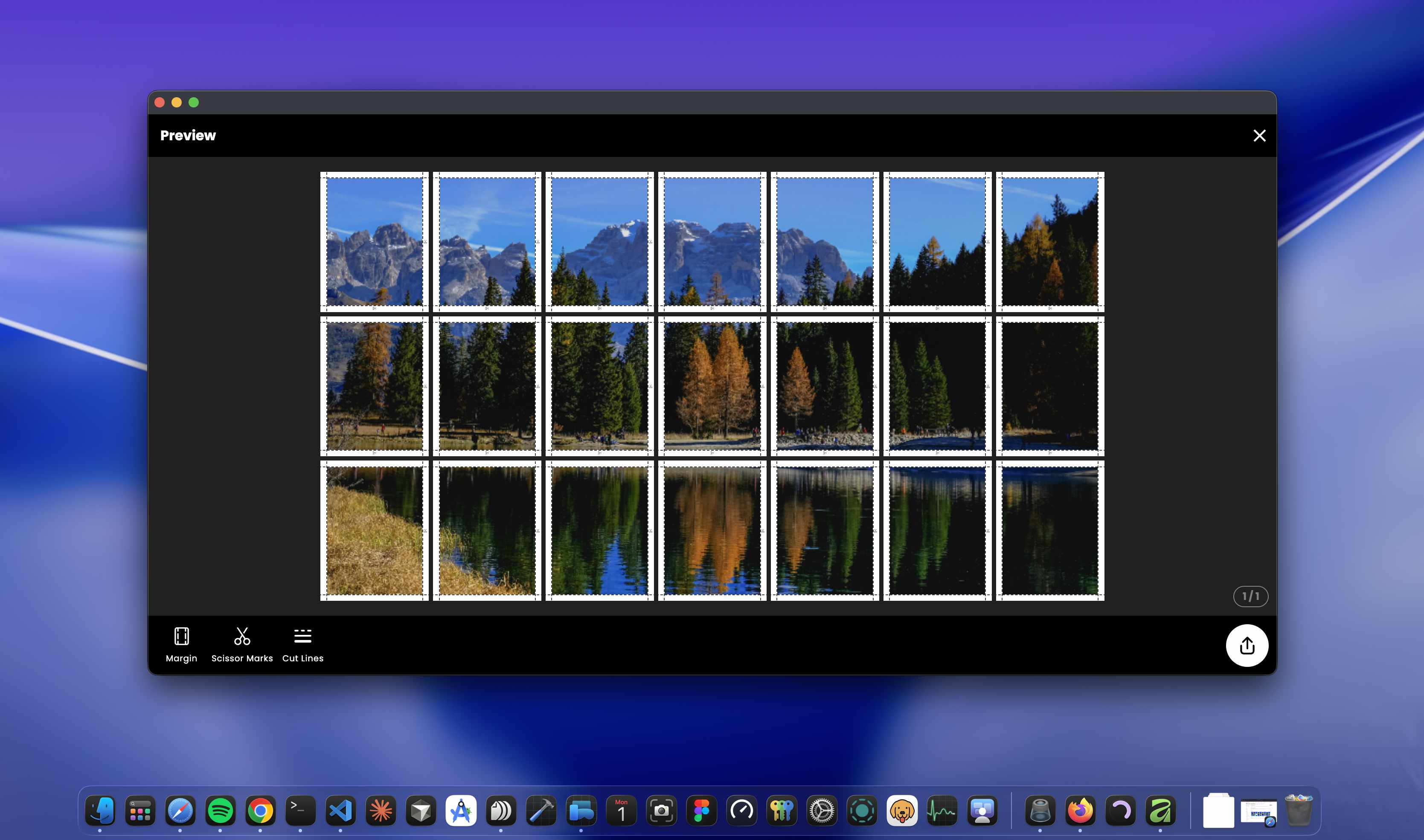
Once signed in, you can arrange your media on the canvas and preview the tiled export before printing.
Updating Docuslice
Docuslice checks for updates automatically on launch. When a new version is available you will be prompted to install it.