Docuslice hands you a file, and the browser and desktop apps can also open an in-app print preview that passes the job on to your printer dialog. Either way the dialog is where a correct export gets printed badly, and these are the settings to check in it.
1. Scale: 100% / Actual Size
This is the one. Set the scale to 100%, or the option called Actual Size.
Where the setting lives depends on the machine, not on Docuslice:
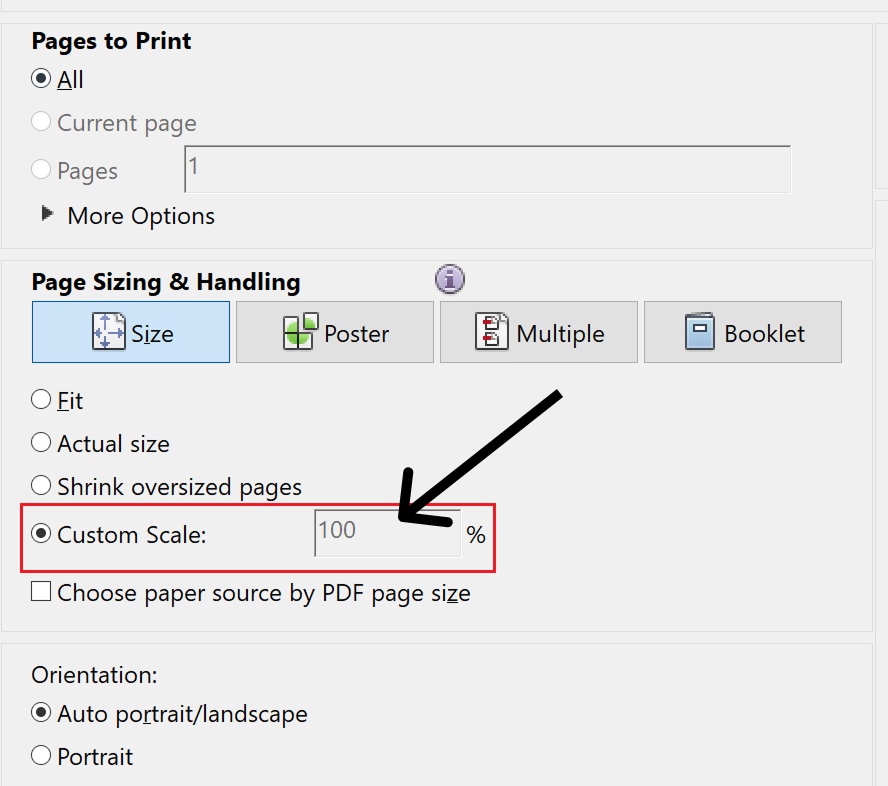
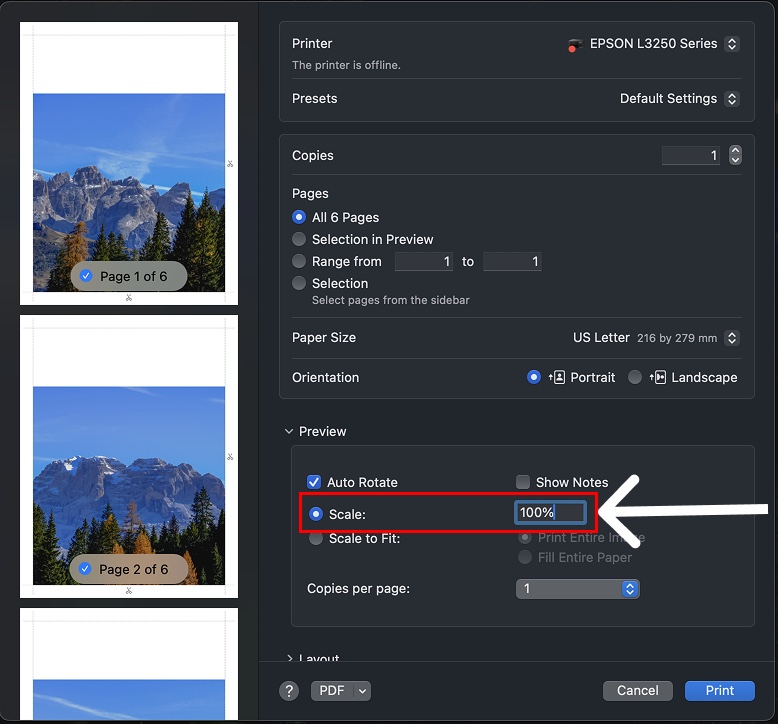
Do not use:
- Fit to page
- Shrink oversized pages
- Scale to fit printable area
- Any percentage other than 100
Every one of those silently shrinks each sheet. The consequences:
- The tiles no longer line up, because each was shrunk about its own centre.
- Content appears cut off at the edges even though your margin was correct.
- A poster in size mode does not measure what you asked for — a 1:1 sewing pattern printed at "fit to page" is the wrong size and unusable.
Fit-to-page is the default in several PDF readers. Check it every time, on every machine.
Related symptoms: pages are cropped and the poster printed at the wrong size.
2. Paper size must match what you told Docuslice
If you built the poster for A4, print on A4. If the printer dialog is set to Letter and the export is A4, the driver will either scale it or clip it, and both break the tiling.
Check the tray as well as the dialog.
3. Orientation: let the file decide
Set the dialog to follow the document rather than forcing portrait or landscape. Docuslice writes each page at the orientation you chose, and overriding it rotates or crops the tiles.
4. Borderless printing: only if you meant it
If your printer supports borderless and you enable it, it typically scales the page up slightly to guarantee edge coverage. That is a scale change, with the same consequences as fit-to-page.
Borderless is only useful with a margin of 0, and even then most people are better off with a 0.50 in margin and a guillotine.
5. Duplex off
Print single-sided. A tiled poster printed double-sided gives you half as many sheets and no way to assemble them.
Before you print thirty sheets, print one
Print page 1 alone and check three things:
- Is the content complete up to the cut line, or is something missing near an edge?
- Measure the printable area with a ruler. Does it match the paper size you chose, less the margin?
- Is anything visibly soft or pixelated?
Each of those has a page: cropped, wrong size, blurry. Finding it on sheet one costs one sheet.
Print shops
If you are sending the export to a print shop, tell them explicitly: print at 100%, no scaling, no auto-rotate, single-sided. Shop equipment defaults to fitting the page, and the operator has no way to know your file is a tiled poster.