系統需求
- 擁有有效 Pro+ 方案的 Docuslice 帳戶。
- 桌面應用程式僅供 Pro+ 用戶使用。
- macOS 10.15(Catalina)或更高版本。
✅ Docuslice 可在 Android、iOS 及 Web 上免費使用。只有桌面應用程式需要 Pro+ 方案。
第 1 步 — 下載應用程式
- 開啟瀏覽器,前往 app.docuslice.com/get-desktop。
- 如有提示,請使用您的 Docuslice 帳戶登入。
- 確認您的 Mac 所使用的晶片:
- Apple Silicon(M1、M2、M3、M4 及更新型號)→ 選擇 下載 Mac 版(Apple Silicon)
- Intel → 選擇 下載 Mac 版(Intel)
不確定使用哪種晶片?點擊 Apple 選單 → 關於這台 Mac,查看「晶片」(Apple Silicon)或「處理器」(Intel)。 - 點擊對應的下載按鈕。瀏覽器將儲存一個
.dmg檔案。
第 2 步 — 安裝應用程式
- 開啟已下載的
.dmg檔案(通常位於「下載」資料夾中)。 - 在彈出的視窗中,將 Docuslice 圖示拖曳至應用程式資料夾。
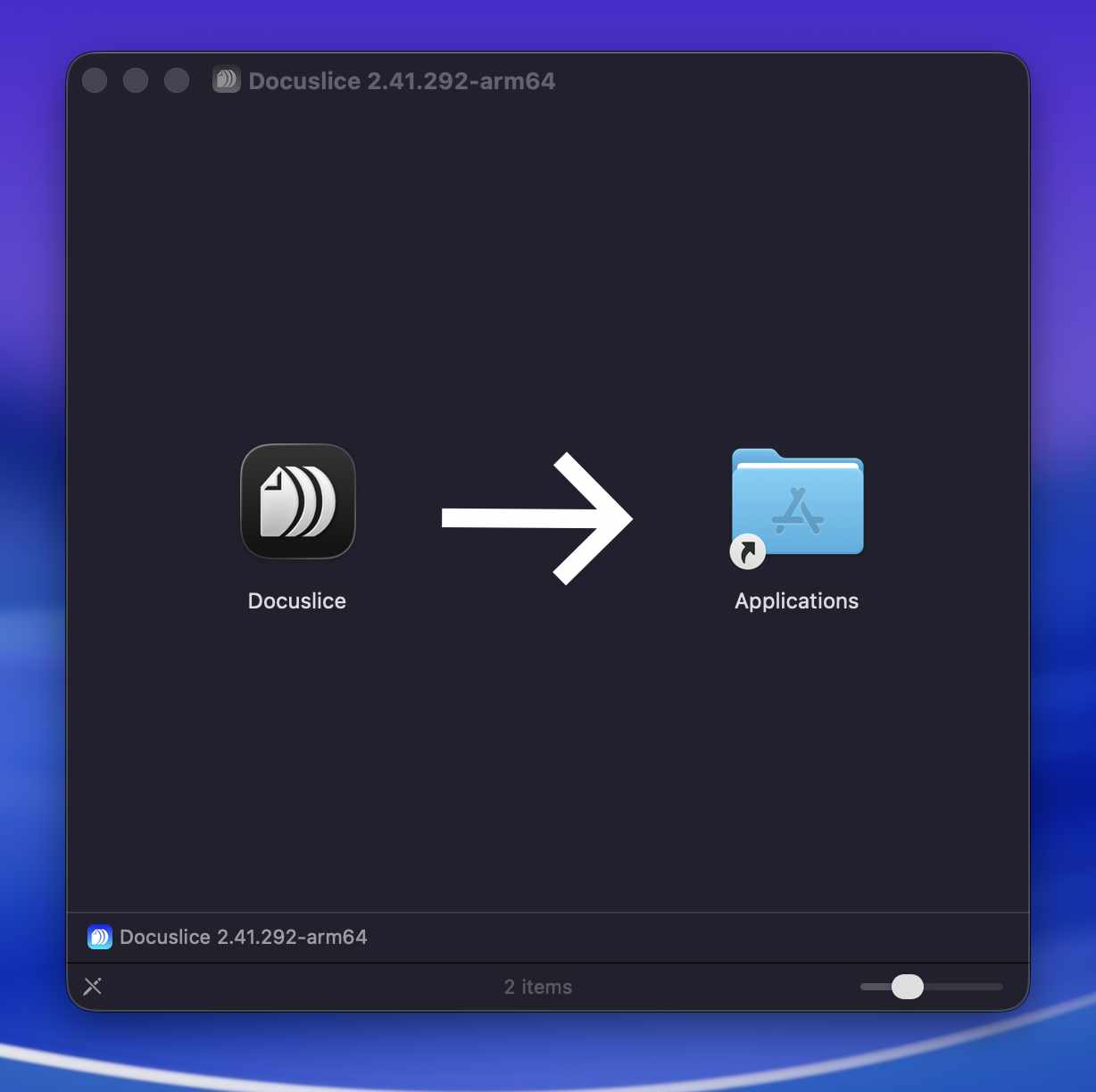
- 點擊 Finder 中磁碟映像旁的退出按鈕,退出磁碟映像。
第 3 步 — 開啟 Docuslice
- 開啟 Finder → 應用程式,雙擊 Docuslice。
- 如果 macOS 顯示安全提示(「Docuslice 因來自身份不明的開發者而無法開啟」),請按以下步驟操作:
- 開啟系統設定 → 私隱與安全性。
- 向下捲動找到關於 Docuslice 的安全訊息,點擊仍要開啟。
- 在確認對話方塊中點擊開啟。
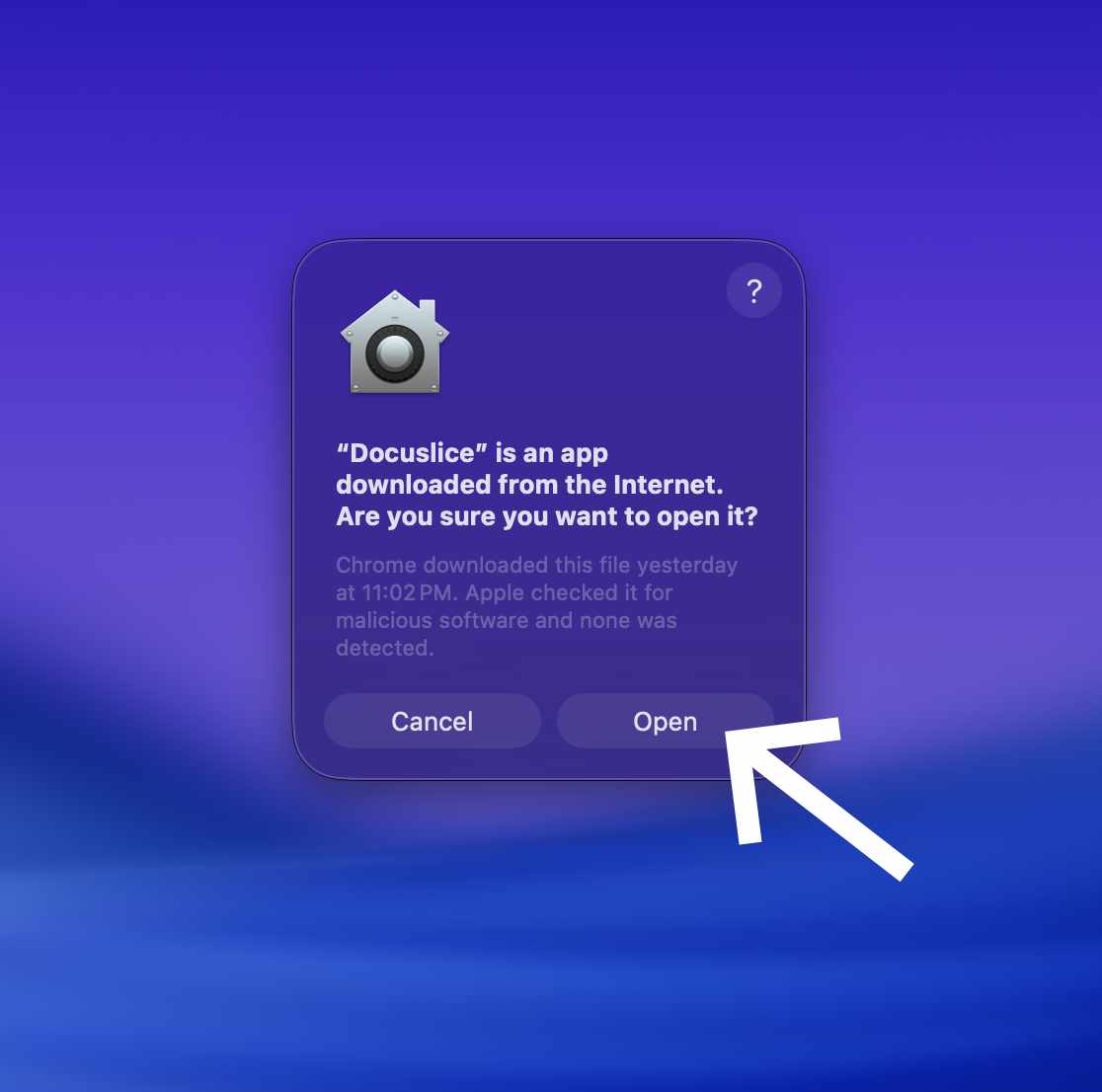
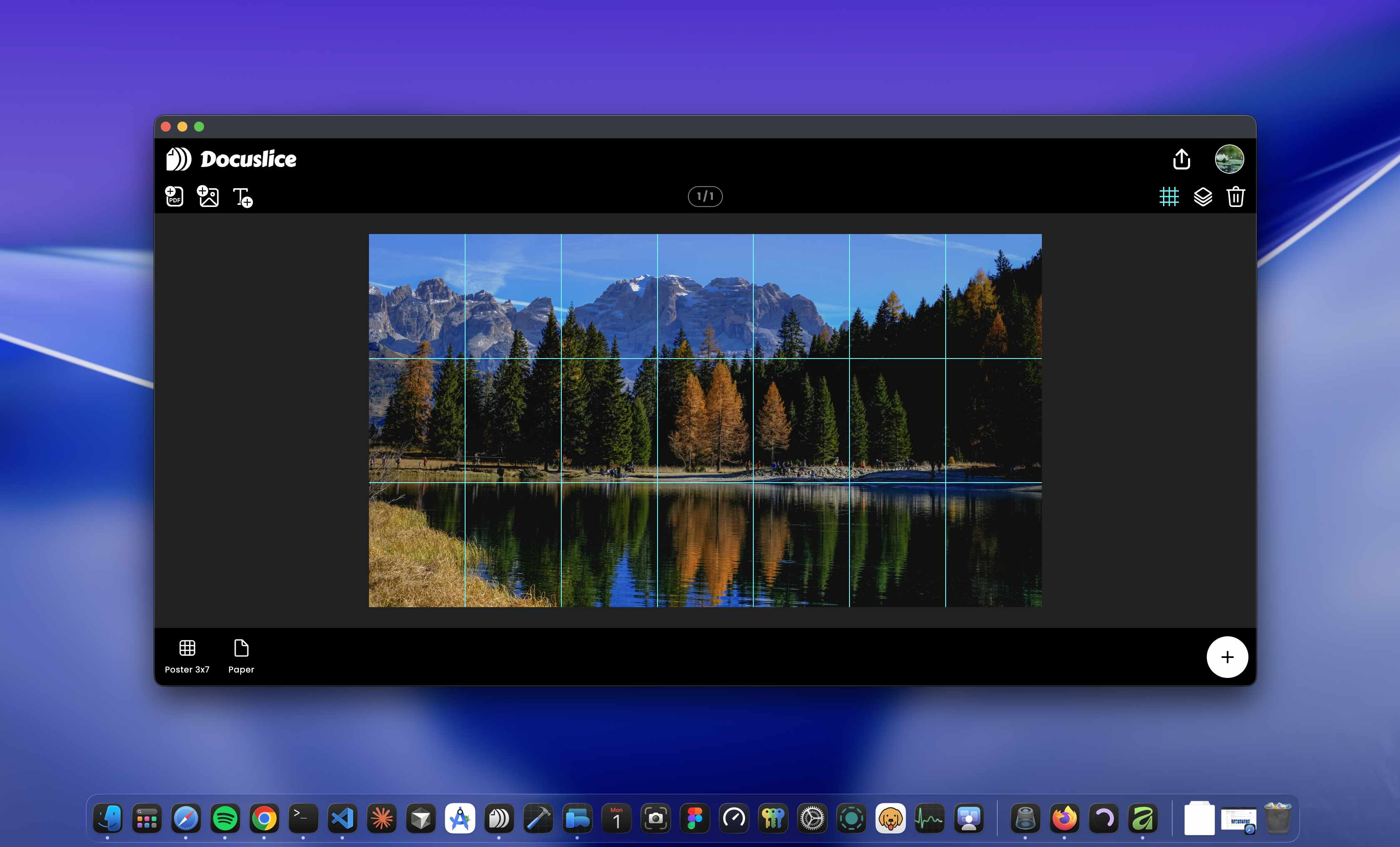
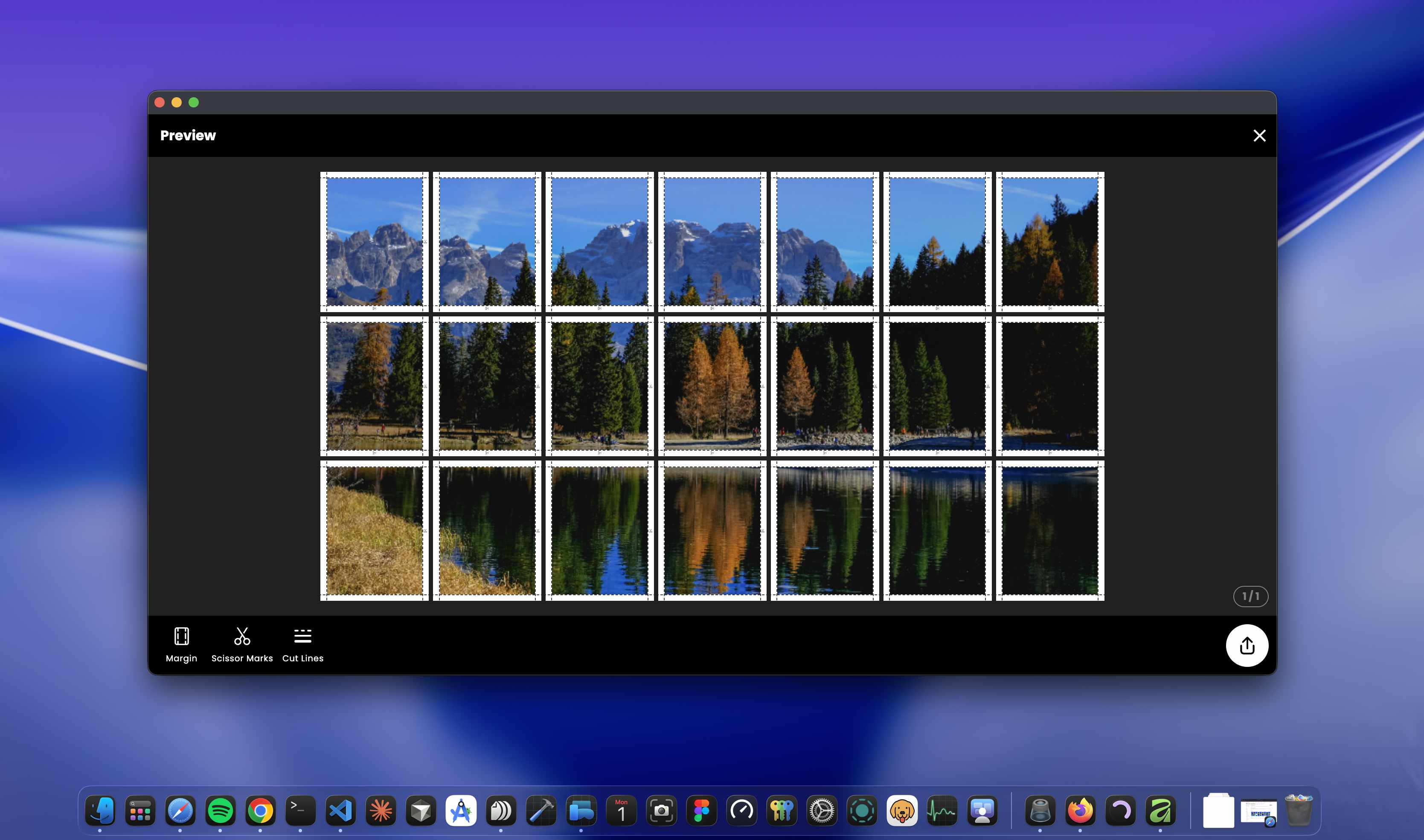
Docuslice 啟動後,您可以使用帳戶登入並開始使用。
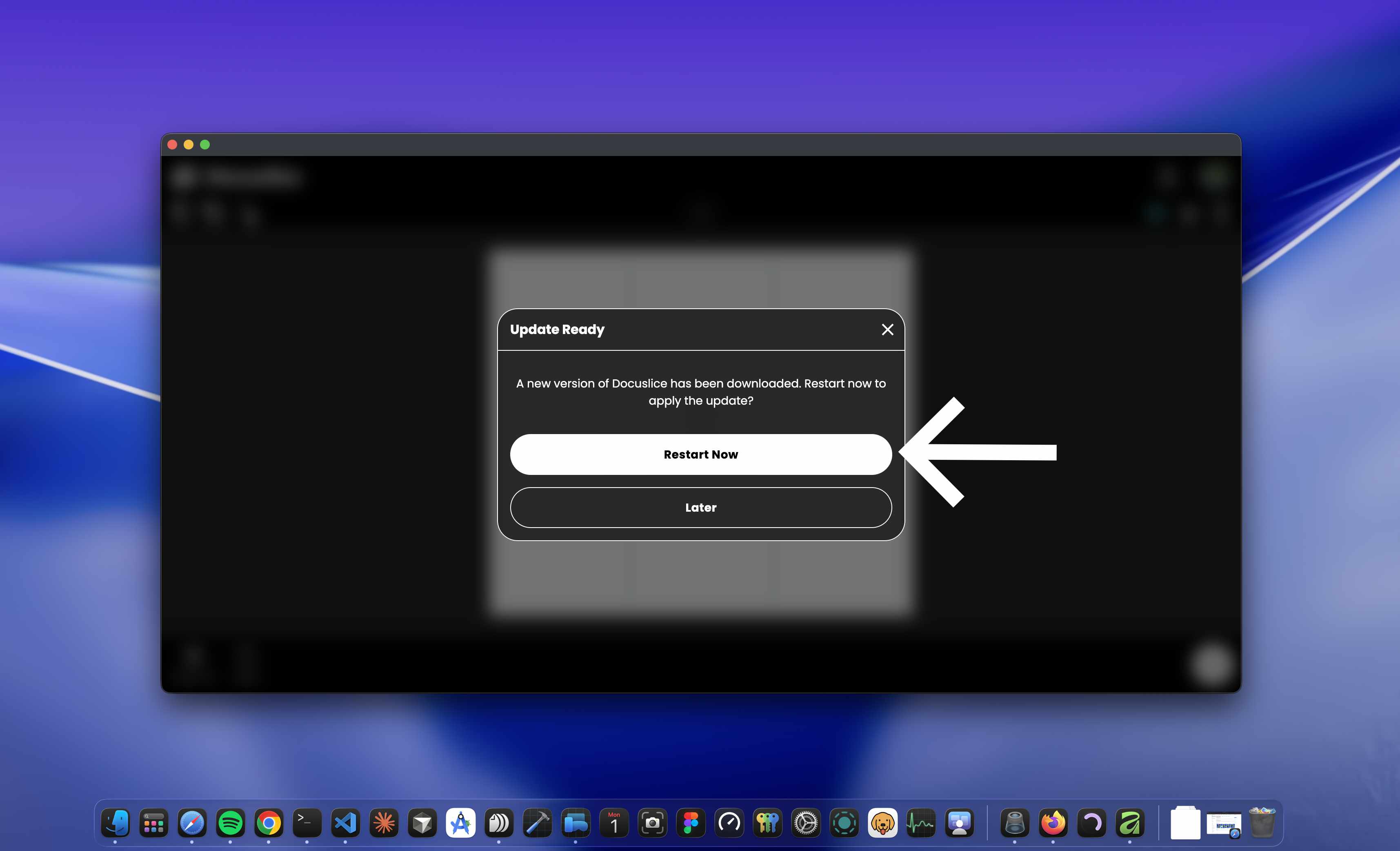
更新 Docuslice
Docuslice 在啟動時會自動檢查更新。當有新版本可用時,系統將提示您進行安裝。