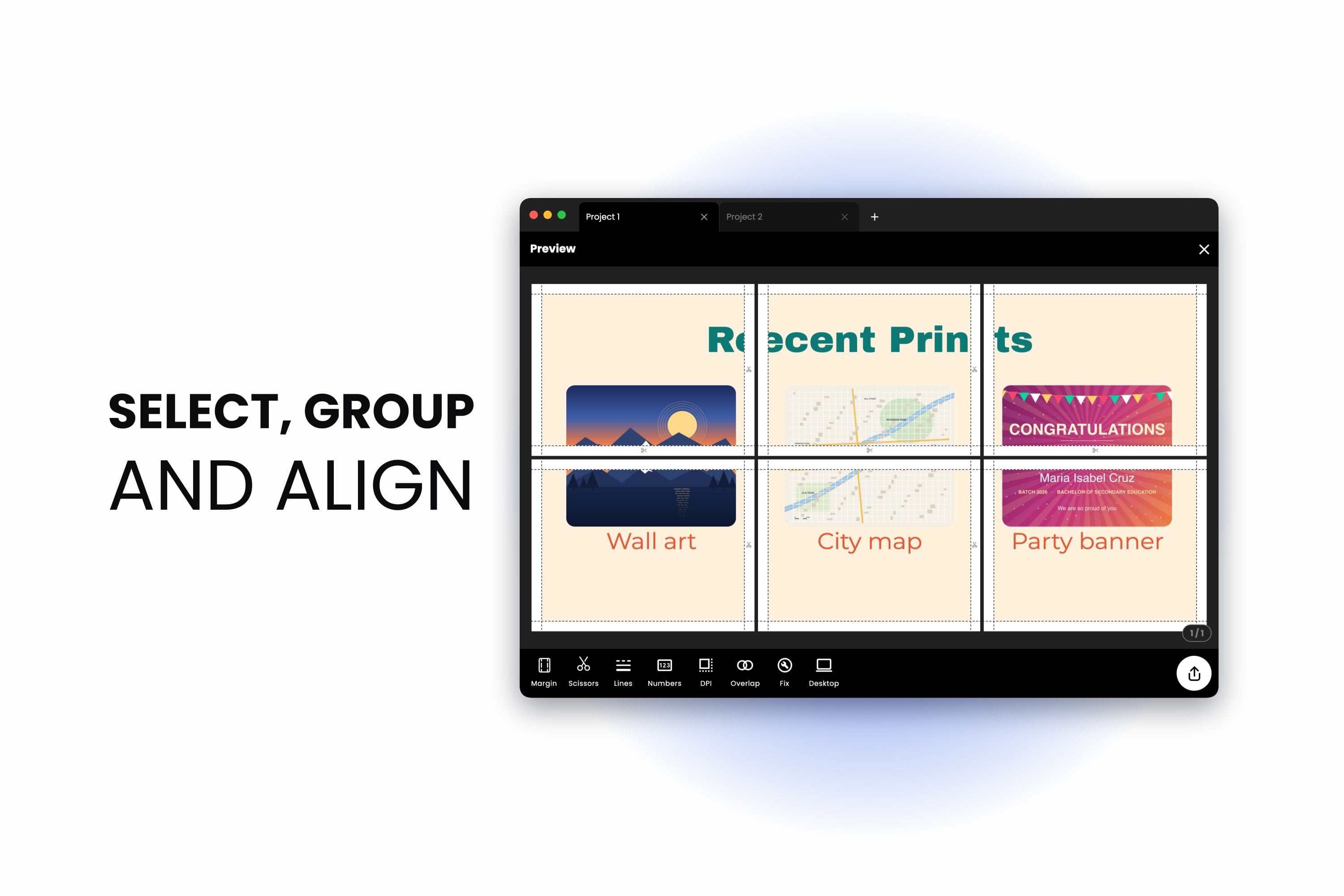
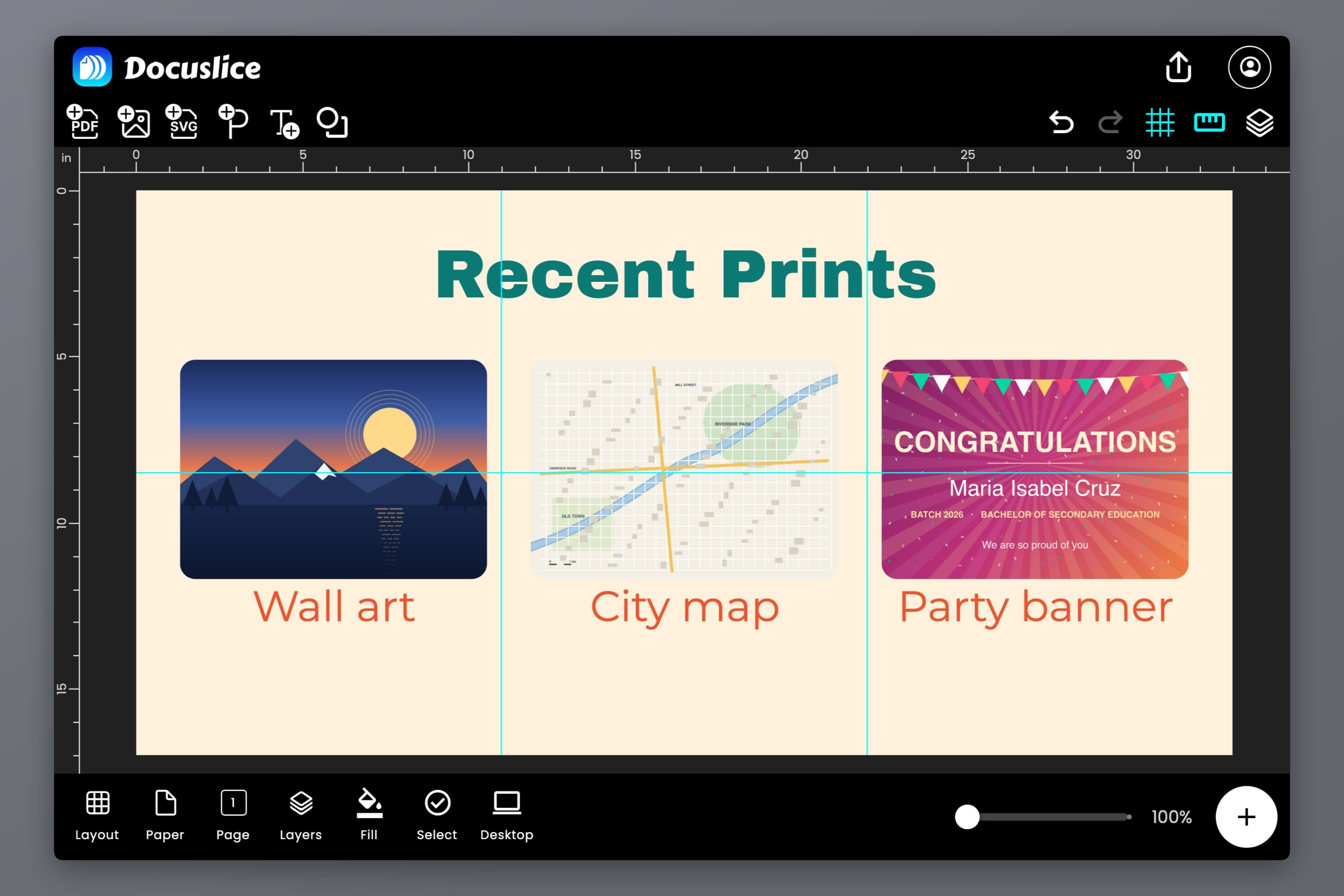
A poster with one photo is easy to arrange. A poster with a title, three photos, three captions and a logo is where the fiddling starts: move one thing, then the next, then the first one again because it's now a little off.
This release is about arranging. You can now select several objects at once, group them, align and distribute them with one tap, and lock or hide them in Layers — so the layout comes together the way you see it in your head.
Select Several Objects at Once
There's a way to do it on every device:
- With a mouse, in the browser and desktop apps: Shift-click each object, or drag a box across empty canvas to catch everything it touches. Cmd/Ctrl + A selects everything on the page, and Esc lets go.
- On a phone or tablet: press and hold an object. A checkbox appears on every object, and from then on each tap adds or removes one. Tap empty canvas when you're done.
- With the Select button in the canvas toolbar, on any device: every object shows a checkbox, ready to be picked. Tap Done to finish.
- In Layers: open the ··· menu, choose Select, and tick the rows you want — handy for an object that's hard to reach behind others.
Locked and hidden objects are never picked up by accident: they can't be selected until you unlock or show them again.
Move, Scale and Rotate Them Together
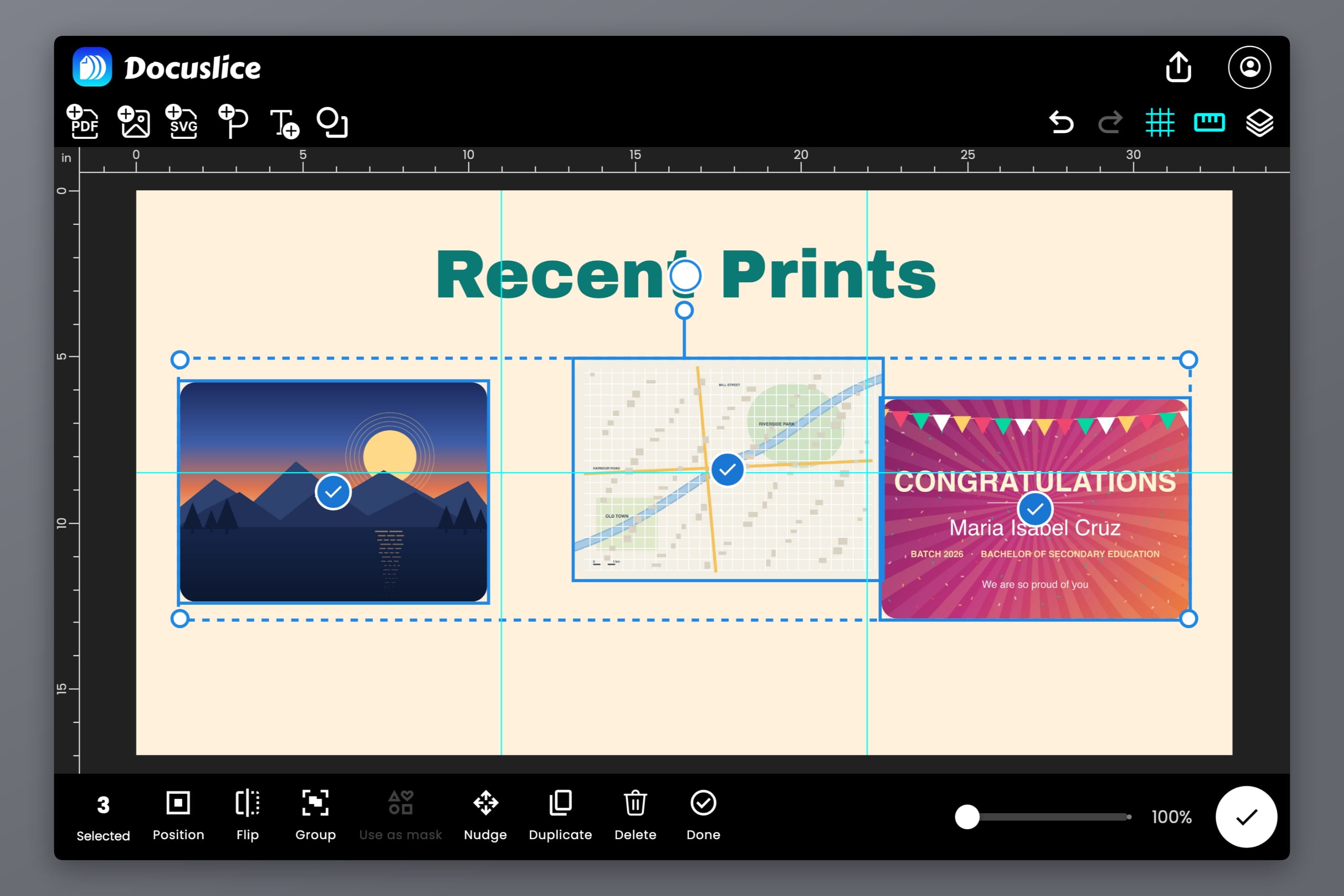
A selection gets one box around everything in it. Drag inside it to move them all, drag a corner to scale them together, or turn the rotate handle to spin them around their shared center. Outlines, rounded corners and text sizes all scale along with them, and the box snaps to the page and to other objects as one piece.
The selection toolbar shows how many objects you've picked, and what you can do with them: Position, Flip, Group, Use as mask, Nudge, Duplicate, Delete and Deselect. In the browser and desktop apps, copy, cut and paste work on the whole selection too.
Group Them
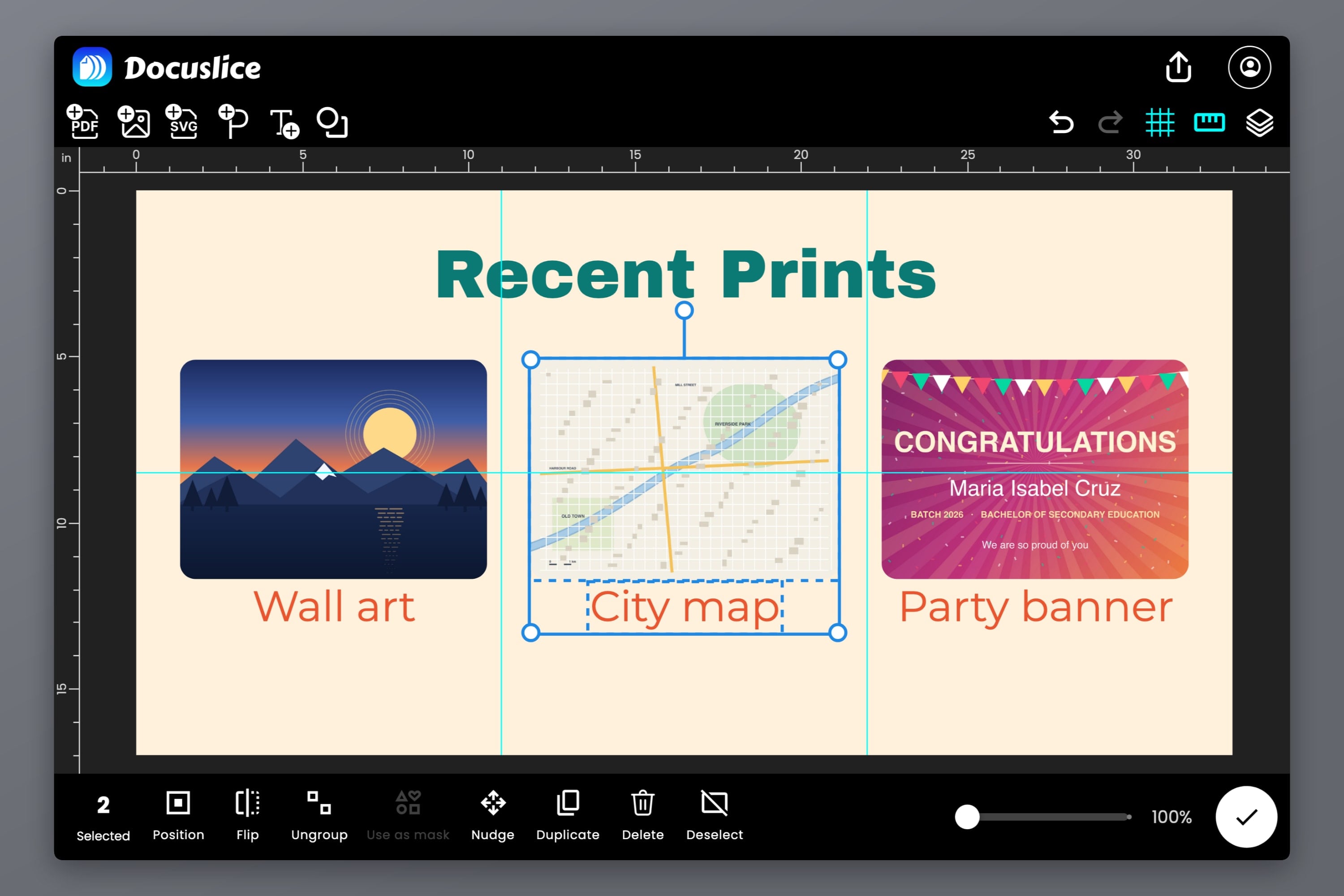
Some objects belong together — a photo and its caption, a logo and its tagline. Select them and tap Group (Cmd/Ctrl + G), and from then on they behave as one.
- One tap selects the whole group, anywhere in its box — even the space between its members.
- A second tap goes into the group and selects just the object you tapped, with its own toolbar, so you can edit a caption or restyle a photo without ungrouping.
- Move, scale, rotate, duplicate or delete the group, and every member comes along.
- Ungroup (Cmd/Ctrl + Shift + G) turns it back into separate objects.
A selected group draws a solid box around the whole thing, with each member's border dashed. Go into the group and the member you've selected turns solid — so you can always tell whether you're about to move the group or just one piece of it.
Align and Distribute With Position
The new Position button lines things up without any dragging:
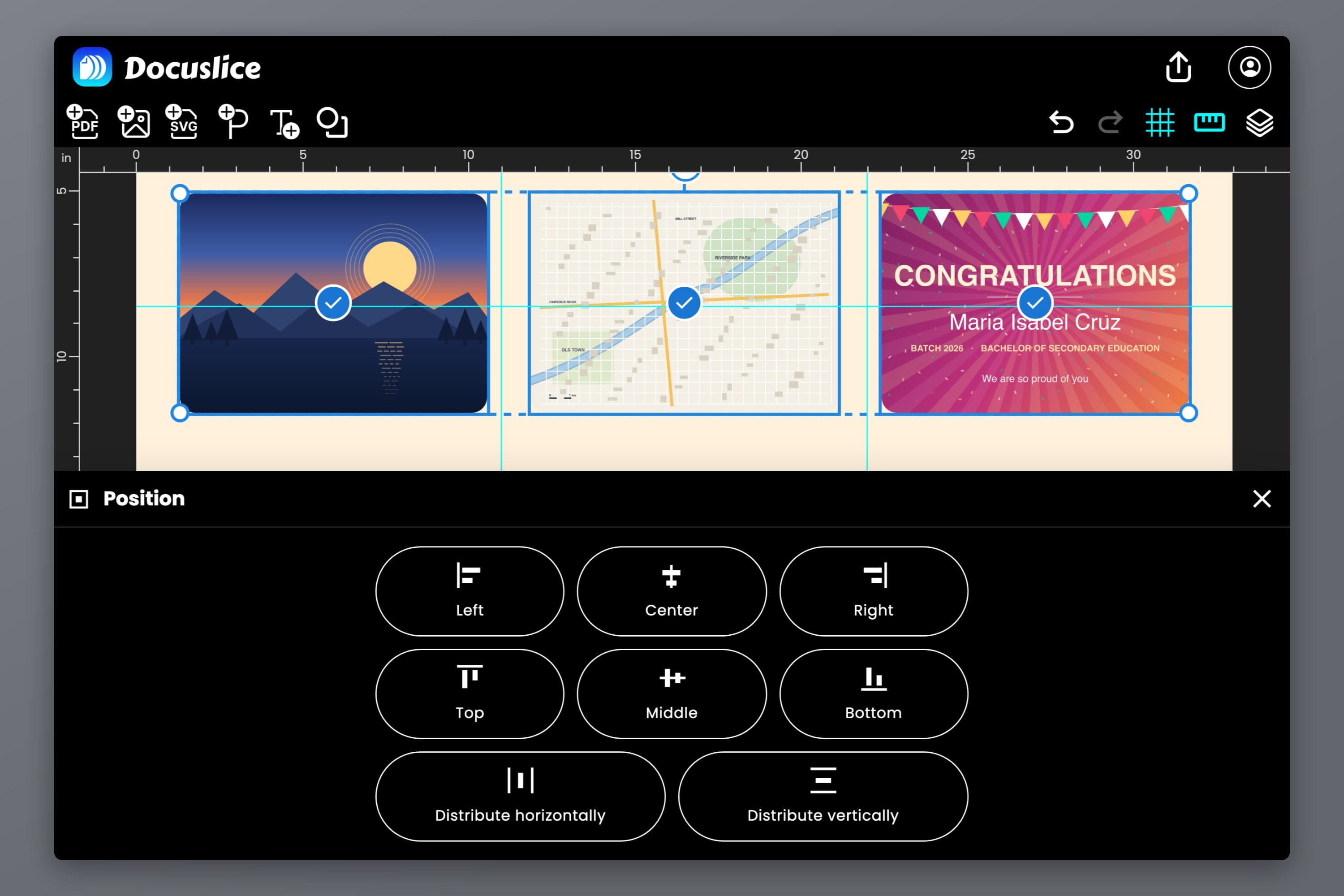
- Left, Center and Right line objects up across the page; Top, Middle and Bottom line them up down it.
- With one object or a group selected, they align to the page — the area that prints. Center and Middle together put it dead center.
- With several objects selected, they align to each other, within the box around them all.
- Distribute horizontally or vertically takes three or more objects and makes the gaps between them equal. The two outermost stay where they are, and a group counts as one object.
Three photos in a row, evenly spaced, centered on the page: select them and use Distribute horizontally, then group them and use Center. No measuring, no squinting.
Layers: Groups, Lock and Hide
Layers has grown into the control room for your poster.
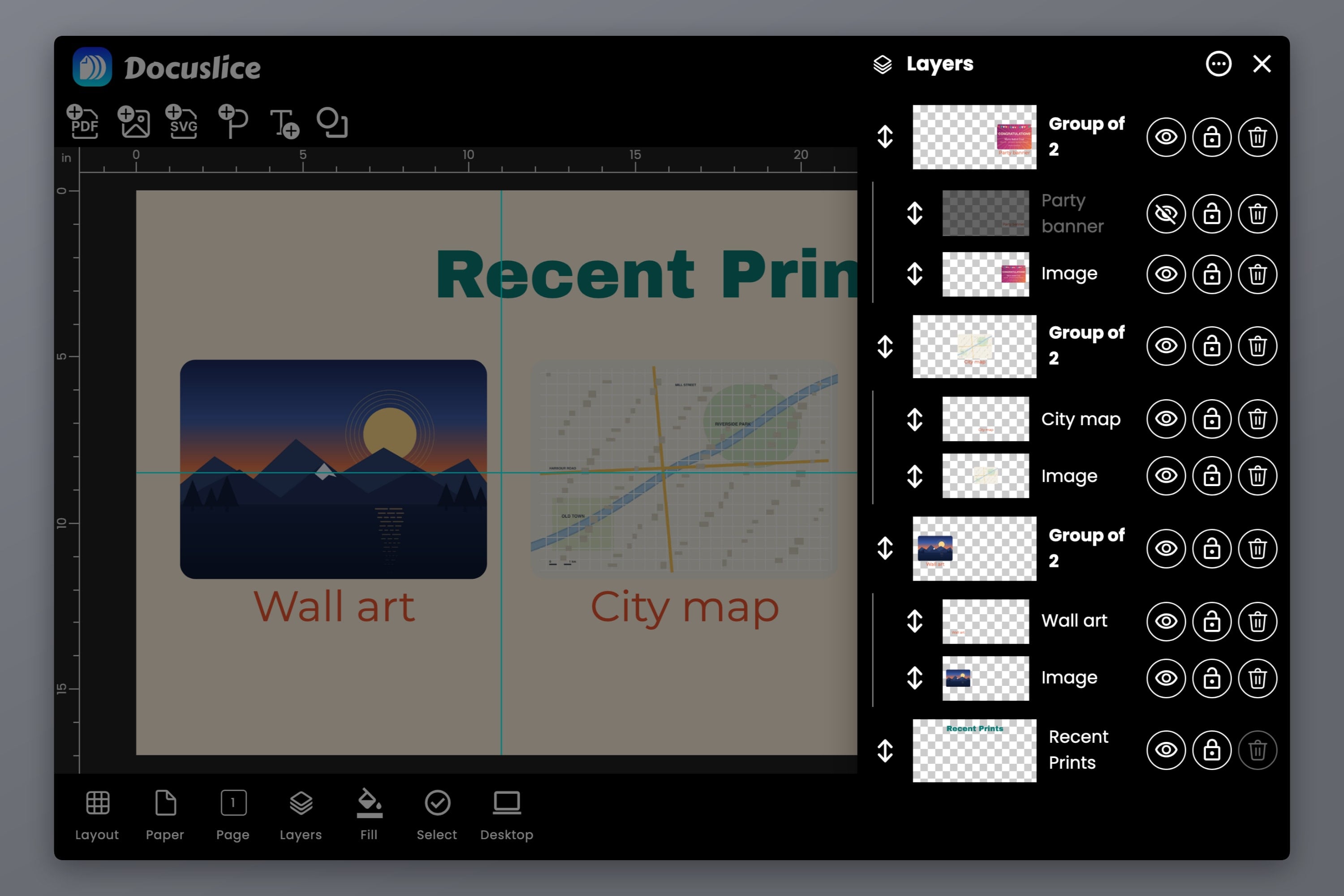
- Groups show as a single row with their members indented underneath, and a line down the side to show what belongs together. Drag the group's row to move the whole group up or down; drag a member to reorder it inside the group, or out of the group altogether.
- Lock an object and it stays on the page and prints as normal, but it can't be selected, moved or changed — and taps go straight through it to whatever's underneath. Perfect for a background photo you keep grabbing by mistake.
- Hide an object and it disappears from the canvas and the export, while staying in Layers, dimmed, ready to be brought back. Useful for trying a layout with and without something.
- The ··· menu turns on checkboxes for selecting, groups the rows you've ticked, or adds a new, empty group to drag objects into.
- Tap a member's row to select just that object, even when other members cover it on the canvas.
In a desktop browser and the desktop app, a Layers button now sits in the canvas header, right beside the ruler, so the panel is always one click away.
Nudge, and Resize From the Center
- Nudge is in every object's toolbar now, on every device: four arrow buttons that move the selection one small step at a time. Hold one down to keep moving. On a keyboard, the arrow keys still do the same.
- Resize from the center in the browser and desktop apps by holding Alt (Option on a Mac) while you drag a handle. A corner always keeps the object's proportions; to stretch, drag a side handle.
Prints the Same
Groups, selections and alignment change how you arrange the poster, never how it prints: grouping on its own changes nothing in the export. Locked objects print as normal, and hidden objects are left out of every export and thumbnail.
Available on Mobile, Web, and Desktop
Multi-select, groups, Position, Nudge, and lock and hide in Layers are in the mobile app (iOS and Android), the web app, and the desktop app (Mac and Windows, part of Pro+), and they're free on every plan.
The docs go further: selecting several objects and grouping, aligning and distributing, and layers and stacking order.
Frequently Asked Questions
Press and hold one of them. Checkboxes appear, and each tap after that adds or removes an object. You can also tap Select in the canvas toolbar, or tick rows in Layers.
Shift-click each one, or drag a box across empty canvas. Cmd/Ctrl + A selects everything on the page.
A selection lasts until you tap away. A group is saved with your project, so the next time you tap any member, the whole group is selected again.
Not yet — styling like fill, outline, opacity and shadow is set one object at a time. Inside a group, tap a member a second time to select it on its own and style it.
Select it, tap Position, then Center and Middle. For several objects, group them first so they're centered as one.
Select three or more, tap Position, then Distribute horizontally or Distribute vertically. The gaps between them become equal, and the two outermost objects stay put.
Groups don't nest. If you group a selection that includes a group, everything becomes one new group.
A locked object prints as normal — locking only stops it being selected or moved. A hidden object doesn't print, and doesn't appear in thumbnails, until you show it again.
Yes. Multi-select, groups, Position, Nudge, and lock and hide are free on every plan.
Download Docuslice
Update or download Docuslice today, and spend your time on the poster rather than on lining it up.