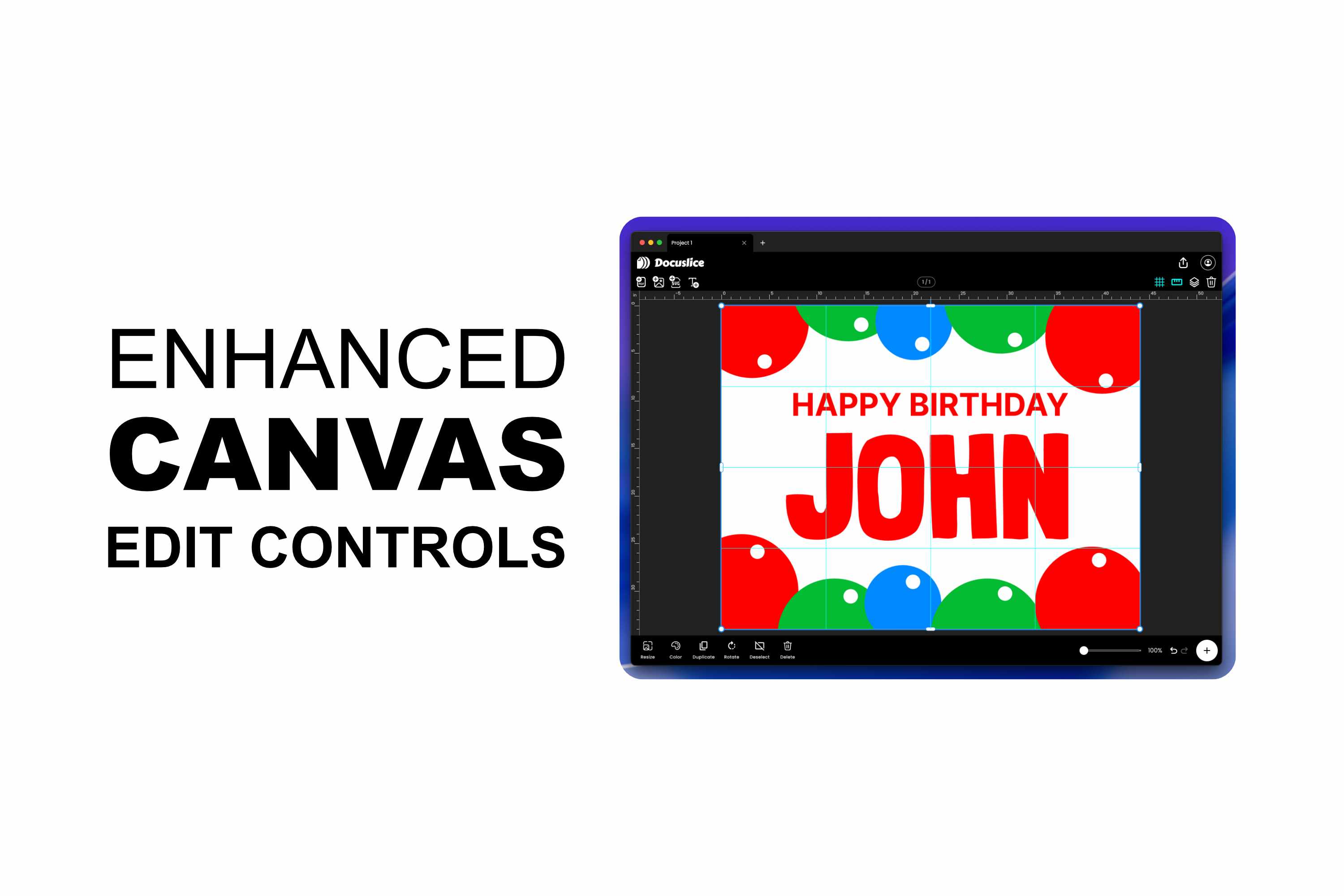
Great tiled prints start with a great layout — and a great layout needs an editor that gets out of your way. This release brings a big batch of improvements to the Docuslice poster editor, plus two new export controls that make printing and assembling your poster easier than ever.
We're excited to walk you through canvas editing enhancements, export page numbers, and selectable export DPI — all designed to give you more precision and a cleaner final print.
Canvas Editing Enhancements
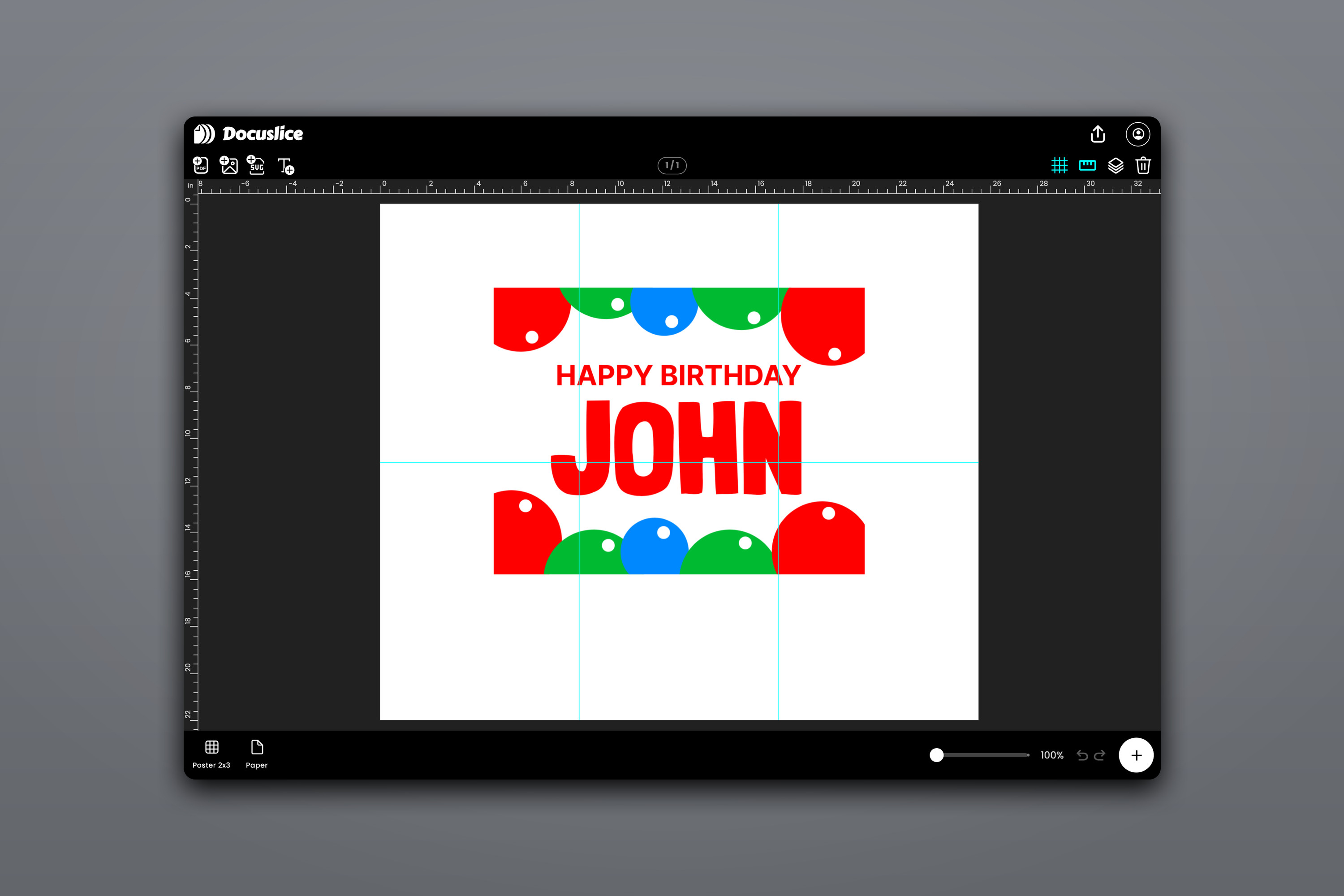
The poster editor — where you place and arrange images, SVGs, PDF pages, and text on your tiled canvas — has been rebuilt around a richer, more precise set of editing tools. Everything below works on mobile, web, and desktop.
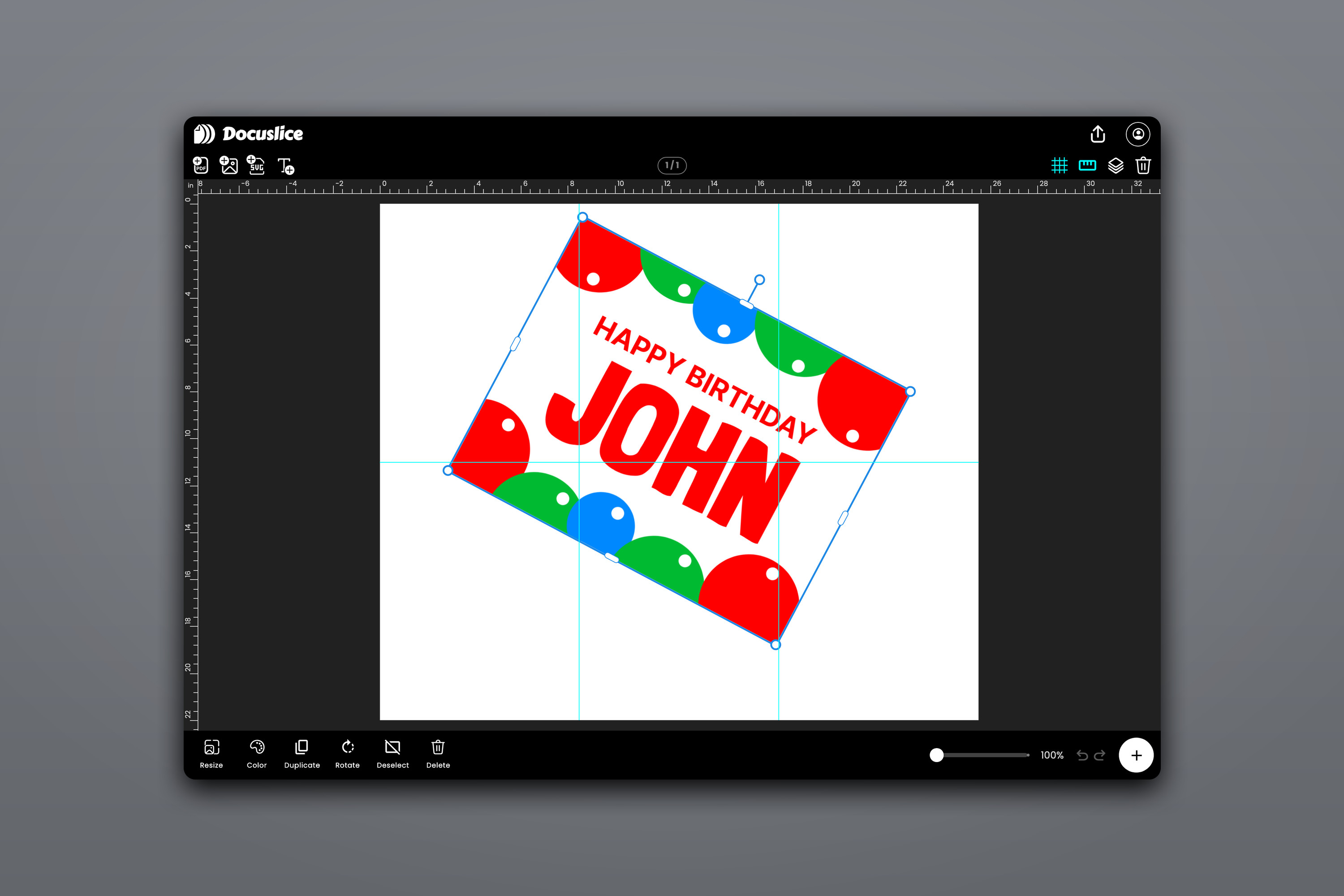
Free Rotation
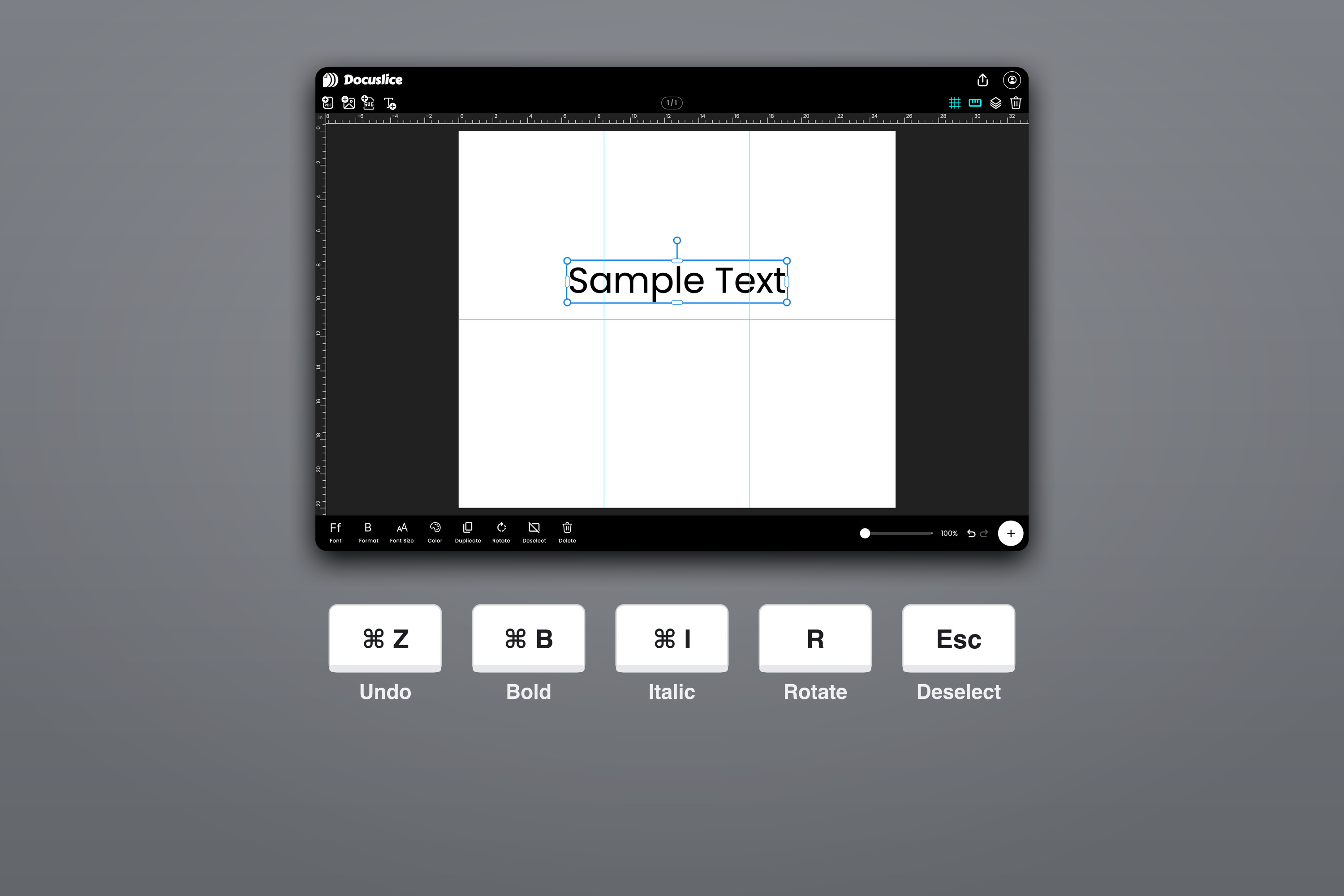
A Canva-style rotate knob now floats above any selected item, so you can rotate to any angle you like — not just 90° steps. Grab the knob, swing it around, and the item and its selection box turn together smoothly. (The toolbar still offers quick 90° rotations when that's all you need.)
Resize Handles — Corners and Edges
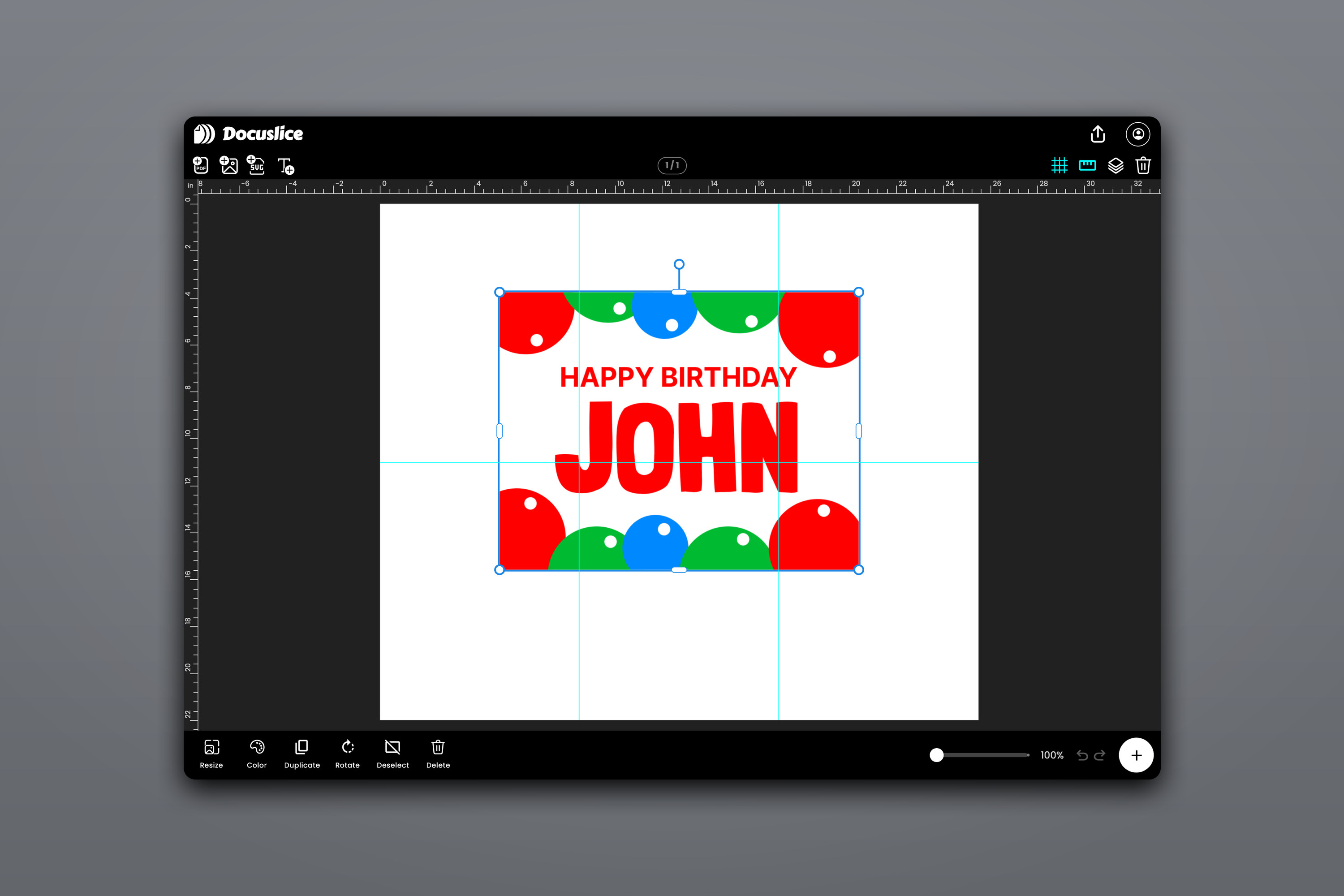
Selecting an item now gives you a full set of handles:
- Corner handles scale the item uniformly, keeping its proportions.
- Edge handles stretch a single side, so you can adjust width or height on its own.
Resizing is rotation-aware, so the handles behave correctly even on an item you've turned to an angle.
Alignment Snapping
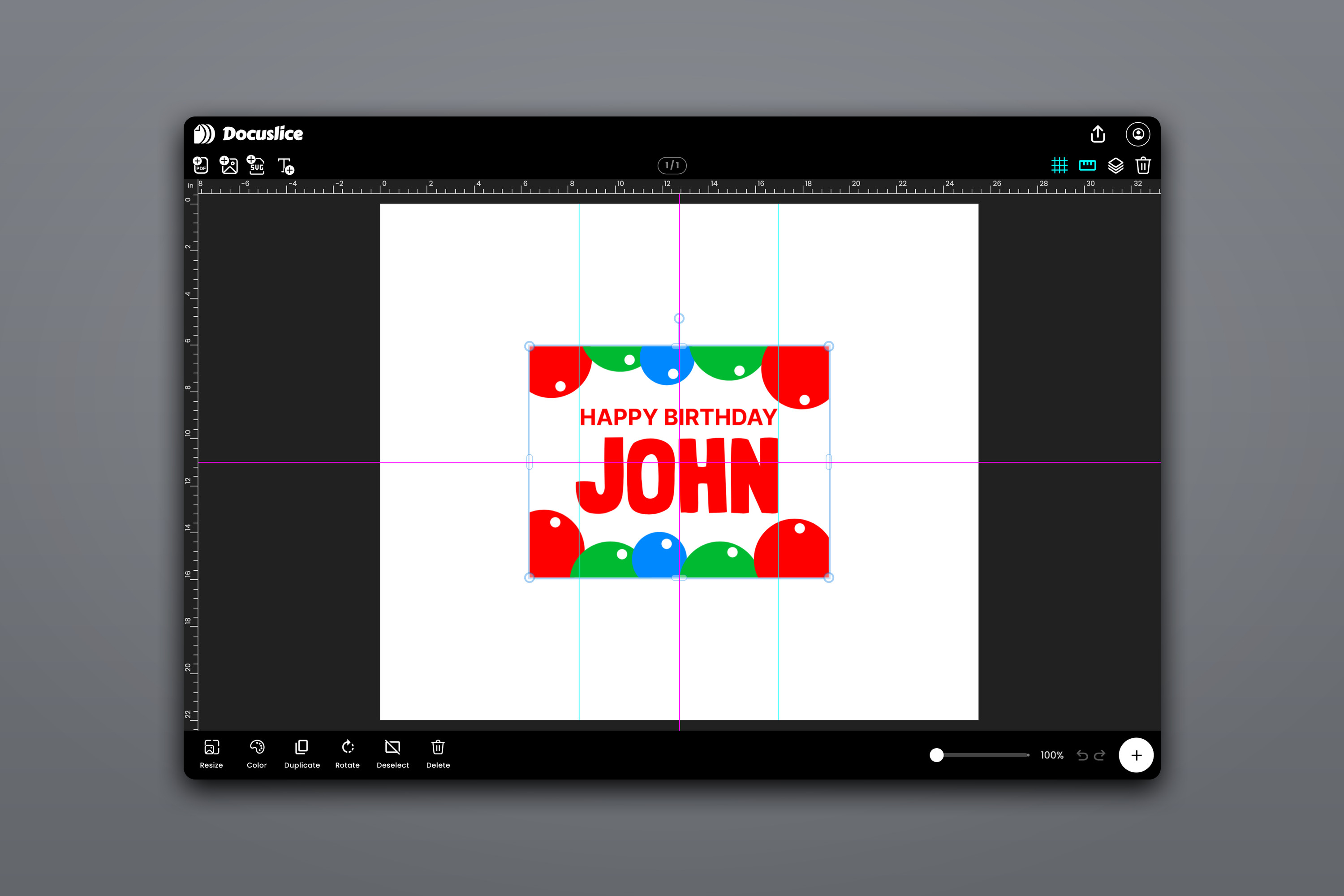
As you drag or resize, items snap into alignment with the page edges, the page center, your other items, and the tile dividers. A magenta guide line appears the moment something lines up, so getting things perfectly centered or evenly spaced is effortless — no more eyeballing it.
Rulers and Custom Guides
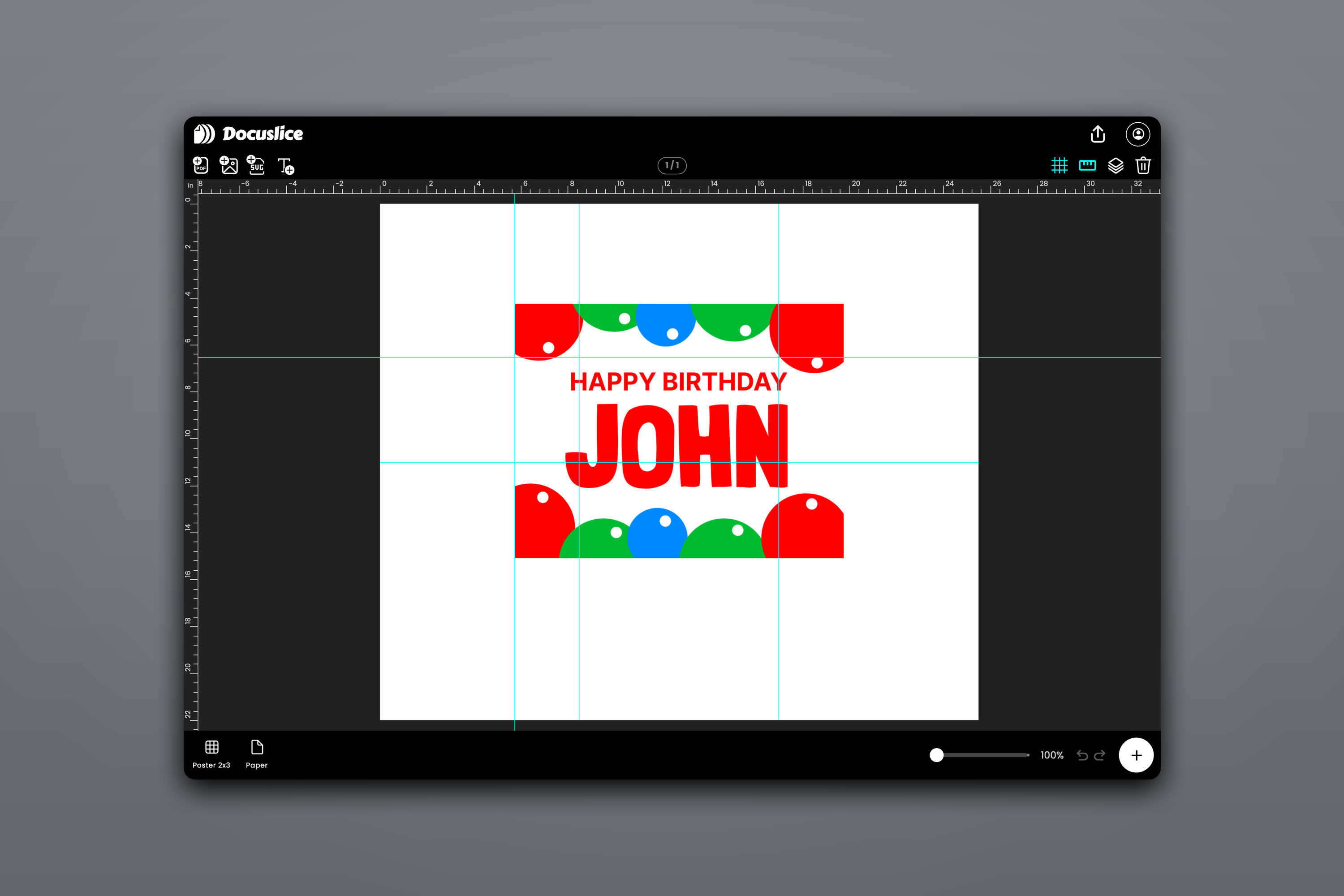
Turn on a Figma-style ruler along the top and left edges to see real measurements as you work. Drag inward from a ruler to drop your own guide line, reposition it any time with its knob, and drag it back onto the ruler to remove it. Items snap to your guides too, so you can set up a layout grid and place everything exactly where you want it.
Smooth Zoom and Pan
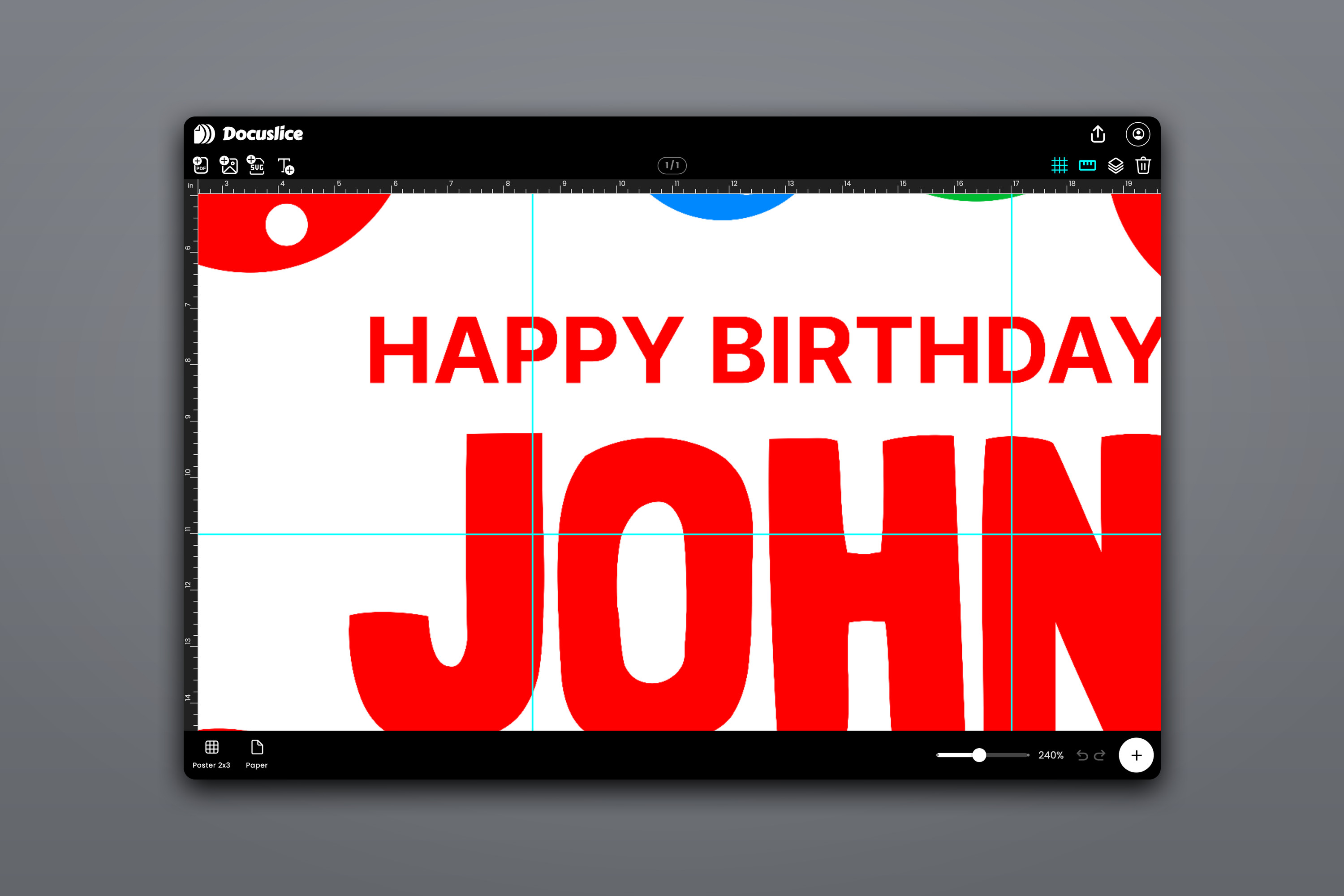
Pinch to zoom on mobile, or use your wheel and keyboard on web and desktop, to get right up close for fine adjustments and back out to see the whole poster. Your content stays crisp at every zoom level.
Undo and Redo
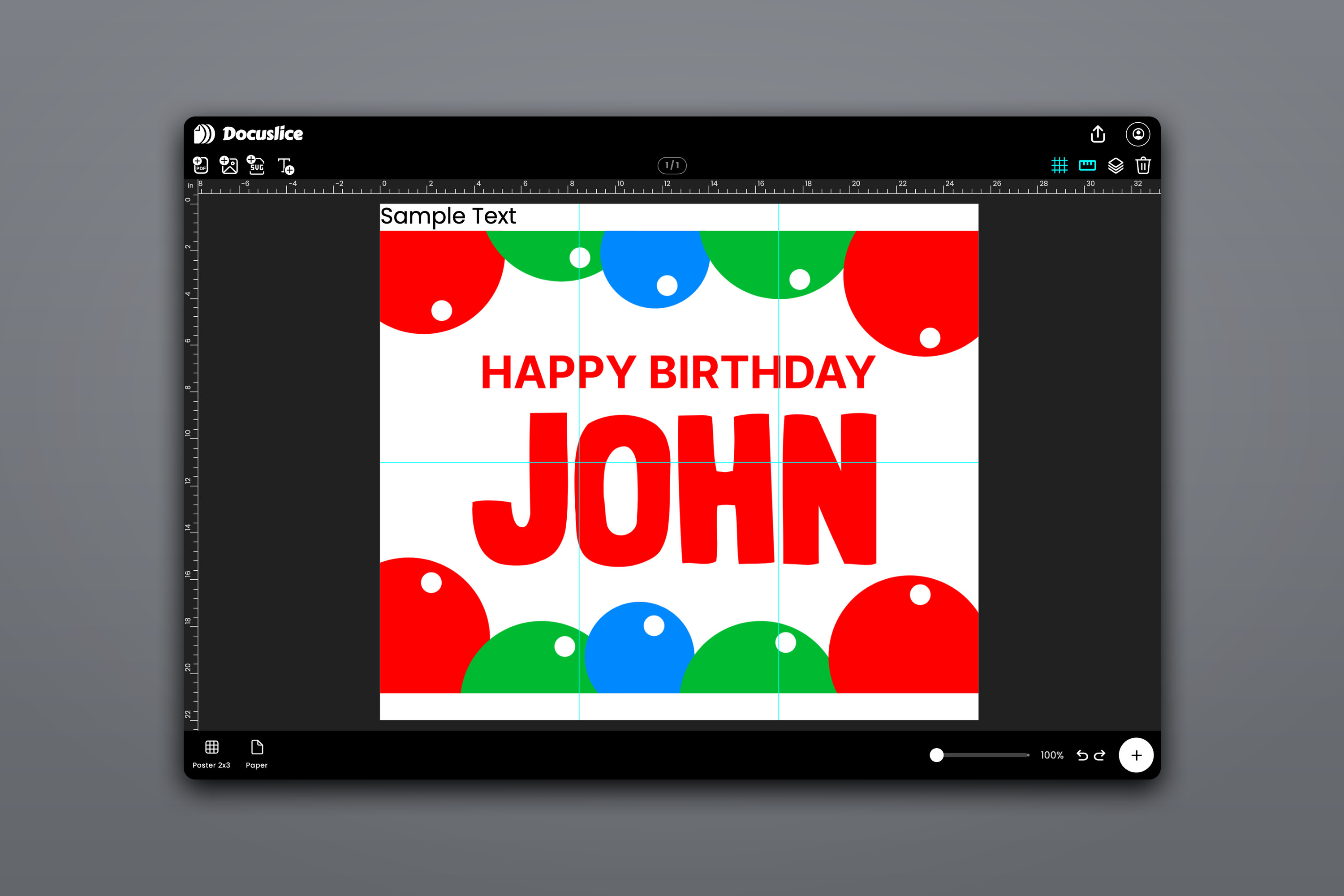
Every edit is now tracked, so you can undo and redo with confidence. Move something by accident, change your mind about a resize, or want to step back through a series of changes — it's all reversible. A quick continuous drag counts as a single step, so undo does exactly what you'd expect.
Keyboard Shortcuts (Web and Desktop)
If you edit on a computer, the poster editor now speaks keyboard. The shortcuts you already know from other design tools work right on the canvas, so you can keep your hands where they are and edit faster.
- Undo / Redo —
Cmd/Ctrl + Zto undo,Cmd/Ctrl + Shift + Z(orCtrl + Y) to redo. - Bold / Italic — with a text item selected,
Cmd/Ctrl + BandCmd/Ctrl + Itoggle the style — even while you're editing the text. - Delete — remove the selected item with
DeleteorBackspace. - Deselect — press
Escapeto clear your selection. - Rotate — tap
Rto spin the selected item 90°. - Zoom —
Cmd/Ctrl + =to zoom in,Cmd/Ctrl + -to zoom out, andCmd/Ctrl + 0to reset.
Shortcuts stay out of your way while you're typing in a text field, so they never fight with what you're writing.
Export Page Numbers
When you split a big design across many sheets, the printer hands you a stack of pages that all look nearly the same. Lining them up for assembly can be a guessing game. Not anymore.
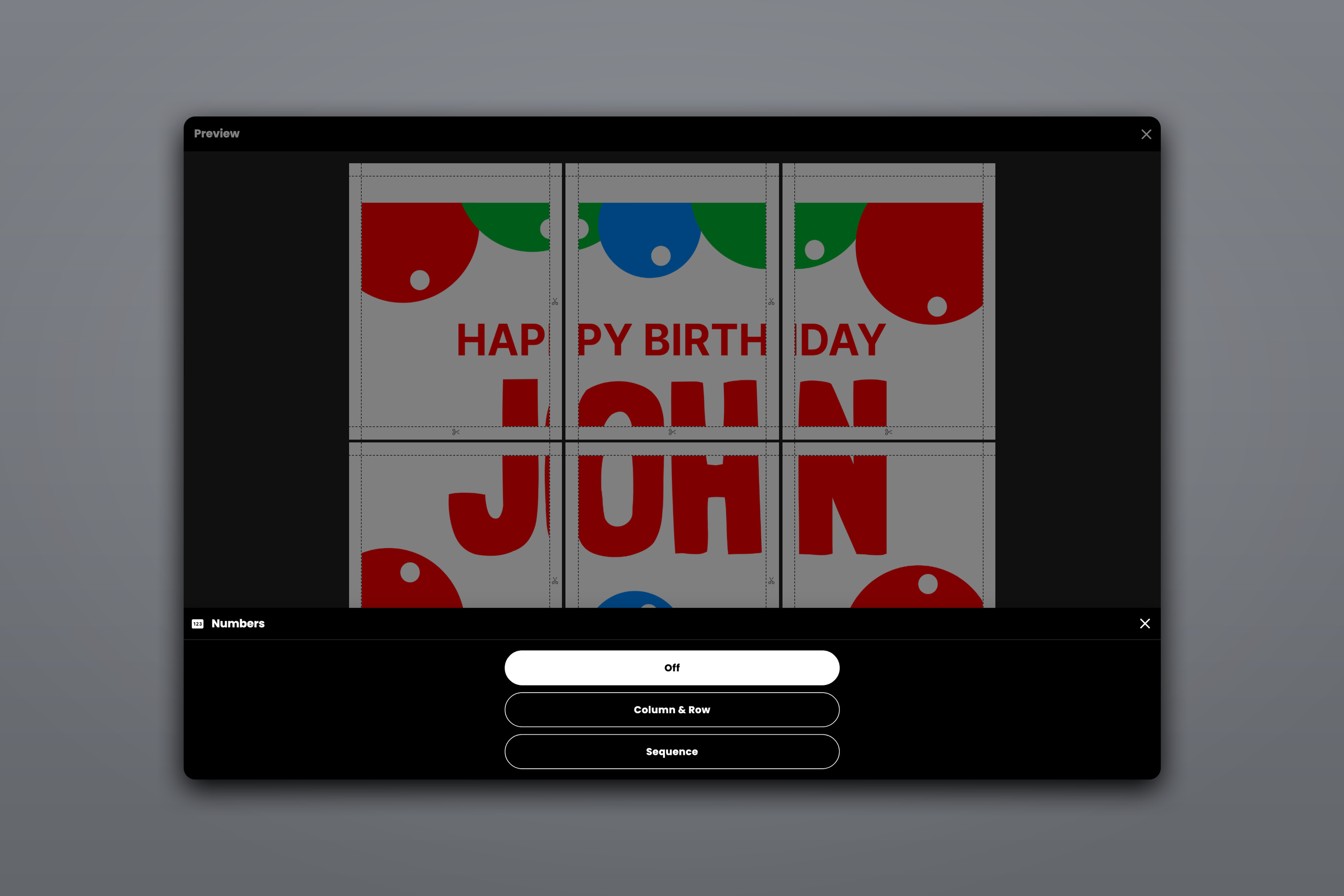
The new Numbers control in the export options stamps a small marking onto each tile so you always know where every sheet goes. You get three choices:
- Off — no markings (the default).
- Column & Row — grid coordinates on each tile, like
C2overR3, so you can place every sheet by its row and column. - Sequence — a simple running number (1, 2, 3…) across all the tiles.
The markings print neatly in the tile's margin, right next to the cut guides — so they're easy to read while you assemble, and they tuck away under the overlap seam once your poster is taped together.
Selectable Export DPI
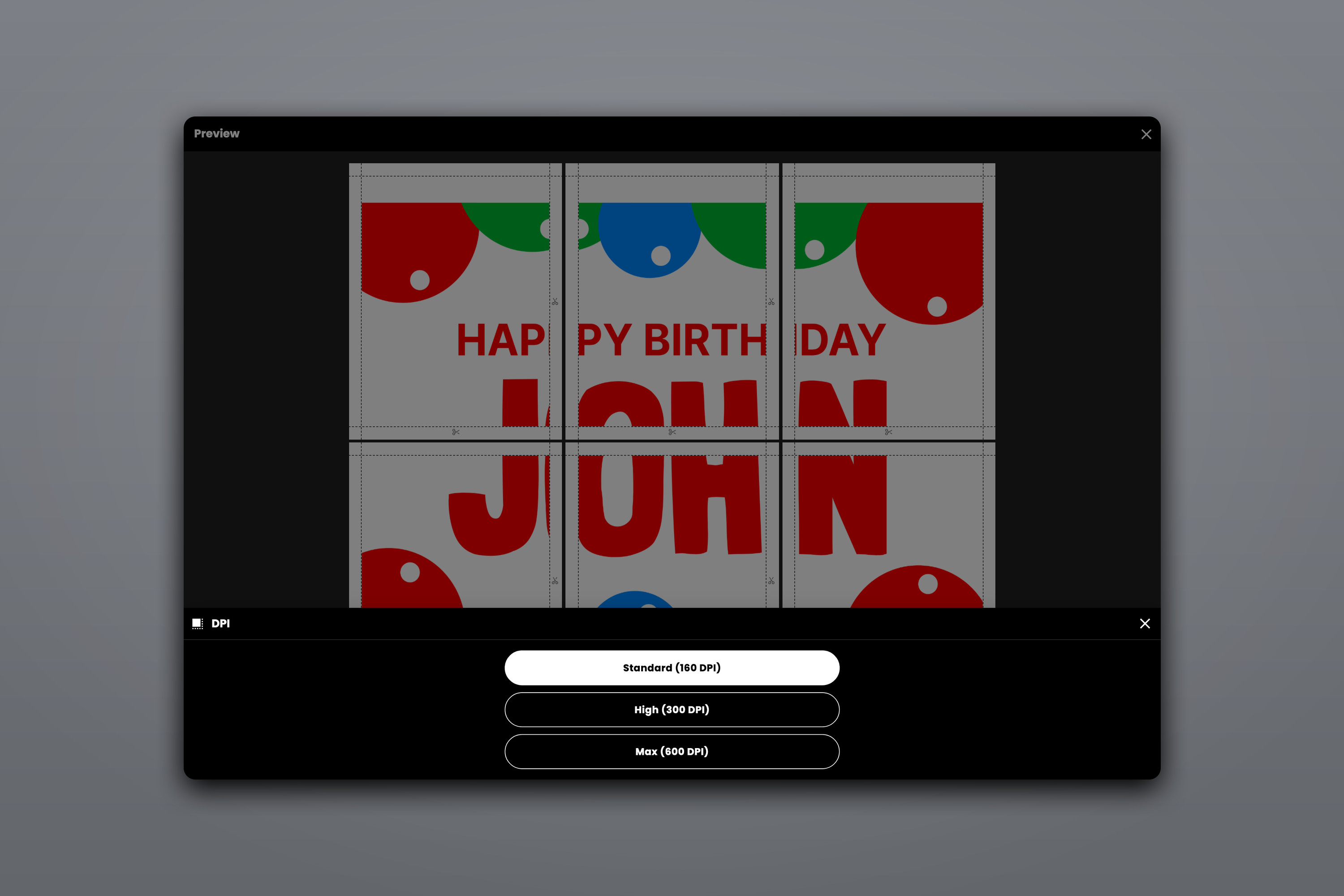
You can now choose how much detail Docuslice packs into your print with the new DPI control in the export options. Higher DPI means more pixels per tile — sharper edges and finer detail in the final print.
- Standard (160 DPI) — the default, great for everyday posters and always free.
- High (300 DPI) — crisper, print-shop-quality detail.
- Max (600 DPI) — the highest resolution, for the sharpest possible output.
The physical size of your poster never changes — only the amount of detail inside each page. Pick a higher setting when you want your text, lines, and fine detail to look their absolute best.
A Paid Feature — Pro and Pro+
High (300 DPI) and Max (600 DPI) export are available on the Pro and Pro+ plans. On the free plan you can always export at Standard (160 DPI), and if you pick a higher resolution, Docuslice will offer to upgrade you. The canvas editing tools and page numbers are available to everyone.
Just like every Docuslice paid plan, Pro and Pro+ are one-time payments — pay once and it's yours forever, no subscription.
Available on Mobile, Web, and Desktop
All of these improvements are available everywhere Docuslice runs — the mobile app (iOS and Android), the web app, and the desktop app (Mac and Windows) — so you get the same precise editor and export controls wherever you work.
Download Docuslice
Download Docuslice today and give your next poster the precise layout and sharp, easy-to-assemble print it deserves.